Adding the length mode for roll analysis of Adams Car Suspension Testrig
This example demonstrates the use of the MDI_SUSPENSION_TESTRIG for quasi-static suspension analysis. The length mode is added to roll analysis of the suspension testrig. The length mode means that you can define the vertical length of the center of the table for roll analysis instead of only the total vertical force. You can set the vertical mode to either "Force" or "Length" for roll analysis.
Model Description
A Suspension Assembly consisting of a double wishbone suspension including adjustable force and a rack and pinion steering system is provided. We carry out roll analysis in quasi-static suspension analysis with two setup mode for vertical control. One is "Force". Other is "Length". And we then plot some requests in order to make sure the differences. | 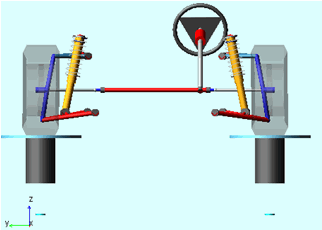 |
Performing the roll analysis in order to investigate the vertical mode.
Here you first analyze a double wishbone suspension including adjustable force.
1. Start Adams 2023.4, select Standard Interface.
2. Create a new Suspension assembly: File → New → Suspension Assembly. Fill the dialog box as indicated below. To select the subsystems, Right click → Search → <acar_shared> to open the file browser.
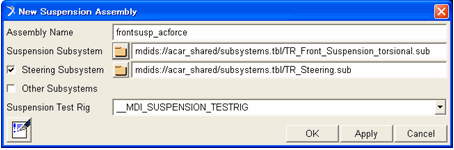
3. The suspension assembly should be displayed.
4. Go to Adjust → Adjustable Force. And select ".frontsusp_acforce.TR_Front_Suspension_torsional.afl_toe_adjustment" for the "Adjustable Force" field. Then you can see the desired value (-0.5). This value means that the toe angle is adjusted to -0.5 at setup phase.
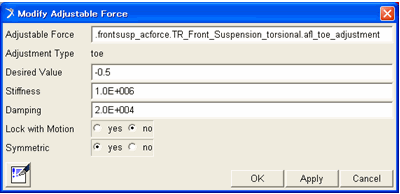
5. Go to Simulate → Suspension Analysis → Roll & Vertical Force…
6. Set up the analysis as follows. In this case, the vertical mode is controlled with Force mode during the simulation.
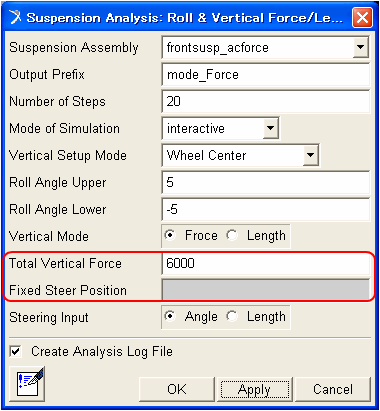
7. Click OK.
8. Go to Simulate → Suspension Analysis → Roll & Vertical Force… again
9. Set up the analysis as follows. In this case, the vertical mode is controlled with Length mode during the simulation.
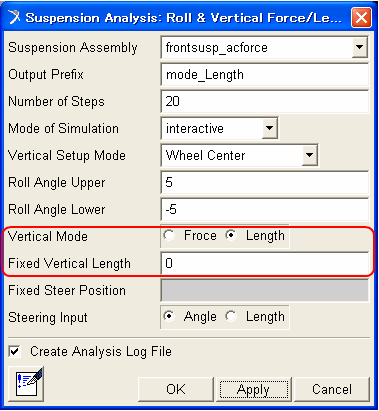
10. Click OK.
Review the results
1. Press the F8 key in Adams Car to switch to Adams PostProcessor.
2. From the simulation list, select the first analyses named "mode_Force_roll_angle".
3. From the right of the dashboard, set Independent Axis to Time.
4. Locate the left_tire_force and right_force REQUEST under user-defined REQUESTs. And select normal in component list.
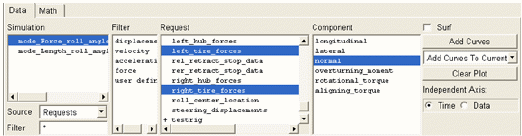
5. Select Add curve. The sum of two curves is always 6000N.
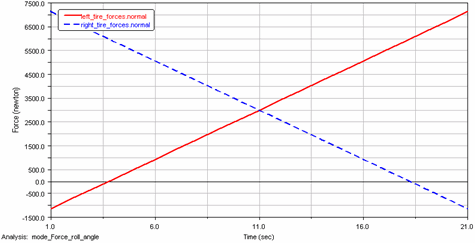
6. Create New page.
7. From the simulation list, select the first analyses named "mode_Length_roll_angle".
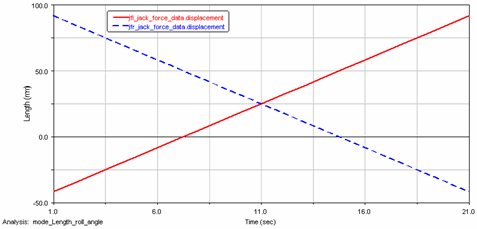
8. Locate the jfl_jack_force_data and jfr_jack_force_data REQUEST under user-defined REQUESTs. And select displacement in component list.
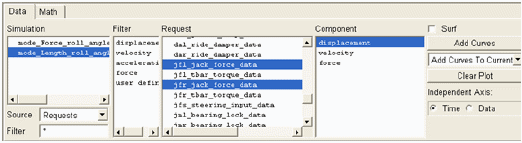
9. Select Add curve. The sum of two curves is constant. This means that the center of the table is constant during simulation.
Remarks
■When you create the loadcase file for roll analysis, the vertical setup mode is described as follows in loadcase file.
[MODE]
STEERING_MODE = 'angle'
VERTICAL_MODE_FOR_SETUP = 'wheel_center_height'
$ roll_angle / roll_angle_disp
VERTICAL_MODE = 'roll_angle_disp'
COORDINATE_SYSTEM = 'iso'