General Actuation Analysis feature examples
Extended description:
■Perform actuation analysis on assemblies.
■Create and modify RPC request map files in a much easier fashion.
■Create and modify actuator setting files (actuator input files) to “import/export” actuator settings.
■Modify actuator parameters in an assembly.
Submitting an actuation analysis
The example used in this analysis (actuation_example.asy) which is provided with the installation has no tires in it and has a special rim attached to the suspension instead of wheels.
For submitting an actuation analysis, do the following,
1. Open assembly (actuation_example.asy) for analysis.
2. Open the General Actuation Analysis dialog from the menu. (Simulate → General Actuation Analysis → Submit Analysis). All valid assemblies open in a session can be accessed through the drop down provided.
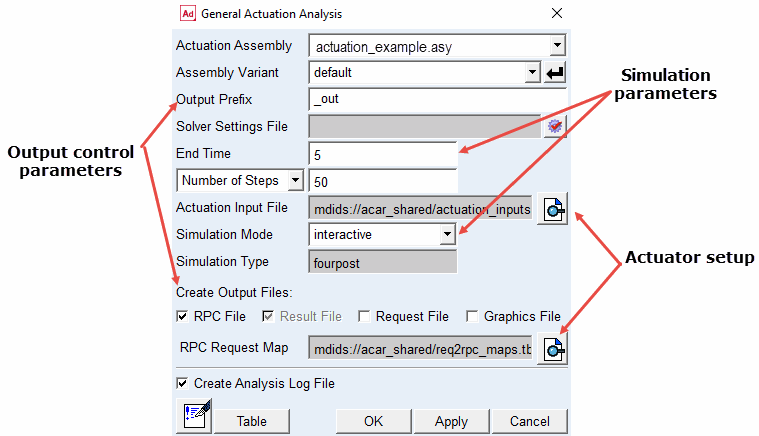
3. Enter the required parameters in the dialog. The allowed parameters can be classified into 3 categories (output control, simulation, actuator setup) as shown in the figure above.
Output control parameters: To define the output files generated as part of the analysis.
Simulation parameters: To define the simulation length, mode etc.
Actuator setup: To setup the actuator parameters.
Note: | The actuator setup is done through the 'RPC request map file' and the 'Actuation input file'. Sample files have been provided with the installation and may be used as an example |
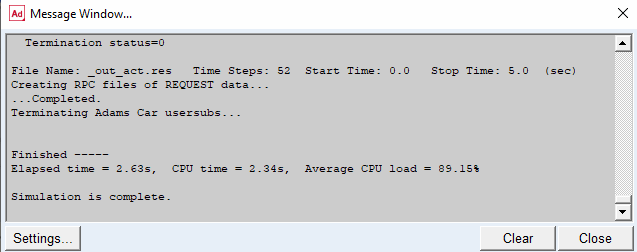
4. Click the OK or Apply button. The simulation progress will be indicated by verbose messages displayed in the message window and the end of the simulation will be indicated as shown in the snapshot below.
Note: | The environment variable MSC_FLATTEN_ADM should not be set. |
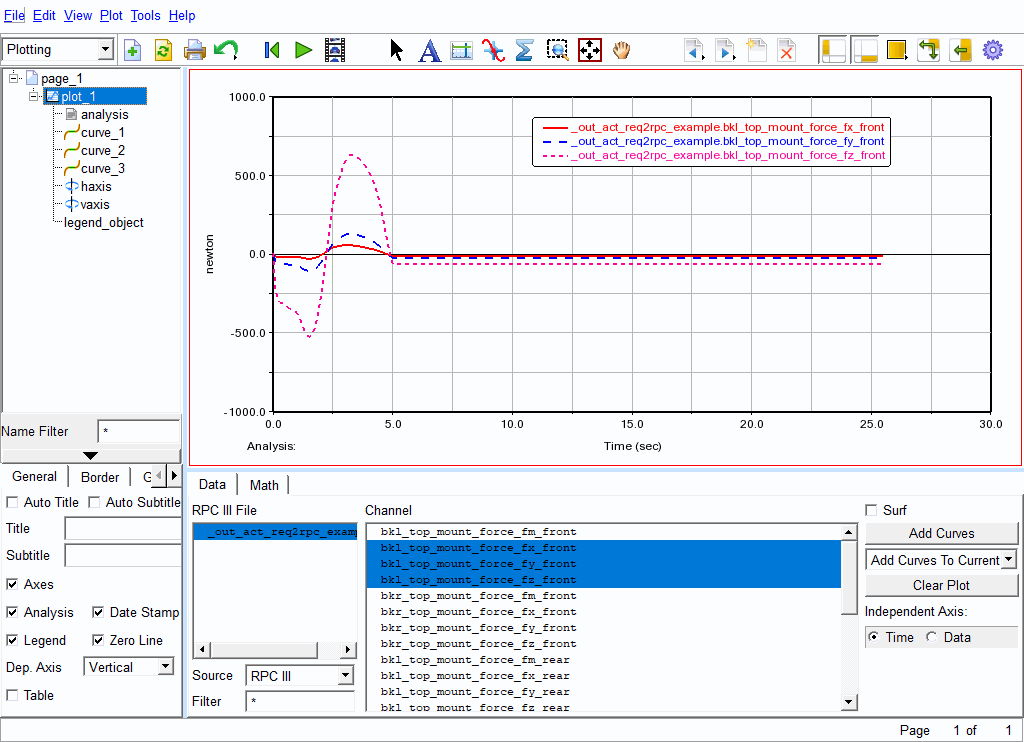
5. Once the analysis is finished, open the post processor (F8) and import the RPC file (extension.rsp) generated as part of the simulation output. The RPC would be located in the session working directory. Plot the results. An example plot is shown in the figure below,
Setting actuator parameters
The user is provided with the option of using a tabular interface wizard for editing actuator data. These options can be accessed through the Adjust → Actuators → Table/Wizard menus.
The wizard interface is as shown in the figure below,
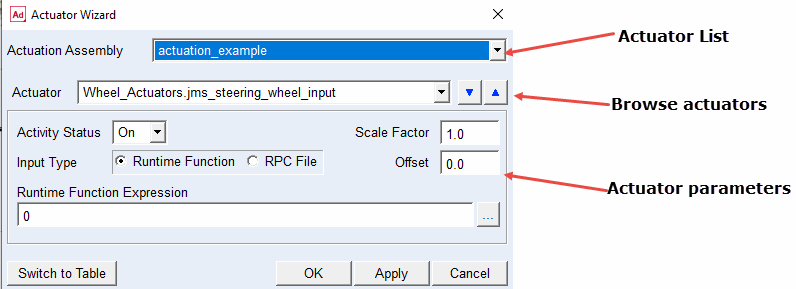
The desired assembly can be selected from the drop down list of valid assemblies open in the session. Upon selection, all actuators in that assembly are populated in the Actuator drop down.
The desired actuator can be selected either through the drop down or using the up-down arrow buttons. Parameter data related to the selected actuator is displayed in the dialog below and can be set by the user. The settings are saved to the assembly, using the OK/Apply button. Facility is provided to switch to the table view from the wizard.
The table view for setting actuator parameters is shown below,
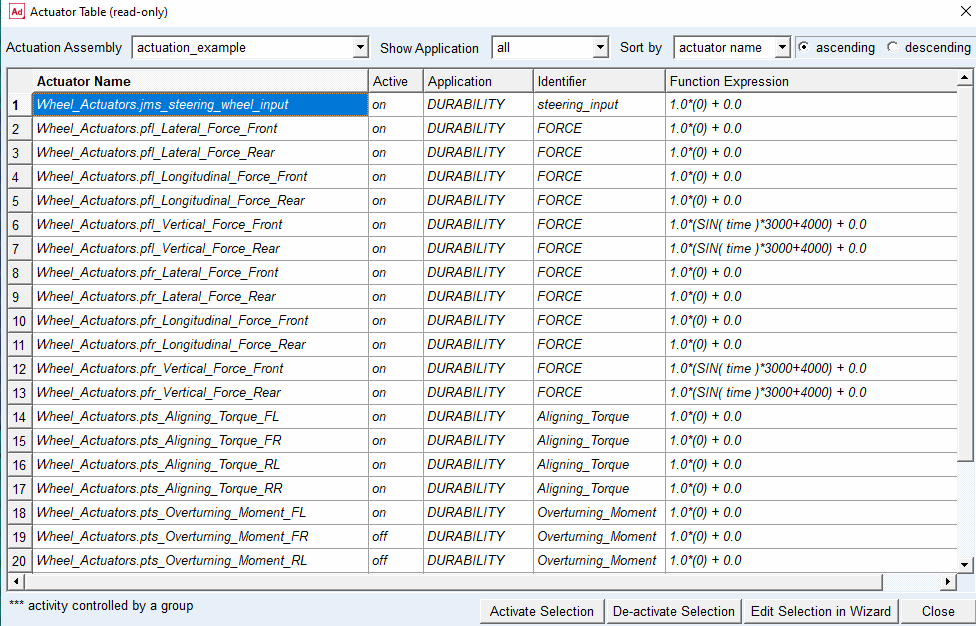
The table like interface provides the user with an easy way of looking at a list of actuators at once and activating/deactivating an entire selection. As shown in the figure the desired set of actuators is selected first. Using the Activate Selection and De-activate Selection buttons, the selected set can be activated and de-activated at once.
Besides this, the user can choose to edit the list of selected actuators in the wizard view, using the Edit Selection in Wizard button.
The actuator settings can be saved to a file using the Request map editor functionality, described below.
Request map editor
The request map editor allows the user to:
■Create and edit request maps that are defined in the database.
■Import a request map file and edit the requests defined therein.
■Save a set of requests to a request map file.
The request map editor functionality can be accessed from the Standard Interface menu Tools → Requests → Request Map Editor. It can also be accessed from the Template Builder menu Build → Requests → Request Map Editor. The user can select to display all requests, or browse for requests from the selected model (Using the All and Browse buttons respectively).
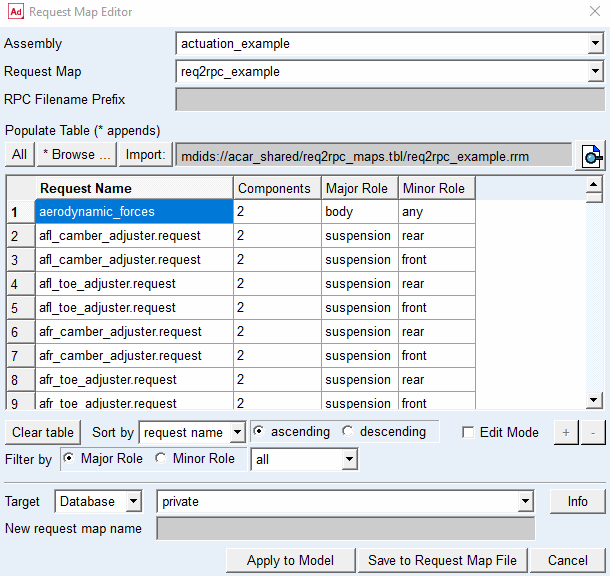
In order to edit the request data in the table, the user needs to explicitly switch to the edit mode, using the corresponding check button provided.
The request data is displayed to the user in the tabular form and can be sorted, which makes it easier to locate and edit the desired request(s). The user may choose to apply the changes to the model directly, or alternatively, save the data to a request map file. Request maps saved in a template will automatically be used when a subsystem referencing that template is opened in an assembly. Any request maps that have the same name will be merged at the assembly level.
Opening/Saving an actuation input map file
An actuation input map file contains a series of parameter-value pairs corresponding to one or more actuators in an assembly. The parameters include major and minor roles of the actuator, scale factor, offset, time offset, RPC function etc. Such a file provides an easy way of setting up a large number of actuators at once.
A facility has been provided to the user to view/open an actuation input map file or create one using actuator data from a valid assembly. The open/save functionality can be accessed from the menu-group Simulate → General Actuation Analysis → Actuation Input File.
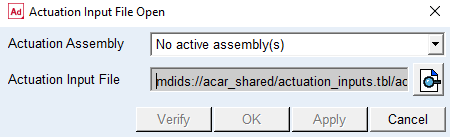
It's not necessary to have any valid active assemblies open in a session, in order to view an existing actuation input file. Select the desired file and click on the button with a magnifying glass, in order to open the file.
Note: | The file gets opened in the user set editor as defined by the optional environment variable MDI_ACAR_USE_EDITOR. If the variable is not defined, then the file is opened in the message window. |
If a valid assembly is open in the session, then the verify functionality is available, by which the user can compare the actuator data in an assembly, with that in the file. The comparison reports actuators present in the file that are absent in the assembly as well as incorrect roles set for the actuator, if any. A sample comparison message is shown below,
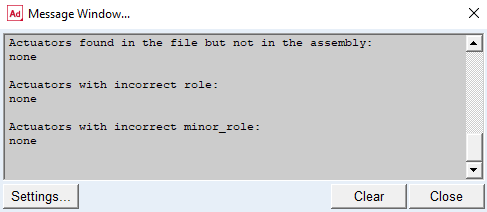
Alternatively, a valid assembly can be opened and the actuator settings can be changed manually for each desired actuator. Using these settings, an actuation input map file can be generated as follows,
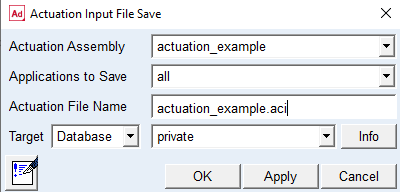
A facility to export the actuators setting that belong to the specific type is provided. By default data belonging to all actuators within an assembly is exported. Specify the file name and the database location to save the file and hit the OK/Apply button to create the file.