Custom Event Example 1: Custom Swept Steer Integrated In Standard Dialog Box
In the folder <Adams installation directory>/acar/examples/custom_events/swept_steer there are files for a swept steer event which as a custom Steering Function input added to it.
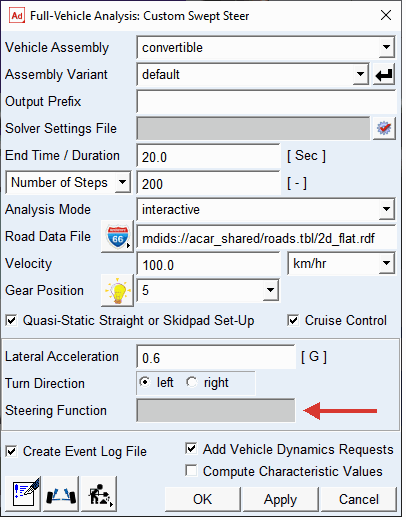
The custom event example is design integrated in the existing full vehicle event dialog box and will behave like any standard vehicle event.
The example consists of the following files:
File Name | Type | Description |
|---|---|---|
mac_ana_ful_cus_swp_sub.cmd | Adams View Macro | Macro to be mapped to the Python event class. |
cont_swp_cus.cmd | Adams View Command Language file | Commands to add a container called “swp_cus” to the full vehicle analysis dialog box. |
cust_swept_steer.py | Python file | Python file containing the event class definition |
readin.cmd | Adams View Command Language file | File which reads the custom event into the session |
By studying the files, starting with readin.cmd, it should become clear which steps are necessary for integration of the event into the environment.
To test the functionality, follow the steps below:
1. Import the file
<Adams installation directory>/acar/examples/custom_events/swept_steer/readin.cmd using F2 button or File → Import (Adams Command file).
2. Open the convertible.asy from the acar_concept database
3. Navigate to the menu:
Simulate → Full Vehicle Analysis → Open Loop Steering Events → Custom Swept Steer
This will bring up the full vehicle analysis dialog box and display the newly created container as shown above.
4. Fill in the following values (leaving the remainder as the default) and click Apply to run an interactive analysis:
Output Prefix: test1
End Time: 10
Number of Steps: 100
Gear Position: 4
Velocity: 100
5. To take advantage of the new field, enter the following values and click OK:
Output Prefix: test2
Steering Function: DTOR*STEP(TIME, 3.9, 1.5*(TIME**2), 4.1, 12*TIME-24)
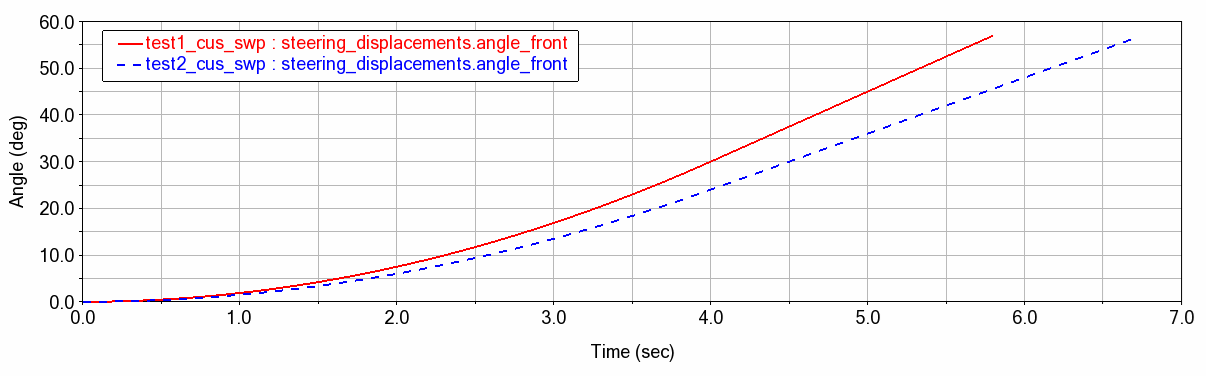
6. Plotting the steering wheel angle for these two analyses, we can see that the steering function has changed as expected:
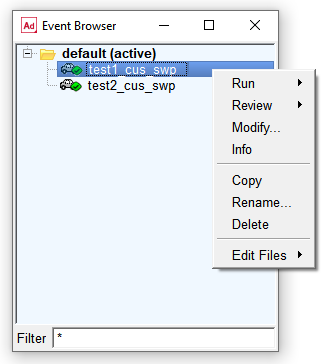
These events will show up in the event browser and can be interacted with just as standard events.
If the Open Event Browser button  is pressed the events will show and have menus as below:
is pressed the events will show and have menus as below: