Gear Element: Cylindrical Gear
(Template Builder) Build → Gears → Adams Machinery Gear → Cylindrical Gear → Cylindrical Gear Element New/Modify
For the option: | Do the following: |
|---|---|
Gear Element Name | Enter the name of the cylindrical gear element. |
Construction Frame | Select the reference frame for creating gear. Gear rotation axis will be aligned with 'Z' of the reference frame. |
Symmetric | ■Yes ■No |
Property File | You can reference to available property file to specify input parameters for gear and force. |
Geometry Tab | |
No. of Teeth | Enter the number of teeth (Z) for Gear 1.. |
Face Width | Enter the width (b) of the tooth face of Gear 1. |
Helix Angle | Enter a value for the helix angle (beta) in current modelling Units expressed at the pitch circle. Note that the sign of the helix angle will decide the rotation of the helicoid (right/left). |
Outer Radius | Enter the radius for the hole in the outer radius for internal gears. |
Bore Radius | Enter the radius for the hole in the external gear or outer radius for internal gears. |
Pressure Angle | Enter a nominal pressure angle (α) in current modelling Units (default value = 20.0 deg) expressed in the normal plane. The angle between the line of action and the common tangent to the pitch circles at the pitch point is the pressure angle. |
Module | Enter the value for module. |
Gear Type | ■Internal “Outer Radius” option is available. ■External “Bore Radius” and “Tooth Modification” tab is available. |
Profile | Select how the involute profile should be described using the Standard Involute Profile parameters (Profile Shifting, Addendum Factor and Dedendum Factor) or if the parameters for the Modified Involute Profile (Tip Radius, Root Radius and Tooth Thickness) should be used. ■Standard ■Modified |
If you select Standard Profile, the following three options will be displayed: | |
Profile Shift Coeff. | Enter a value for the Profile Shift Coefficient (Addendum Modification Coefficient) for the gear (positive or negative value). Default value = 0.0. If this field is left blank, no profile shifting will be used. |
Addendum Factor | Enter a value for the Addendum Factor (default value = 1.0). The Addendum Factor is used to calculate the Addendum: Addendum (Normal) = Module (Normal) * Addendum Factor |
Dedendum Factor | Enter a value for the Dedendum Factor (default value = 1.25). The Dedendum Factor is used to calculate the Dedendum: Dedendum (Normal) = Module (Normal) * Dedendum Factor |
If you select Modified Profile, the following three options available: | |
Tooth Thickness (along the pitch circle) | Enter a value for the tooth thickness at the pitch circle in the transversal plane. Must be less than 10 times the value of module. For module = 2, tooth thickness needs to be <20, not 0.2. Tip: The Tooth Thickness for Internal Gear is the "Space Width". |
Addendum R. | Enter a value for the tip radius. For an external gear this is the outermost radius, for an internal gear the innermost. The addendum circle, or outside circle, is the circle that contains the tips of the teeth, and its radius is the outside radius (tip radius). In the database navigator this will appear as 'tip_rad'. |
Dedendum R. | Enter a value for the root radius. The dedendum circle, or root circle, is the circle that contains the ends of the tooth spaces, and its radius is the root radius (foot radius). In the database navigator this will appear as 'foot_rad'. |
Geometry Settings | ■Number of Profile Points Defines the number of points for the half tooth profile (the other half is mirrored) through which a curve is fit. ■Number of layers Defines the number of "layers" of the helical gear width should be divided into. This number should increase with increasing helix angle and gear width. For helix angle equal to 0 degrees (spur gear) this value will be automatically set to 2, otherwise the value specified in this field is used. Note: Increasing this value may improve resolution of geometry especially for wider gears but at the expense of increased time to create gear pair. |
Mass Properties Tab | |
Define Mass By | ■User Input If you do not want Adams View to calculate mass and inertia using a part's geometry, material type, or density, you can enter your own mass and moments of inertia. ■Geometry and Density You can change the material type used to calculate mass and inertia or simply specify the density of the part. ■Geometry and Material Type The geometry defines the volume and the material type defines the density. |
If you select User Input, the following options will be displayed: | |
Mass | Enter the mass of the gear part. |
The parts are located at the center of the gear, with the z-axis as the rotational axis. | |
Inertia | |
Ixx/Iyy/Izz | Enter the values that define the principal mass-inertia components of the gear part. |
Ixy/Izx/Iyz | Enter the values that define the deviational (cross-product) mass-inertia components of the gear part. |
If you select Geometry and Density, the following options will be displayed: | |
Density | Enter the density value. |
Inertia Geometry | ■ Exact Define mass by default 'density' option, Adams View uses the part's density and the volume of the geometry to calculate its mass and inertia. ■Approximate Approximate volume of the gear element is calculated based on addition of gear blank (cylinder or cone) dimension and involute thread volume. Bore volume is subtracted from this calculated volume. For cylindrical gears, the cylindrical gear blank dimension is considered whereas front and rear cone dimensions are considered in case of bevel and hypoid. Rack considers the base width and trapezoidal teeth volume. The approximately calculated volume is multiplied by density to calculate mass. Approximate method has significant gain in performance over material and exact-density options. However, the calculated values are slightly less than other methods. |
If you select Geometry and Material Type, the following options will be displayed: | |
Material Type | Enter the material type to be used inertia calculation. |
Tooth Modification Tab | |
Tip Relief Start | Tip relief is a modification of a tooth profile whereby a small amount of material is removed near the tip of the gear tooth. 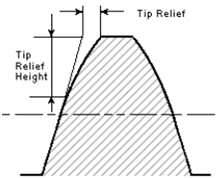 The Tip Relief Start parameter defines the position on the tooth at which the Tip Relief will start. The resulting starting radius on the gear will be: Start Radius = Tip Radius - Tip Relief Start * Module (Transverse) The Module (Transverse), MT is defined as below: MT = MN / cos(ß) If the gear is defined by Standard Involute Profile, the Tip Radius is defined as below: Tip Radius = 0.5 * MT * Z + MT * (Addendum Factor + Profile Shift Coefficient) Note: Default value is 0.0. The limit is 0.0 -1.0. |
Tip Relief Coefficient | This coefficient defines the maximum Tip Relief reached at the Tip Radius of the gear. The Tip Relief is defined by: Tip Relief = Tip Relief Coefficient * MT The tip relief will have zero value at the Tip Relief Start point and increase linearly out to the Tip Radius. Note: Default value is 0.0. The limit is 0.0 -1.0. |
Crown Magnitude | Crowning is the removal of a slight amount of tooth from the center on out to reach edge, making the tooth surface slightly convex. This method allows the gear to maintain contact in the central region of the tooth and permits avoidance of edge contact with consequent lower load capacity. Crowning also allows a greater tolerance in the misalignment of gears in their assembly, maintaining central contact. 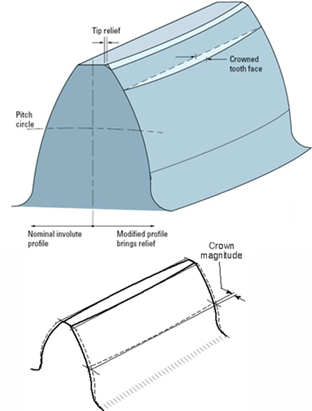 The crown magnitude is reached at the edges of the tooth and crowning is zero at the center of the tooth. The crowning is described as an arc. The Crown Magnitude is entered in length units. Note: Crowning magnitude is dependent on width of gear and is a non-negative value. The number of helix layers specified in the geometry settings must be > 2 to achieve proper crowning. |
Connection Tab | |
Type | Select one of the following: ■Rotational ■Compliant ■Fixed ■None |
Rotational | The gear and attachment part is connected with revolute joint. |
Compliant | The gear and attachment part is connected with Adams Bushing. |
Fixed | The gear and attachment part is connected with fixed joint. |
None | No joint is created between gear and attachment part. You can create joint manually or put a bearing between gear and attachment part. |
Body | Enter the name of the body. |