Importing CAD geometry at the subsystem level
This example demonstrates the use of CAD geometry attached to a part at the subsystem level (instead of the template level).
1. In the Template Builder, open the template mdids://acar_shared/templates.tbl/_rigid_chassis.tpl.
2. Create a new marker named chassis_graphics_ref as shown below:
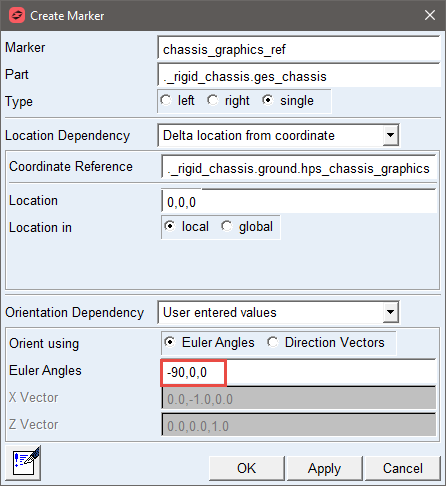
3. Switch to the Standard Interface and open the subsystem mdids://acar_shared/subsystems.tbl/TR_Body.sub. Hit Yes when asked if you want to use the template in session.
4. Set pvs_graphics_choice to 2 to turn off the vehicle geometry.
5. Import the Parasolid geometry mdids://acar_concept/shell_graphics.tbl/subcompact.xmt_txt to the ges_chassis part.
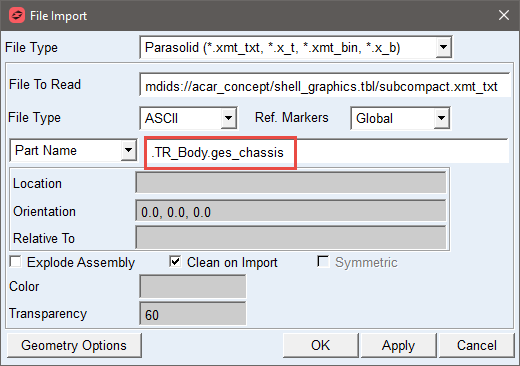
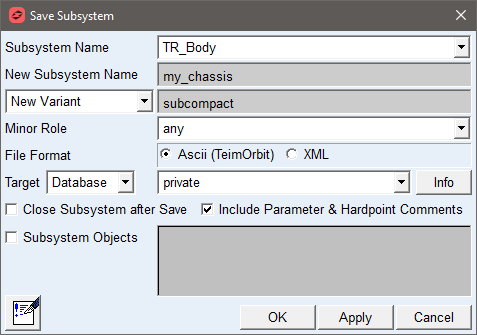
6. Save the subsystem as "my_chassis", and define a new variant named "subcompact":
7. Look in the new subsystem file for the "subcompact" variant of the ges_chassis part:
[PART_ASSEMBLY]
USAGE = 'chassis'
SYMMETRY = 'single'
MODE = 'rigid'
$ Rigid body data:
MASS = 995.0
SPRUNG_PERCENTAGE = 100.0
PART_LOC_X = 0.0
PART_LOC_Y = 0.0
PART_LOC_Z = 0.0
PART_ORI_ZP1 = 0.0
PART_ORI_ZP2 = 0.0
PART_ORI_ZP3 = 1.0
PART_ORI_XP1 = 1.0
PART_ORI_XP2 = 0.0
PART_ORI_XP3 = 0.0
CM_LOCATION_FROM_PART_X = 1500.0
CM_LOCATION_FROM_PART_Y = 0.0
CM_LOCATION_FROM_PART_Z = 450.0
IXX = 2.00E+08
IYY = 5.00E+08
IZZ = 6.00E+08
IXY = 0.0
IZX = 0.0
IYZ = 0.0
(VARIANTS)
{subcompact}
EXTERNAL_GEOMETRY_FILE = 'mdids://acar_concept/shell_graphics.tbl/subcompact.xmt_txt'
EXTERNAL_GEOMETRY_TRANSPARENCY = 60
(COMMENTS)
{comment_line}
'Chassis Structure'
8. Switch back to the default variant, and the original geometry will be restored.
9. Set pvs_graphics_choice to 2 to turn off the Testarossa geometry again.
10. Set hps_chassis_graphics location to 0,0,0
11. Import shell graphics to define a sports car body:
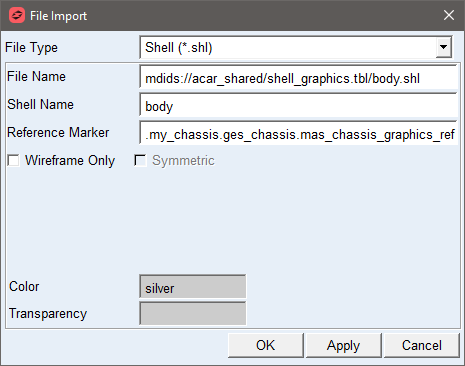
Be sure to select the reference marker .my_chassis.ges_chassis.mas_chassis_graphics_ref. This tells Adams Car to attach this geometry to the ges_chassis part, and creates the file reference that will be saved to the subsystem.
12. Import another shell to define the window glass:
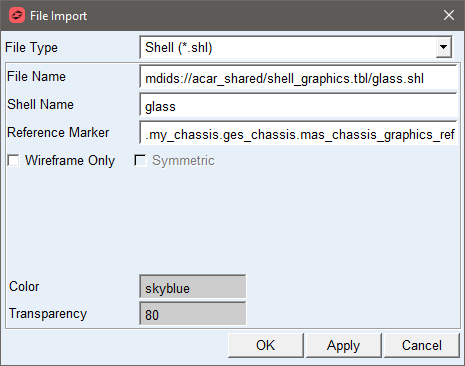
13. Save the subsystem again, this time as a new variant named "sports". Check the subsystem file contents again:
(VARIANTS)
{subcompact}
EXTERNAL_GEOMETRY_FILE = 'mdids://acar_concept/shell_graphics.tbl/subcompact.xmt_txt'
EXTERNAL_GEOMETRY_TRANSPARENCY = 60
{sports}
EXTERNAL_GEOMETRY_FILE = 'mdids://acar_shared/shell_graphics.tbl/body.shl'
GEOMETRY_REF_MARKER = 'mas_chassis_graphics_ref'
EXTERNAL_GEOMETRY_COLOR = '.colors.SILVER'
EXTERNAL_GEOMETRY_FILE = 'mdids://acar_shared/shell_graphics.tbl/glass.shl'
GEOMETRY_REF_MARKER = 'mas_chassis_graphics_ref'
EXTERNAL_GEOMETRY_COLOR = '.colors.SKYBLUE'
EXTERNAL_GEOMETRY_TRANSPARENCY = 80
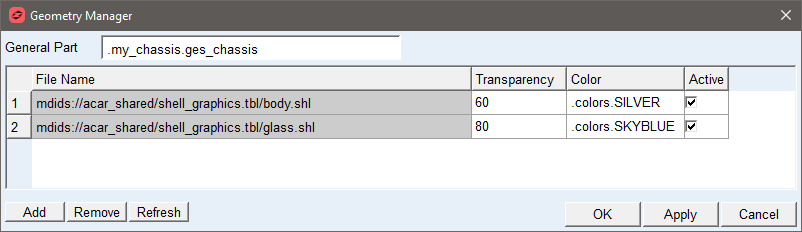
14. Modify the ges_chassis part. A new button on the Modify General Part dialog box will open the Geometry Manager:
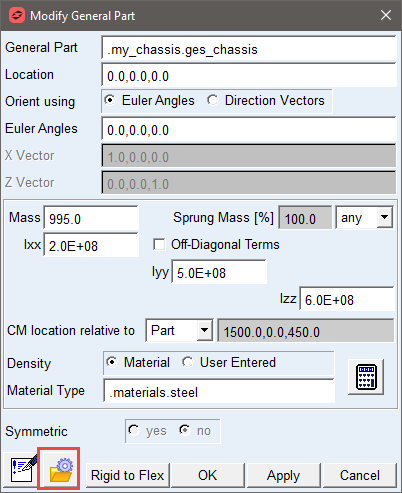
15. You can use the Geometry Manager to modify subsystem geometry color, transparency, and activity. Select one or more rows from the table and hit the Remove button to delete geometry. To attach additional CAD geometry to this part, hit the Add button to open the File Import dialog.