Exporting model specific parameters in an Adams FMU
Adams supports including model specific parameters into the FMU. These appear as fixed parameters. Upon clicking the Expose Model Parameters button in the Plant Export dialog box, a new dialog opens in which users can select the parameters to be included in the FMU. The dialog is different for AView and ACar models and are shown below. Once the new dialog is opened, the Plant Export dialog box is disabled until the user either clicks on OK or Cancel or closes this new dialog box.
In AView models, the parameters that are allowed to be exported are design variables, points and mass properties of parts. The model name is to be selected first. Subsequently, user can add individual parameters in the respective fields by right-clicking on the field and selecting the parameters or by clicking on the Add All button which populates all parameters in all fields. Alternately, users can also add all parameters of a particular type (for example, all design variables, all points or all mass properties) by clicking on the buttons at the respective fields. Design variables of type integers, real and strings are supported. Point locations (x, y and z) are created as separate parameters of real type because the FMI can only support scalar types. Mass properties defined by user or by density are supported. Mass properties of parts defined by material are not supported. Individual parameters like mass, density, ixx, iyy, izz, ixy, iyz and izx are created for each selected part.
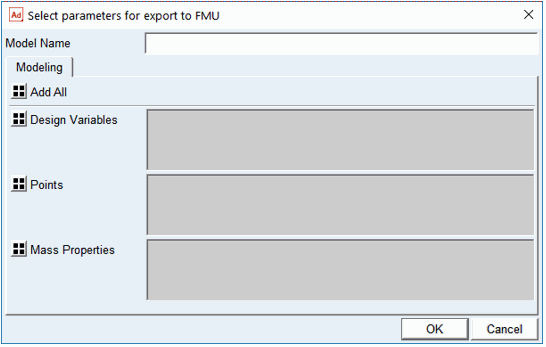
Figure 1 Parameter selection dialog for AView based models
In ACar models, the parameters that are allowed to be exported are assembly variants, analysis events, hard points, mass properties of general parts, parameter variables, UDE design variables and property files. The individual parameters created for general parts, parameter variables and hard points are same as for AView based models. The design/instance design variables of UDEs and property file variables are supported additionally for ACar.
Once this dialog box is opened, the individual tabs are visible and the subsystems for the active variant are seen. To modify the active variant to be used, user has to first select the desired variant (if any exist) from the drop down menu and click on the arrow ( ). Only on clicking the arrow, the subsystems for individual categories are displayed. A subsystem is displayed in the particular tab only if it has parameters of the corresponding type. Users can click Add All to add all parameters of a particular type. Alternately, the buttons beside the individual subsystems can be clicked to select all parameters of that particular type in that subsystem. Another method is to right-click on the field and manually select the parameters. For UDEs, the design/instance design variables are not displayed in this dialog. Instead, only the UDE is displayed. The design/instance design variables are internally found and added.
). Only on clicking the arrow, the subsystems for individual categories are displayed. A subsystem is displayed in the particular tab only if it has parameters of the corresponding type. Users can click Add All to add all parameters of a particular type. Alternately, the buttons beside the individual subsystems can be clicked to select all parameters of that particular type in that subsystem. Another method is to right-click on the field and manually select the parameters. For UDEs, the design/instance design variables are not displayed in this dialog. Instead, only the UDE is displayed. The design/instance design variables are internally found and added.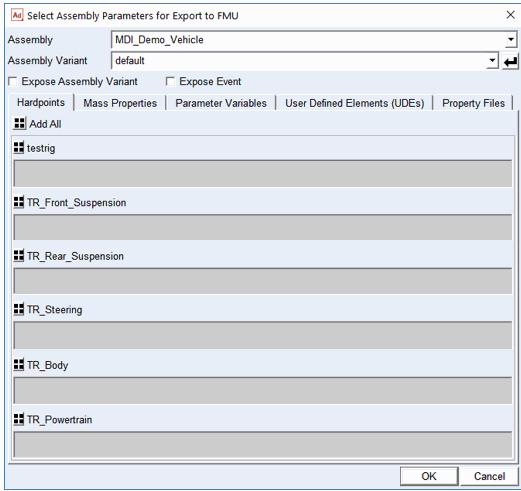
Figure 2 Parameter selection dialog for ACar based models
Once the user completes the selection of parameters and clicks OK or Cancel, the Plant Export dialog box is enabled again and the saved parameters are exported as part of the FMU.
Note: | If Model parameters are exposed then the model cannot be encrypted while exporting the FMU. If Encrypt model option is chosen 'Expose Model Parameters' button will be disabled and if Model parameters are exposed 'Encrypt Model' option will be disabled. |