Standard Interface - Create and use External System Library
Overview
This tutorial guides you through the process of how to create and use external system libraries in the Standard Interface.
It is assumed that you have already started Adams Car and loaded the Adams Mechatronics plug-in.
The main steps in the tutorial are:
■Open an assembly which includes ABS and ESP control systems
■Export Adams Plant
■Create an external system library within a control system package
■Import the library into Adams and create a library property file
■Set ESP control system type to External System Library
Open an assembly which includes ABS and ESP control systems
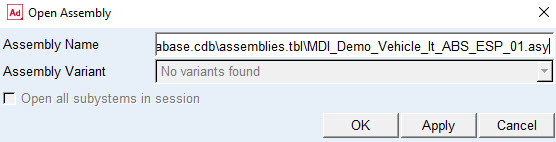
Open the demo assembly model MDI_Demo_Vehicle_lt_ABS_ESP_01.asy located in the Adams Mechatronics shared database:
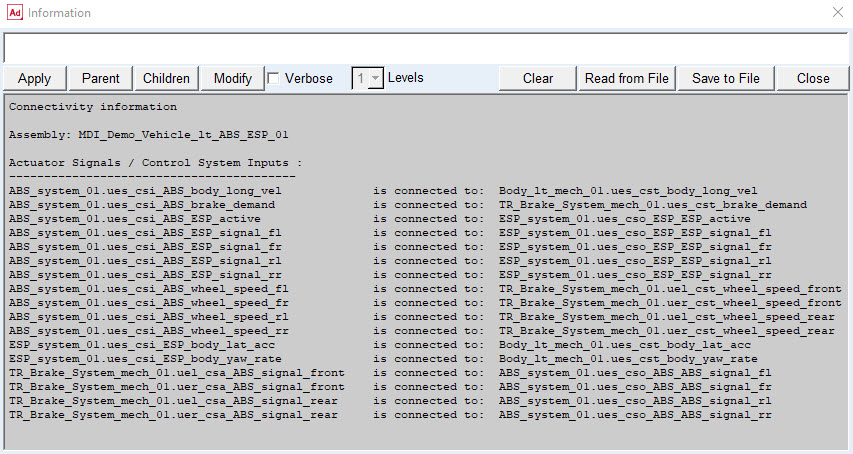
In this assembly, the ABS and ESP control systems have been already connected to each other and to the mechanical model properly.
Verify the connectivity status of the control systems in the assembly by choosing Mechatronics → Info → Connectivity.
Export Adams plant
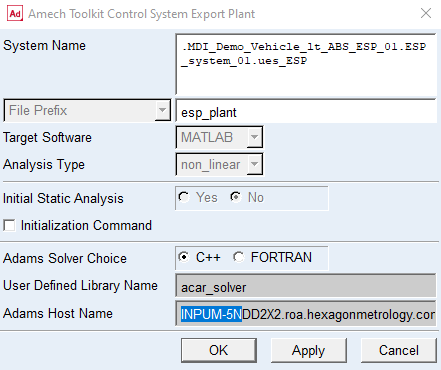
The next step is to export plant from Adams and create an external system library suitable for Adams within a control package, Easy5 or MATLAB/Code Generation. To export the plant, choose Mechatronics → Tools → Export Plant. Select the ues_ESP control system, choose a file prefix, and keep the default values in the rest of the dialog box:
Press OK and the following information dialog box below will appear.
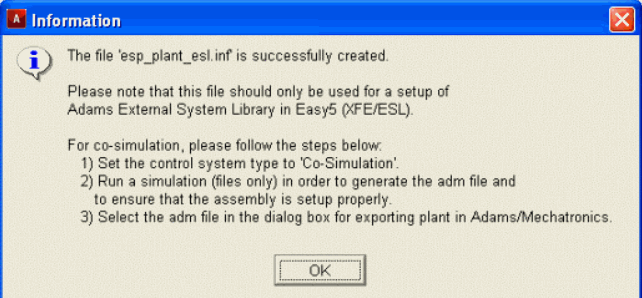
In case of choosing MATLAB as target software, the following information dialog box will be shown instead.
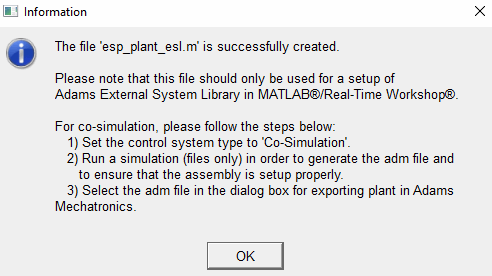
Proceed by selecting OK.
By now depending on the choice of control system, a .inf file or a .m file has been created and saved in the working directory. These files can then be used to create the input and output ports for the control system in the external control package. This is necessary in order to setup the external system library.
Note that the export plant can similarly be performed in the template builder mode.
1. Create an External System Library within the control package software
The two related Easy5 model files for the ESP control system can be found in the directory install_dir/amech/examples/acar/easy5_models/esp_system:
■esp_controller.0.ezadb
■esp_controller.0.ezmf
The corresponding model file for MATLAB/Simulink can be found in directory install_dir/amech/examples/acar/simulink_models/esp_model/case1_esp_gse_02.mdl
These files should be used to create a library suitable for Adams within the control package. This procedure is covered in detail in standard Adams Controls documentation. While creating external system library file, make sure to publish the parameters which are controlling the ESP control value, yaw rate gain and lateral acceleration gain when exporting the control system into an external system library format.
If you intend to import a library built using Easy5, you will first need to ensure your environment has been properly set up. See Setting Up the Environment section for more information.
In case you don't want to build a library here, use one of the provided 'esp_controller' libraries located in <amech_shared>/external_system_libraries.tbl/ directory. These were built using Easy5. Be sure to select the version appropriate for your platform and Adams installation. For example, if you are running 64-bit Adams on a 64-bit Windows machine, select the win64 version. If you are running 64-bit Adams on a 64-bit Linux machine, select the linux64 version.
Import library into Adams and create a library property file
It is now assumed that an external system library file is available. To import it and to generate a default library property file choose Mechatronics → Tools → ESL Property File ...
The dialog box shown below will be displayed:
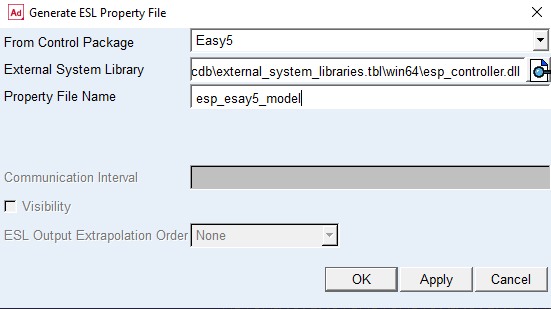
Choose the control system package which the library is originating from and type a name of the library property to be created. Then select OK. Please note that the External System Library file could be esp_controller.so if you are using Linux operating system.
A message window dialog box appears which confirms that a library property file has been created:
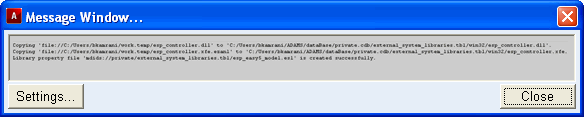
As can be seen from the preceding message window, a library property file is created and copied into the default database in the following directory, namely /private.cdb/external_system_libraries.tbl/win32/. Note that the resulted files are saved in a platform-specific directory depending on the platform type (in this case win32). You can now close Message Window.
Set ESP control system type to ‘External System Library’
Modify the ESP control system to be of type ‘External System Library’ by choosing Mechatronics → Control System → Modify.
Select the External System Library as System Type. By this the control system depends on the external system library and the default function expression control system hides. Select the ESP control system and property file as below:
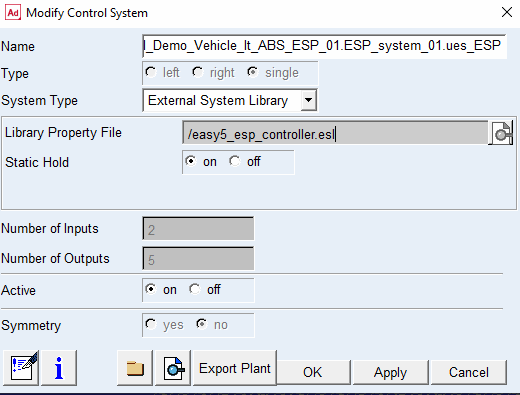
First, review the content in the library property file by selecting the  button. The following information window pops up.
button. The following information window pops up.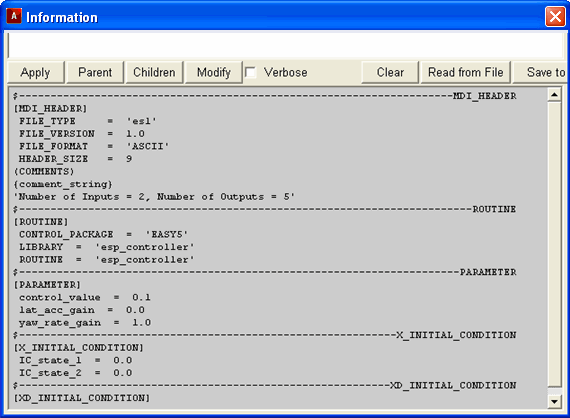
In fact, Adams Mechatronics verifies also that the library referred to in the property file matches the control system, that is, the number of inputs and outputs defined in the library is the same as in the control system. Close information windows and then select the Apply button.
The information message window below appears after a successful verification:

The control system is now prepared to be used in simulation.
You have now finished the tutorial.