Welcome to Adams Vibration
Introduction to Adams Vibration
Adams Vibration is an Adams plugin for performing frequency-domain analyses. Using Adams Vibration, you can study forced vibrations within your Adams models. For example, you can simulate driving an automobile over a bumpy road an measure its frequency response. Both inputs and outputs are described in the frequency domain.
Using Adams Vibration, you can:
■Analyze the forced response of a model in the frequency domain over different operating points.
■Include the effects of hydraulics, controls, and user-subsystems in the frequency analysis.
■Transfer your linearized model from Adams products to Adams Vibration completely and quickly.
■Create input and output channels for vibration analyses.
■Specify frequency domain input functions, such as swept sine amplitude/frequency, power spectral density (PSD), and rotational imbalance.
■Create user-defined, frequency-based forces.
■Solve for system modes over frequency range of interest.
■Evaluate frequency response functions for magnitude and phase characteristics.
■Animate forced response and individual mode response.
■Tabulate system modal contributions to forced vibration response.
■Tabulate contribution of model elements to kinetic, static, and dissipative energy distribution in system modes.
■Perform modal stress recovery of flexible bodies.
■Specify direct kinematic inputs.
■Plot Stress/Strain FRFs
See the section Adams File Types for more information on Adams Vibration file types.
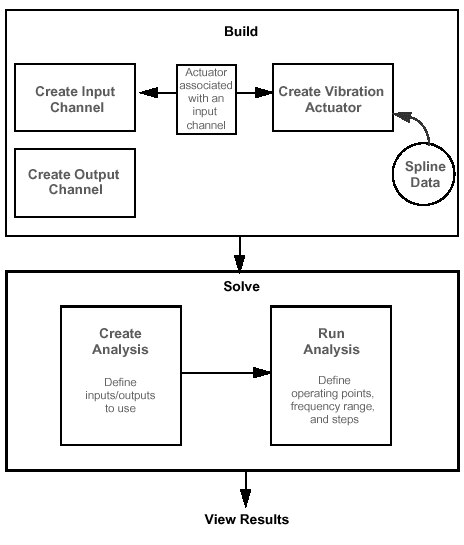
Adams Vibration Process
Using Adams Vibration, you can assemble models of various subsystems, perform linear vibration analysis, and use Adams post-processing tools to view results as plots and animations.
How You Benefit from Using Adams Vibration
Adams Vibration enables you to work faster and smarter, letting you replace physical testing for vibration studies using shaker devices with virtual testing. Physical testing with shaker devices in the test lab or in the field is expensive and can typically only occur at later stages of the design process. Using Adams Vibration, you can perform these tests early in the design process cutting down on design time and expense.
It is impossible to eliminate all vibration from products that are made up of flexible components. It is possible, however, to design products that do not have bothersome vibrations. For example, at certain speeds, poorly designed automobiles can have annoying noises that are due to vibrations of certain components. Some companies have design guidelines that indicate acceptable ranges of vibration frequencies.
Adams Vibration output data can be used in noise/vibration/harshness (NVH) studies to predict the impact of vibration on the rider's experience in an automobile, train, plane, and so on.
Loading and Unloading Adams Vibration
Adams Vibration runs as a plugin to several products: Adams View, and Adams Car. After you start a core product, you then load the Adams Vibration plugin. To work with an existing Adams model, you can load the Adams Vibration plugin either before or after you import the model. You can also create a model in another Adams product and then load the Adams Vibration plugin.
When you import a model that already contains Adams Vibration data, you do not have to load the Adams Vibration plugin manually; the core product automatically loads the plugin for you. This section shows you how to load the Adams Vibration plugin into Adams View. Loading the plugin into other core products is similar.
To load Adams Vibration:
1. From the Tools menu, point to Plugin Manager.
2. Select the Load checkbox next to Adams Vibration.
3. Select OK.
The Adams Vibration plugin loads in Adams View. If you get an error message, you might have a problem with your licensing. Contact your system administrator or your Adams contact person.
To unload Adams Vibration:
1. From the Tools menu, point to Plugin Manager.
2. Clear the Load checkbox next to Adams Vibration.
3. Select OK.
Starting Adams Vibration
To start Adams Vibration, you must first start Adams View (or one of the Adams vertical products), and then load the Adams Vibration plugin.
To start Adams View and import your model:
1. Do either of the following depending on the platform on which you are running Adams View:
♦On Linux, type the command to start the Adams Toolbar at the command prompt, and then press Enter. Select the Adams View tool.
♦On Windows, from the Start menu, point to Programs, point to Adams 2022.1, and then select Adams View.
The Welcome dialog box appears in the Adams View main window.
2. Select Import a File.
3. Select the Find Directory tool next to the Start in text box. This displays the Find Directory dialog box.
The Start in text box specifies the working directory that Adams Vibration uses as the default directory for reading and writing files.
4. Navigate to the working directory.
5. Select OK
This ensures that all your work gets stored in the working directory you selected.
6. Select OK.
The File Import dialog box appears.
7. Right-click the File to Read text box, and select Browse.
8. Select your model file.
9. Select OK.
Adams Vibration opens and displays the model.
10. Load the Adams Vibration plugin. Learn how.