Working Grid
Settings → Working Grid
Main tool box → Move toolstack →
Main tool box → Move toolstack →
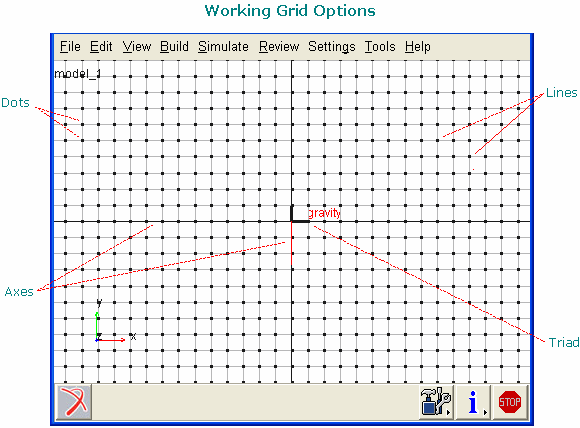
Sets the appearance of various elements in the Working grid and toggle their visibility.
 .
.Learn about Setting Up the Working Grid.
For the option: | Do the following: |
|---|---|
Show Working Grid | Set to display the working grid. |
Rectangular | Set to select a Rectangular working grid. Adams View changes the coordinate system settings accordingly. |
Polar | Set to select a Polar working grid. Adams View changes the coordinate system settings accordingly. For more information, see Coordinate System dialog box. |
Size | For a rectangular grid only, enter the size of the grid in the x and y directions in length units. 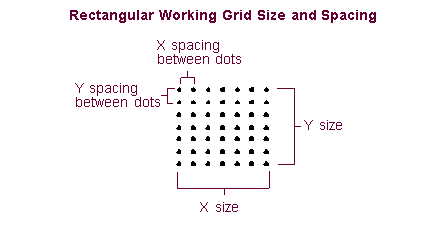 |
Spacing | For a rectangular grid only, enter the spacing between each point in the grid in the x and y directions in length units. |
Maximum Radius | For polar grid only, enter the radius of the working grid from its origin to its outermost circle. 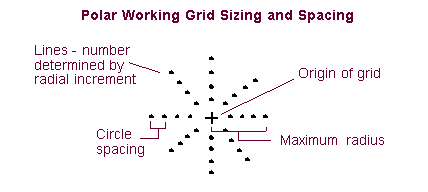 |
Circle Spacing | For polar grid only, enter the amount of space between each circle in the working grid. The smaller the spacing, the more circles Adams View defines. |
Radial Increments | For polar grid only, enter the number of lines radiating from the origin of the working grid. Adams View spaces the lines equally around the working grid. The lines do not include the axes. The number of lines (N) determines the angle increment between lines (q), as shown in the formula: θ = 360×/N In the picture above 8 lines are specified for an angle increment between the lines of 45. |
Dots, Axes, Lines, and Triad | Select the color and weight (thickness) of each object in the grid. You can also set the color of the objects to Contrast, which indicates that Adams View should select a color that contrasts with the color currently set for the view background. Setting the color to Contrast is particularly helpful when you set each of your view windows to a different background color or when you frequently change the view background. The colors listed for the working grid elements are the same colors provided for setting the color of objects. The colors do not include any new colors that you created. The weight values are from 1 to 3 screen pixels. |
Set Location | Select either: ■Global Origin to set the center location of the working grid to the center of the view window. ■Pick and click a location on the screen to set as the center of the working grid. |
Set Orientation | Select how you want to orient the working grid. You can set its orientation by picking points or by aligning it with the screen plane. Note that if you select Pick for orientation, you will also set the location of the working grid. |