Familiarizing Yourself with Adams Car
Take a few minutes to familiarize yourself with the Adams Car main window.
The following tips help you quickly become familiar with Adams Car:
■You use the menus along the top of the window to execute commands and display dialog boxes. Notice that some menus are shaded in grey. This indicates that you cannot execute these commands because you do not have a subsystem open. When you open a subsystem, these menus change to black indicating that you can execute the commands.
■You can use the main shortcut menu to execute simple commands, such as rotating views, zooming, and fitting assemblies in the main window. To display the main shortcut menu, right-click in the main window, away from any entities.
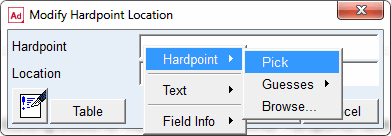
■Instead of manually entering text in boxes that require database objects, you can have Adams Car automatically do this task for you. To do this, right-click the text box of interest, and then select an option. For example, if you were modifying a hardpoint, Adams Car would present you with the following options:
■Point to Hardpoint (or the entity of interest) and then select Pick. On the main window, place the cursor on top of the hardpoint. When the name of the hardpoint appears, you can click the left mouse button to select that hardpoint.
■Point to Hardpoint, and then select Guesses. From the pop-up menu that appears, select the entity name you want to use.
■Point to Hardpoint, and then select Browse. Adams Car displays the Database Navigator, which contains a list of entities, hardpoints in this case. Double-click the entity name you want to use.