FE Part Beam Contact
1. Start Adams View.
2. Select Existing Model from the startup screen.
The Open an Existing Model dialog box will appear.
3. Select the curved_beam_contact.adm from “<topdir>\aview\examples\fe-part\” directory. For example, on a Windows installation for Adams version 20XX the example files are placed in the following location:
C:\Program Files\MSC.Software\Adams\20XX\aview\examples\fe-part\curved_beam_contact.adm.
4. Click OK button to close the dialog box and load the model.
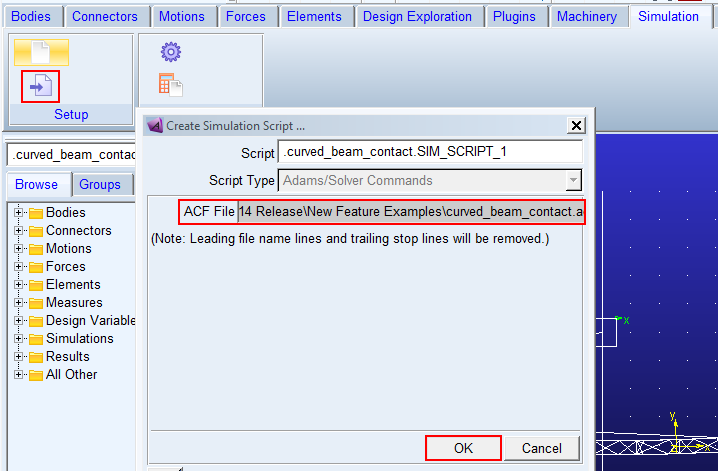
5. Create a simulation script based on the .acf file provided “curved_beam_contact.acf”
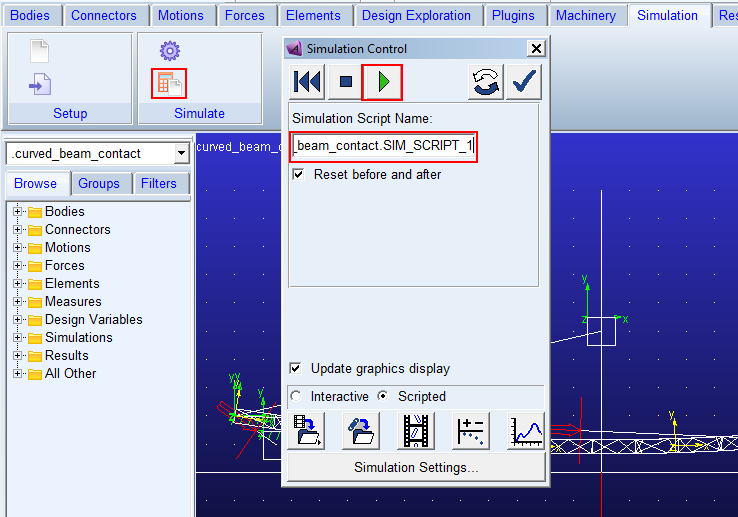
6. From the Simulation Control dialog box, launch a simulation using the simulation script.
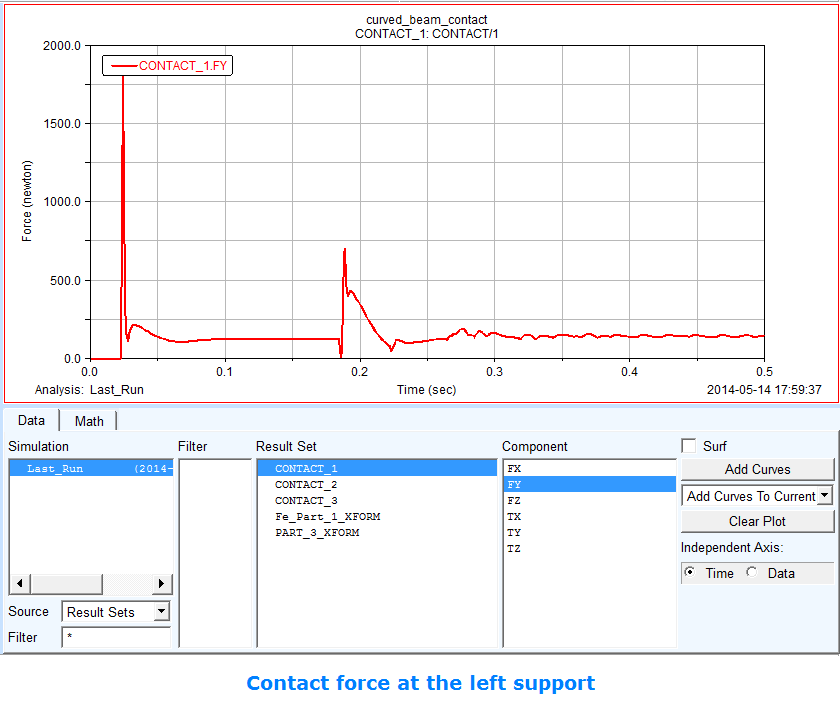
7. In the Adams Postprocessor verify the reaction (contact) force at the left support.