Creating Gear Pair
In this section, you will create a gear pair.
1. Click the Machinery tab on the Adams View ribbon.
2. From the Gear container, click the icon for Create Gear Pair.

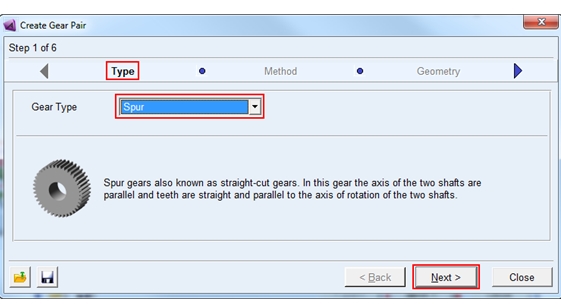
3. The gear pair creation wizard will launch. On the first page (Type) select Spur from the option menu and click Next.
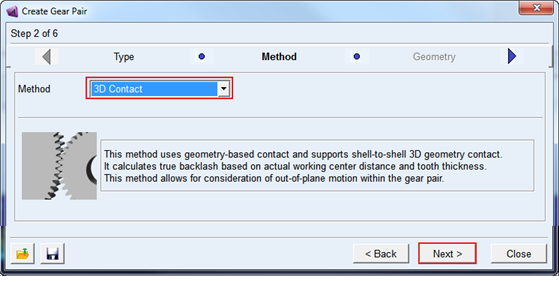
4. On the next page (Method) select 3D Contact from the option menu and click Next.
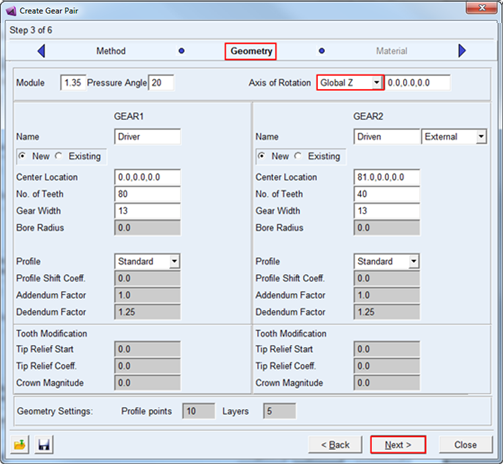
5. Fill out the next page (Geometry) by as shown below and Click Next.
6. The next page (Material) defines the material properties to be used for the mass property calculations for each gear.You can modify the parameters which define the contact force model between the two gears. Accept the defaults and move on by clicking Next.
7. On the next page (Connection) you define how each gear is to be connected to the rest of the model. For this example, accept the defaults which mount each gear to ground via revolute joints and click Next.
8. On the final page (Completion), optionally save the content of the entire wizard to a file for re-use later by clicking the Save icon. Click Finish to create the gear pair.
Note: | It may take a minute or so to create the gear pair geometry. |