Creating Roller Chain System
In this section, you will create a chain system.
1. Click the Machinery tab on the Adams View ribbon.
2. From the Chain container, click the icon for Create Sprockets.
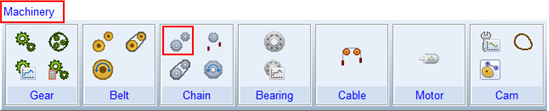
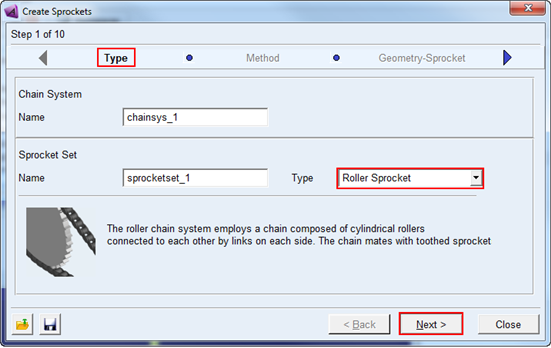
3. The sprocket creation wizard will launch. On the first page (Type) select Roller Sprocket from the Type option menu and click Next.
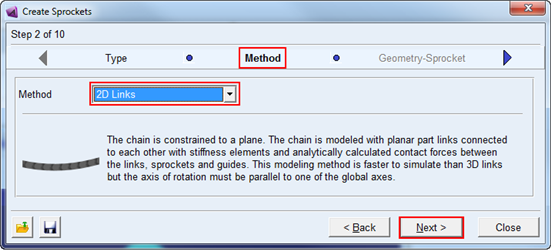
4. On the next page (Method) select 2D Links from the Method option menu and click Next.
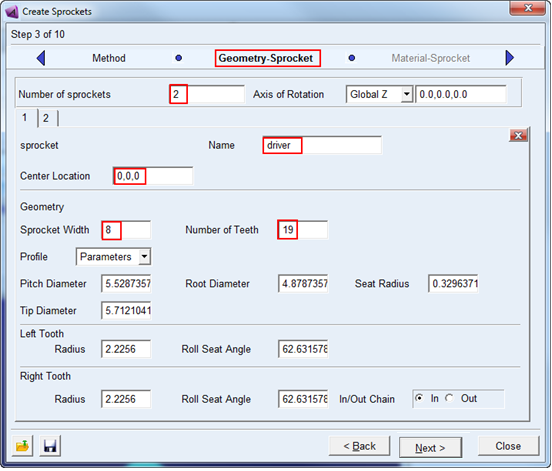
5. On the next page (Geometry-Sprocket) enter "2" in the Number of Pulley field and fill out the two tabs defining each pulley's geometry as shown below and then click Next:
Note: | After you enter the number of teeth = 19, default values for the Profile will appear. |
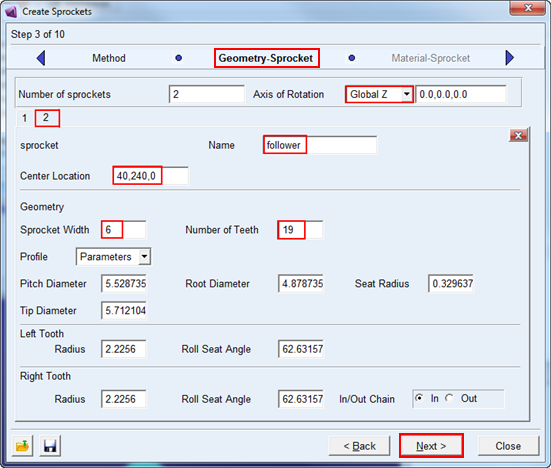
6. The next page (Material-Sprocket) defines the material properties to be used for the mass property calculations for each sprocket. Accept the defaults and move on by clicking Next.
7. On the next page (Connection-Sprocket) you define how each sprocket is to be connected to the rest of the model. For this example, accept the defaults which mount each pulley to ground via revolute joints and click Next.
8. On the next page (Output-Sprocket) you can optionally reduce the amount of post-processing information about the sprockets to be made available as Adams Requests. For this example, accept the defaults (to get all information) and click Next.
9. The next page (Completion-Sprocket) informs you that all the information required for the roller sprockets has been entered. Click Next to proceed to the guide definition.
10. On this page (Geometry - Guide) enter "1" in the Number of Guides field and fill out the tab defining the guide as shown below and then click Next:
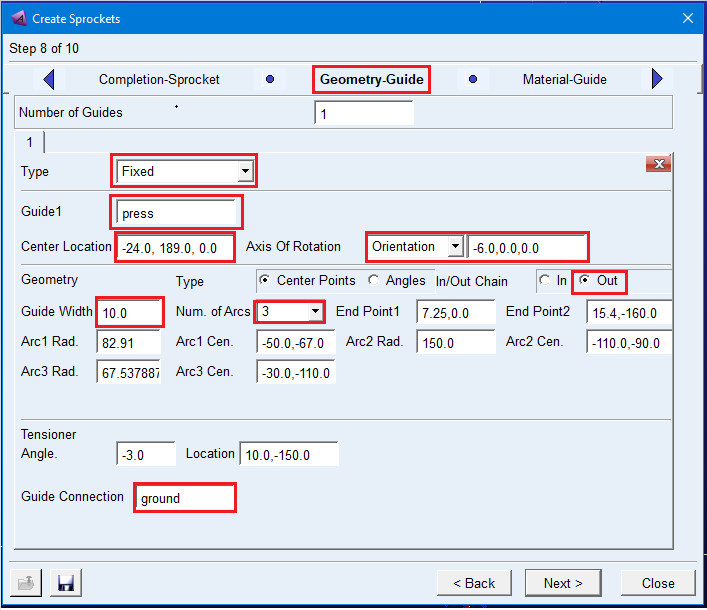
11. The next page (Material-Guide) defines the material properties to be used for the mass property calculations for the guide. Accept the defaults and move on by clicking Next.
12. On the next page (Output-Guide) you can optionally reduce the amount of post-processing information about the guide to be made available as Adams Requests. For this example, accept the defaults (to get all information) and click Next.
13. The next page (Completion) informs you that all the information required for the sprocket set has been entered. Optionally save the content of the entire wizard to a file for re-use later by clicking the Save icon. Click Finish to create the sprocket set.
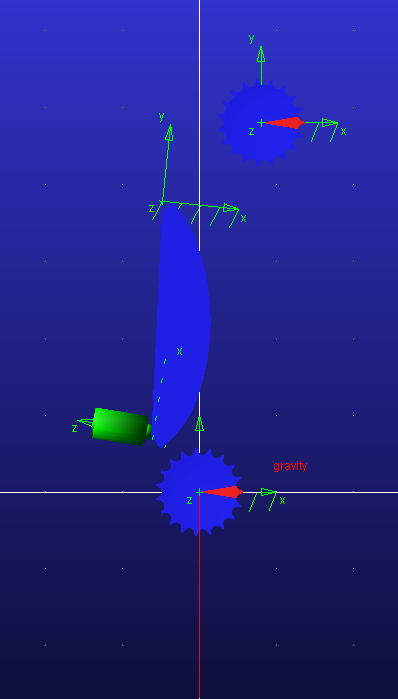
14. From the Ribbon go to the Machinery tab's Chain container and click the icon for Create Chain.
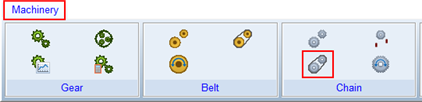
15. The Chain Creation wizard is launched. In the Name field enter the name of the sprocket set you just created (right-mouse-click in the field and use Pick or Guesses to quickly select) and then click Next.
16. The next page (Method) defaults to the method you chose when creating the sprocket set. Accept this default by clicking Next.
17. The next page (Compliance) defines the model to be used for the chain's link-to-link compliance. Accept the default, Linear, and click Next.
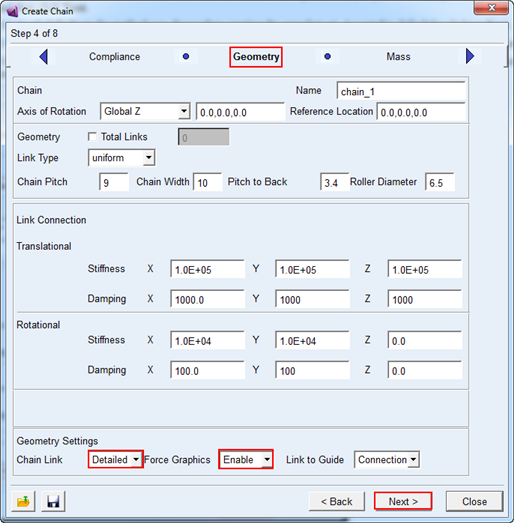
18. The next page (Geometry) is for specification of the Chain geometry. Accept the default values. In the Geometry Settings ensure that Detailed is selected from the Chain Link option menu and that Enable is selected from the Force Graphics menu; then click OK. Then click Next to move on.
19. The next page (Mass) defines the mass properties for the chain links. Accept the defaults and click Next.
20. On the next page (Wrapping Order) the chain routing is defined. Right-click in the field and use the Guesses menu to first pick the driver, then the guide and finally the follower so that the field is populated as such: "sprocketset_1_driver, sprocketset_1guide_press, sprocketset_1_follower" …then click Next.
21. When prompted about the chain number of links, tension and strain; click OK to continue. A warning message will be displayed informing you that the 2D parts for the links are unique to the Adams Solver C++ executable (the default mode).
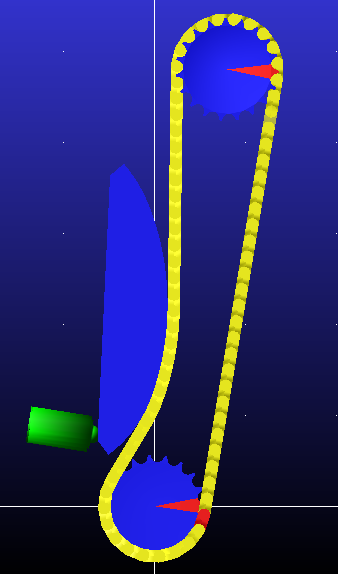
22. Now you will be on the Output Request page. Create a Link Request and populate the Link Parts field (for example, via right-click Pick) with a link near the bottom of the follower sprocket. This will create output requests to track the forces on that link as the chain runs around the sprockets. You may want to toggle the icon display off to better see the chain (one way to do this is to click inside the graphics window and press the "v" key on your keyboard). Click Next.
23. From the Ribbon go to the Machinery tab's Chain container and click the icon for Chain Actuation Input.

24. The Actuate Chain wizard is launched. In the Sprocket Set Name field enter the name of the sprocket set you just created (right-mouse-click in the field and use Pick or Guesses to quickly select). In the Actuator Sprocket field enter the name of the driver sprocket (right-mouse-click in the field and use Pick or Guesses to quickly select). Then click Next.
25. On the next page (Type) select Motion and click Next
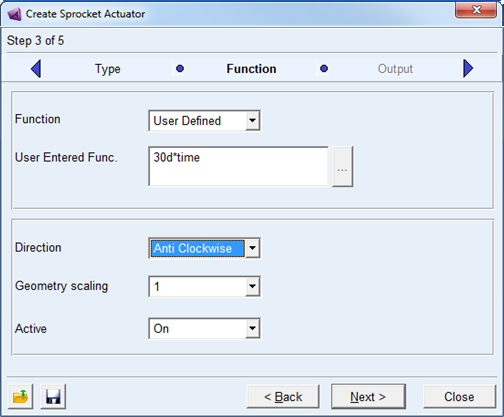
26. Complete the next page (Function) as shown below:
27. On the next page (Output) you can optionally reduce the amount of post-processing information about the actuator to be made available as Adams Requests. For this example, accept the defaults (to get all information) and click Next.
28. The next page (Completion) informs you that all the information required for the actuation has been entered. Optionally save the content of the entire wizard to a file for re-use later by clicking the Save icon. Click Finish to create the actuator.
29. Now we are ready to simulate the model. The preferred integrator for such Chain systems is HHT. From the main text menu select: Settings-Solver-Dynamics and ensure that HHT is selected from the Integrator option menu.