Creating Bearing Module
In this section, you will create a crank and slider mechanism (imported) where crank shaft is mounted on bearing.
1. Start Adams 2024.1 → Adams View.
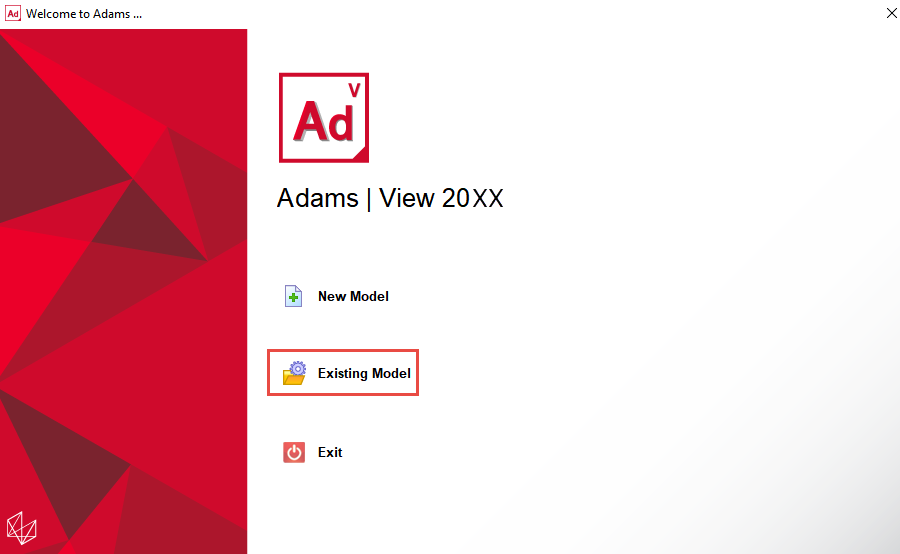
2. From the welcome screen click Existing Model.
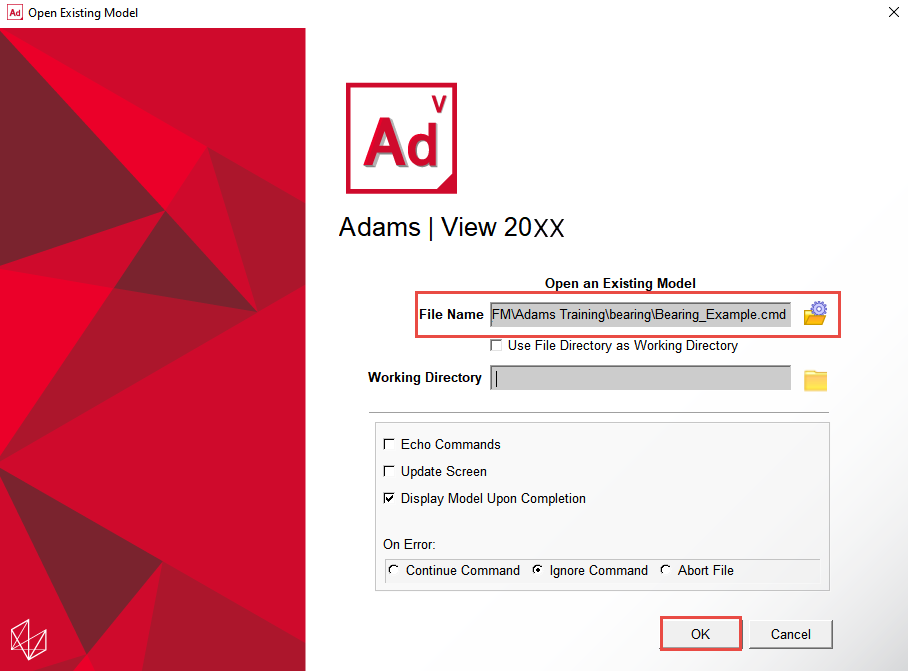
3. Open the model Bearing_Example.cmd from the installation directory. For example, Windows examples files placed in the below location:
C:\Program Files\MSC.Software\Adams\2024_1\amachinery\example\bearing\Bearing_Example.cmd.
C:\Program Files\MSC.Software\Adams\2024_1\amachinery\example\bearing\Bearing_Example.cmd.
4. Click the Machinery tab on the Adams View ribbon.
5. From the Bearing container, click the Create Bearing icon.

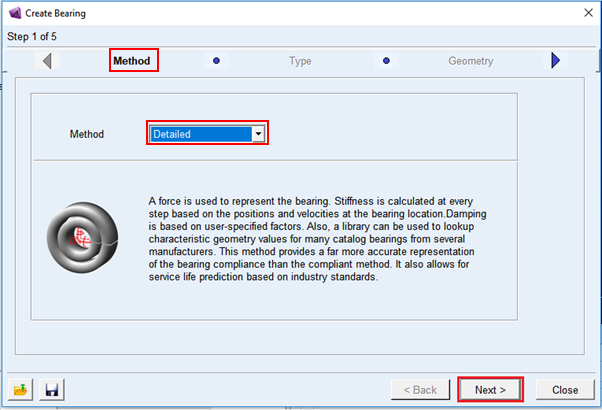
6. The bearing creation wizard will launch. On the first page (Method) select Detailed from the Method option menu and click Next.
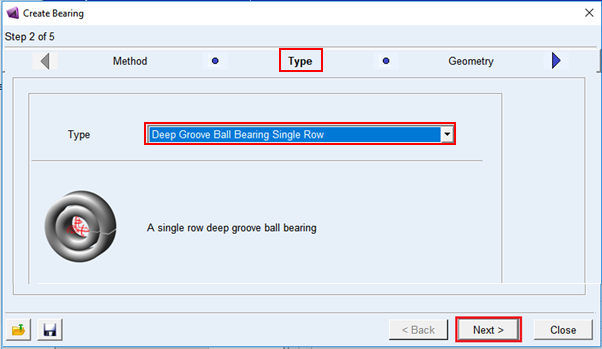
7. On the next page (Type) select Deep Groove Ball Bearing Single Row from the Type option menu and click Next.
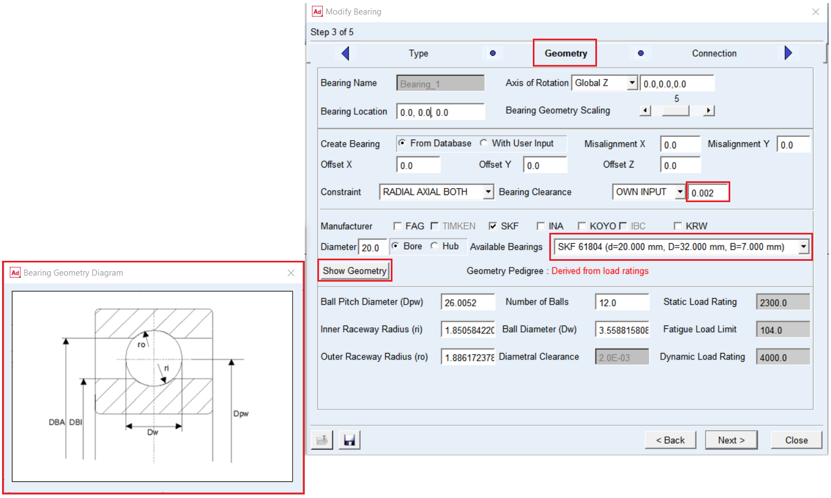
8. On the next page (Geometry) enter values for Bearing Location field as mentioned below. Select the bearing of your choice from the available manufacturer catalog by entering the diameter for Bore or Hub. For this example select SKF from the manufacturer list and enter the value 20 for bore diameter. Select OWN INPUT for bearing clearance and enter 0.002. Accept the default values for the remaining fields and click Next.
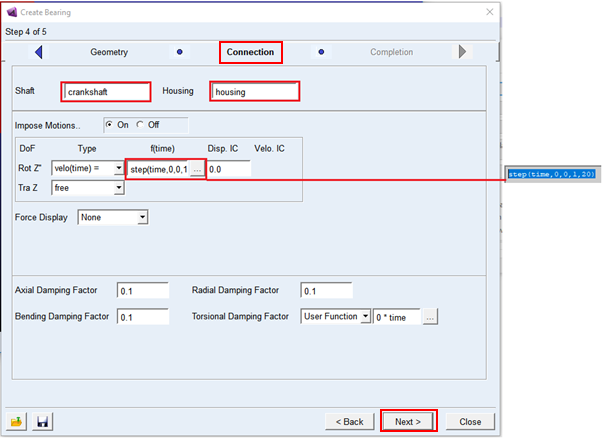
9. On the next page (Connection) you define how the bearing is to be connected to the rest of the model. For this example, pick "crankshaft"for Shaft and "housing" for Housing. Provide angular velocity around the rotational axis as input for the motion using a step function via function builder as shown below by clicking the radio button On from the impose motion field. Choose Both for force display field. Accept the default values for the remaining fields and click Next:
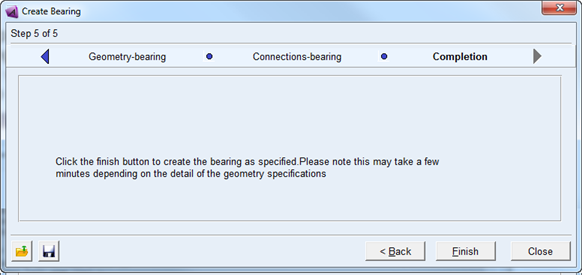
10. The next page (Completion) informs you that all the information required for the bearing creation has been entered. Here, optionally save the content of the entire wizard to a file for re-use later by clicking the Save icon. Click Finish to create the bearing.
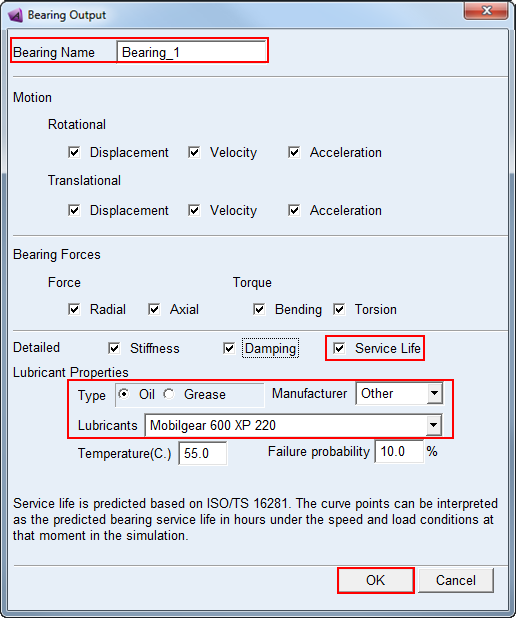
11. From the Bearing container, click the Bearing output icon.

12. Pick the recently created bearing Bearing_1 for the bearing name. Make sure Service Life from the detailed section is selected as it is available by default. Choose your lubricant properties from the available options in the Lubricant Properties section. For this example, choose Oil for lubricant type, Other for manufacturer, Mobilgear 600 XP 220 for lubricants and click OK.