Familiarizing Yourself with Adams PostProcessor
Adams PostProcessor has four modes: animation, plotting, reports, and 3D plotting (only available with Adams Vibration data). It switches its modes automatically depending on the contents of the active viewport. For example, the tools in the Main toolbar change if you load an animation or a plot into a viewport.
The following figure shows the Adams PostProcessor window. The elements shown are common to all modes.
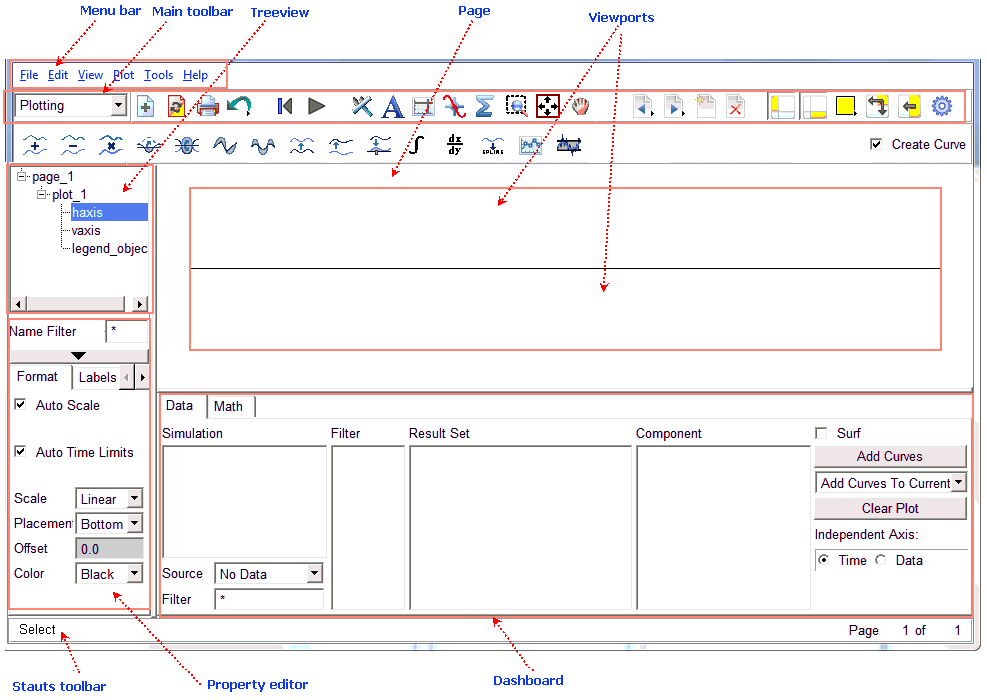
Figure 1 Adams PostProcessor Window
The elements in the Adams PostProcessor window are:
■Menu bar - Contains the headings of each menu.
■Main toolbar - Displays commonly used tools for working with animations, plotting results, and reports. It changes depending on whether you are viewing animations, plots, or reports.
■Treeview - Displays a hierarchical list of the models and pages. The tree is especially useful for selecting and identifying objects.
■Property editor - Lets you change the properties of selected objects.
■Status toolbar - Displays information messages and prompts while you work.
■Page - Displays the current page. Each page can display up to six rectangular areas or viewports in which you can place animations and plots.
■Viewports - Rectangular areas that display different views of plots, animations, or reports.
■Dashboard - Provides functions for controlling animations or plotting results.