Export FMU for SCALEXIO® - Controls Plant Export Method
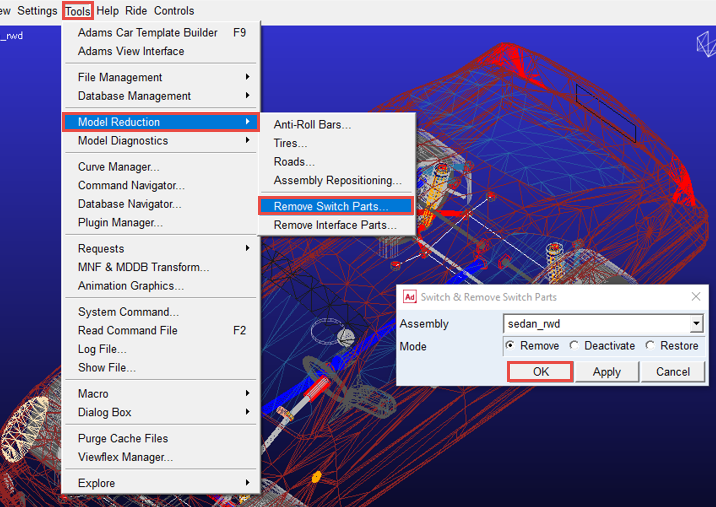
1. To speed up the analysis further for the real time environment remove switch parts and turn off some outputs:
a. Switch and remove switch parts via Tools → Model Reduction → Remove Switch Parts.
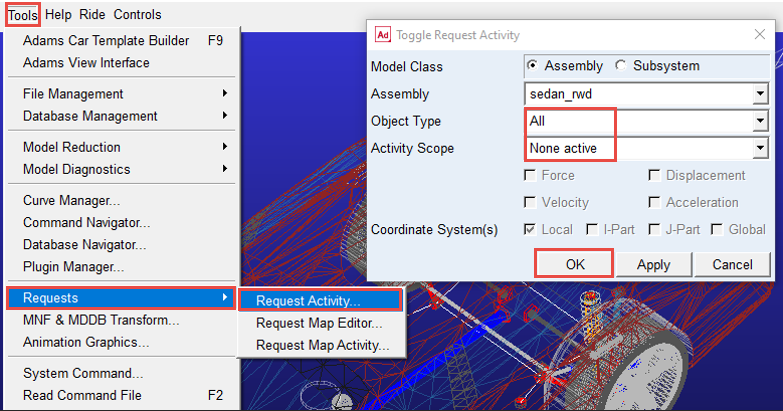
b. Deactivate requests via Tools → Requests → Request Activity and define values as follows:
♦Object Type: All.
♦Activity Scope: None active.
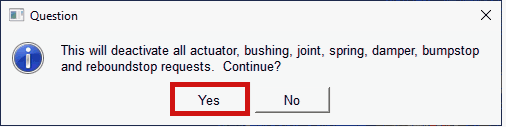
♦Acknowledge the below message and click Yes to continue.
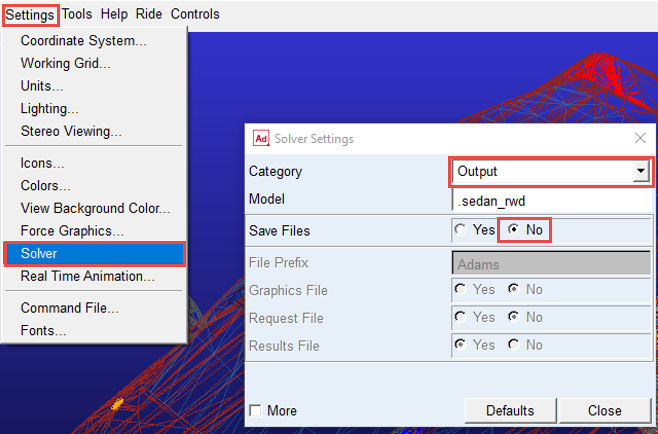
c. Turn off output files via Settings → Solver and define values as follows:
♦Category: Output.
♦Save Files: No.
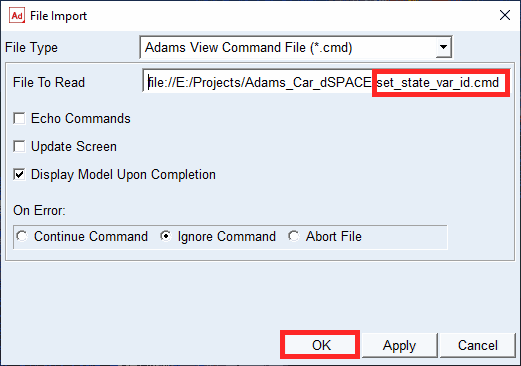
2. Go to File → Import → Adams View Command File and select set_state_var_id.cmd located at \install_dir\realtime\examples\SCALEXIO\. This sets the adams_id's of the input variables, as referenced in the sim_throttle_brake_steerang.xml event file (which we'll use later), for throttle (0-100%), brake (0- 100%) and steering angle (rad) inputs. The throttle, brake and steering inputs are defined as open- loop signals in the event file and determined by the input variables which are stored in the subsystem Controls_IO.sub. These input variables are the plant input variables of the FMU.
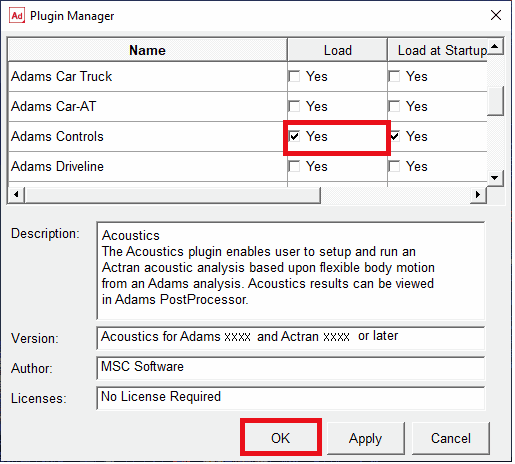
3. Load Adams Controls via Tools → Plugin Manager and selecting the Adams Controls row as shown below:
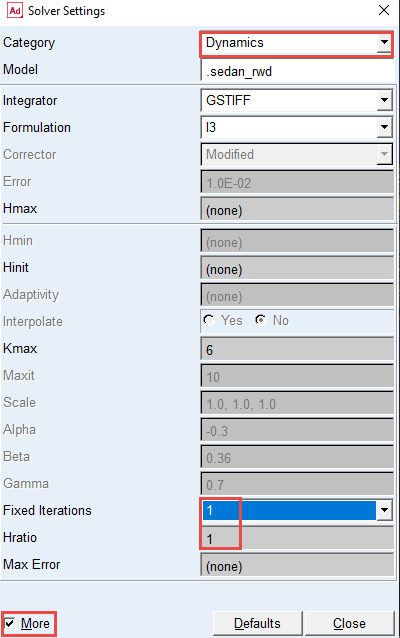
4. Employ the fixed step integrator and multi-threading for a fast performing simulation:
a. Go to Settings → Solver and define values as follows:
♦Category: Dynamics and select More.
♦Fixed Iterations: 1.
♦Hratio: 1.
We are setting Hratio = 1 because the SCALEXIO parent in the co-simulation will dictate the step size, and we want the Adams FMU to follow at the same interval, not at a finer rate which is what would happen with Hratio = 2 or more.
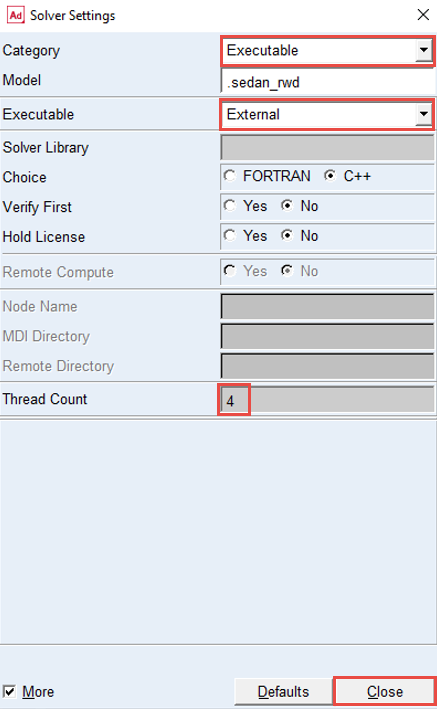
b. Then switch Category to Executable and define values as follows:
♦Executable: External.
♦Thread Count: 4 and Close the Solver Settings dialog box.
5. Write out simulation files for a file driven event using the driver control file supplied with this example, sim_throttle_brake_steerang.xml.
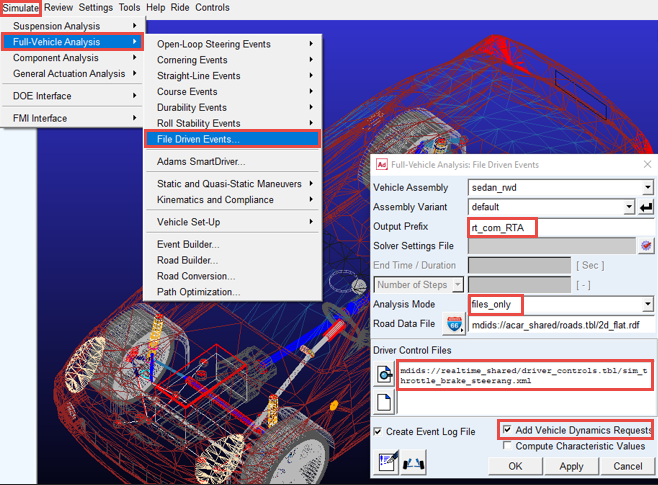
a. Go to Simulate → Full-Vehicle Analysis → File-Driven Events
b. Complete the dialog as shown below and click OK to run the simulation
♦Output Prefix: rt_com_RTA
♦Analysis Mode: files_only
♦Driver Control Files: sim_throttle_brake_steerang.xml. Copy this file to your current working directory. This file can be found at \install_dir\realtime\examples\SCALEXIO\.
c. Select the Add Vehicle Dynamics Requests check box and click OK.
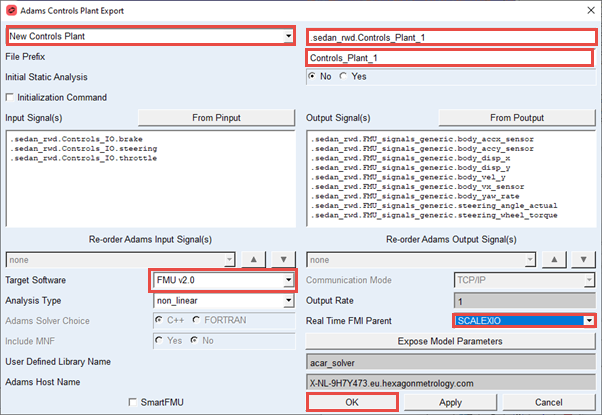
6. Export the FMU for use in real time environment: Controls → Plant Export, complete the dialog as shown below and click OK.
a. Update the File Prefix to match that of the file-only analysis performed in the previous step (this is how the FMU creation process finds the correct event details): "rt_com_RTA_sim_throttle_brake_steerang".
b. Populate the Input Signal(s) by clicking on From Pinput. Select Plant_Input "sedan_rwd.PINPUT_simWB" (which holds the plant input variables) in the Database Navigator. Do the same for the Output Signal(s): click on From Poutput and select "sedan_rwd.POUTPUT_simWB".
c. Target Software: FMU v2.0.
d. Real Time FMI Parent: SCALEXIO. This option modifies internal settings for exporting an FMU that would run most optimally with SCALEXIO as FMI Parent on a real-time operating system.
Note: | For using the Real Time Animation the 'Real Time Animation' needs to be set to 'On', see also Getting Started Adams Real Time Animation. |
Now the FMU rt_com_RTA_sim_throttle_brake_steerang.fmu should be found in your current working directory (CWD).