Export FMU for SCALEXIO® - FMI Interface Method
1. The files required for this portion of the tutorial can be found in the Adams installation at:
\install_dir\realtime\examples\SimWB\. Copy them to your working directory.
2. Start Adams Car (Standard Interface). This is a new session independent of the "Controls Plant Export Method".
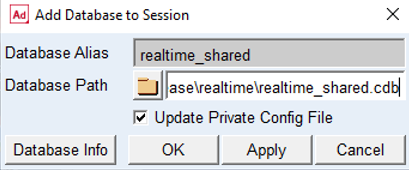
3. Add the realtime_shared.cdb database to the Adams Car session. Click on Tools → Database Management → Add to Session, fill out the dialog box as shown below and click on OK.
4. The realtime_shared.cdb database contains the following full-vehicle assembly:
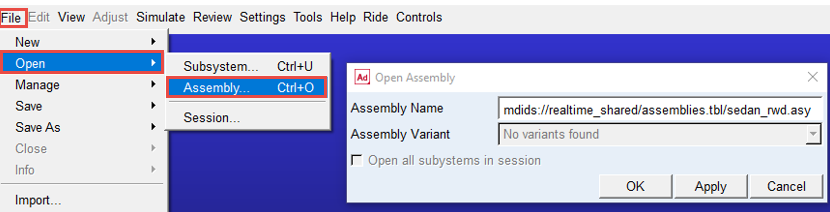
sedan_rwd.asy: vehicle model with compliance double wishbone front and rear wheel suspensions. The PAC2002 transient tire model is used for the tires. Open this assembly:
sedan_rwd.asy: vehicle model with compliance double wishbone front and rear wheel suspensions. The PAC2002 transient tire model is used for the tires. Open this assembly:
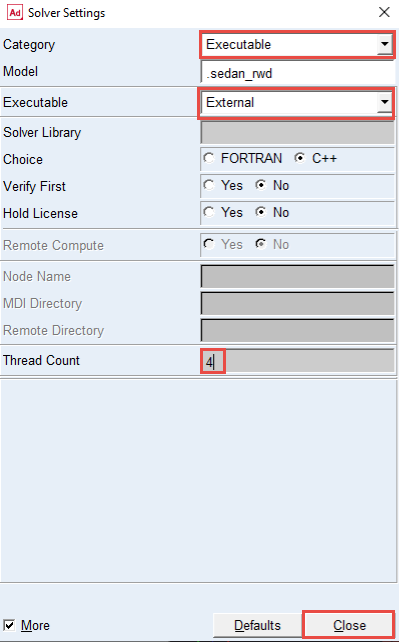
5. From Settings → Solver, define the values as below:
♦Category: Executable
♦Executable: External
♦Thread Count: 4 and Close the Solver Settings dialog box.
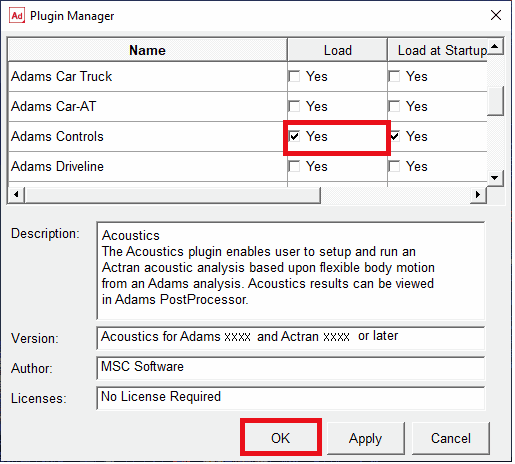
6. Load Adams Controls via Tools → Plugin Manager and selecting the Adams Controls row as shown below:
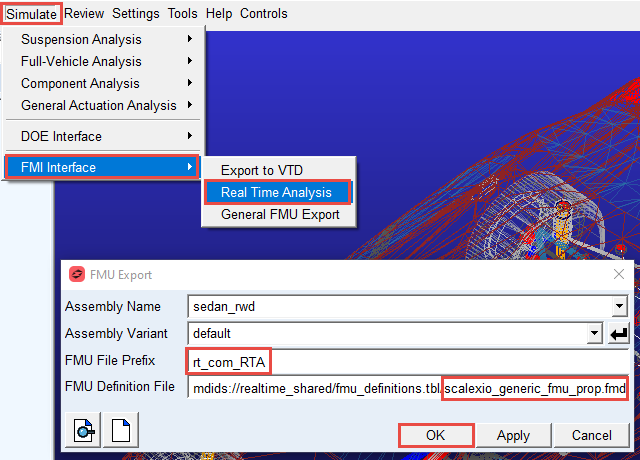
7. Go to Simulate → FMI Interface → Real Time Analysis and define values as below:
♦FMU File Prefix: rt_com_RTA.
♦For FMU Definition File choose the scalexio_generic_fmu_prop.fmu found in the realtime_shared database.
♦Click OK.
Now the FMU rt_com_RTA_scalexio_generic_fmu_prop_ol.fmu will be found in your current working directory. The FMD file could be edited to further customize the FMU as per the requirements.