Performing a Manual Study
As you perform this manual study, you will see how your spring force increases as you manually modify the design variable DV_1. If the spring force strip chart is not displayed, you should display it before modifying your design variable.
To update your spring force strip chart:
1. Click the Design Exploration tab on the Adams View ribbon.
2. From the Measures container, click Display a Measure tool  .
.
. The Database Navigator appears.
3. Select SPRING_1_MEA_1.
4. Select OK.
5. Run a .2 second, 100-step simulation and then return to the initial model configuration.
Adams View updates the spring measure strip chart.
6. Right-click the spring force curve in the strip chart. Point to Curve: Current, and then select Save Curve.
To modify a design variable:
1. From the Model Browser window, click Design Variables and expand.
2. Select DV_1 from the list, right click and select Modify.
The Modify Design Variable dialog box appears.
3. Change the standard value of DV_1 to 1.0.
4. Select OK.
5. Run a .2 second, 100-step simulation.
This new plot shows a comparison of the spring force measure for the two cases. The new curve shows better draw on the spring.
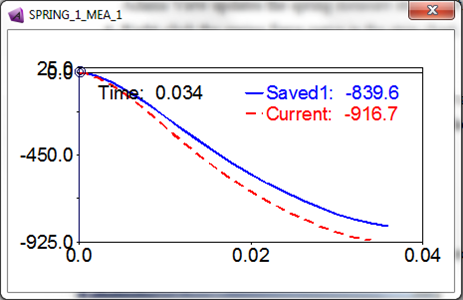
6. Change DV_1 back to 0.0, its original value.