Common Setup
The following part of the dialog box is common to both Time domain and Frequency domain simulations.
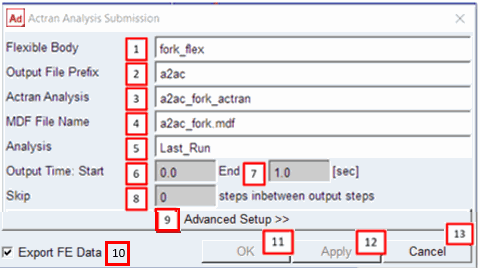
It contains the following parameters:
1. Flexible Body: a flexible body within the Adams model must be chosen; the vibrational results of this flexible body from an Adams simulation will be used as the basis for the acoustics analysis
2. Output File Prefix: specifies the name of the files written to disk by the acoustics analysis
3. Actran Analysis: specifies the name of the acoustics analysis job
4. MDF File Name: specifies the name of the modal deformation file containing the participation factors
5. Analysis: select the Adams analysis whose results for the selected flexible body should be the basis of the acoustics simulation
6. Output Time Start: defines the start of the time range from the Adams analysis for which the acoustics analysis should be run
7. Output Time End: defines the end of the time range from the Adams analysis for which the acoustics analysis should be run
8. Skip: Adams time steps can be skipped to reduce the computational time of the acoustics analysis (it will affect maximum frequency, see Discrete Fourier Transform (DFT) section in Appendix)
9. Advanced Setup: opens the advanced setup tabs, available tabs are Mesh, Results Content, DFT, Environment, Far Field, and Analysis Setup
10. Export FE Data: selecting this directs Adams to copy the following files in the analysis directory:
■Structural mesh
■Modes in MNF format
11. OK: starts the acoustic simulation and closes the dialog
12. Apply: starts the acoustic simulation and keeps the dialog open
13. Cancel: closes the dialog