Example Four-Post Analysis
Although this is an Adams Car example, you can use the general concepts presented here to customize any template-based product.
■Building and Running an Analysis: Teaches the expert user how to build and run a full-vehicle analysis with the four-post test rig.
■Creating and Running a Macro: Introduces the concepts of creating and running a macro for the scenario given above.
Setting Up and Running an Analysis
Learn about building and running an analysis:
Extracting the Files
To get started with the example four-post test rig, extract the files located in the directory install_dir/acar/examples/fourpost (for example, C:\Program Files\MSC.Software\Adams\2024_1\acar\examples\fourpost). Then, use the file acar_build.cmd to create a site binary that contains the test rig and corresponding macros. To create a site binary file that contains the appropriate test rig and analysis macro files, you must perform the following steps:
1. Set the following environment variable to the location where your files are stored: MDI_ACAR_SITE.
■On Windows, it might look like: C:\Program Files\MSC.Software\Adams\2024_1\acar\examples\fourpost.
■On Linux, it might look like: /usr/MSC.Software/2024_1/acar/examples/fourpost.
Make sure you have write permissions within this directory.
2. Build the Adams Car site binary file as follows:
■On Windows: From the Start menu, point to Programs, point to Adams 2024.1, and then select Command Prompt. In the command window, type acar; cr-sitebin
■On Linux: Type adams2024_1; type acar, and then type cr-sitebin
Adams Car automatically executes acar_build.cmd and builds all the appropriate entities and libraries into a site version of the Adams binary file.
3. To run the site binary file, follow the steps outlined above, but replace the cr-sitebin command with ru-site.
Test Description
You can use the four-post test rig to investigate the vertical dynamics of the full vehicle and its suspension systems. You can then plot the time-based results and study them in the frequency domain to understand the various ride modes and their respective damping levels. The investigation will also help you learn more about the influences of the vehicle's vertical dynamics effects on handling behavior by studying the system's dynamic responses, which includes:
■Front-to-rear modal balance
■Suspension-to-body transfer function gain and phase
■Suspension-to-tire transfer function gain and phase
■Tire contact patch vertical load variation
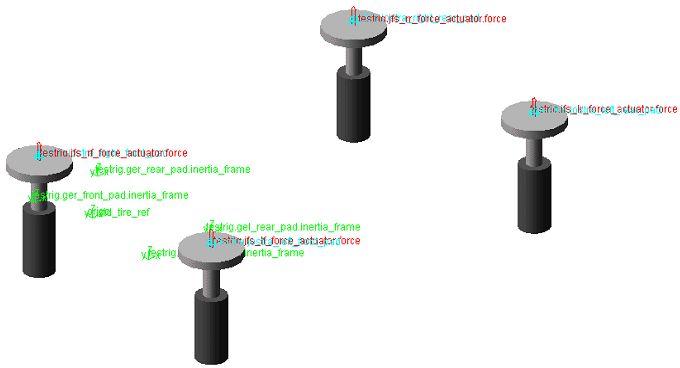
The test involves assembling a standard full-vehicle model to a four-post test rig. The test rig is defined by four parts representing the tire pads that support the vehicle. The tire pads are constrained to move only in the vertical direction and a displacement actuator, or motion controller, controls their vertical motion.
The only constraint between the pads and the vehicle's tires is the friction of the tires.
Not all tire models have adequate zero speed modeling for being used with the four-post rig test: a rolling tire acts as a damper because the force response depends on tire slip speeds; a non-rolling tire should act as a spring and forces must depend on tire deflection.
All Adams Tire tire models support the four-post rig test when used in transient mode. For most tire models this means that the USE_MODE in the tire property file must be larger then 10. The exceptions are:
■UA-Tire, USE_MODE must be set to 2
■The Basic and Enhanced tire model property files must specify a RELAXATION_LENGTH larger then zero.
■FTire is in transient mode by default.
An analytical function controls the vertical actuators. Analytical functions also describe the displacement profile of the actuator in the time domain and they are limited to constant amplitude sinusoidal input that sweeps over a predetermined frequency range in a set amount of time. When using the analytical function control, users can use four excitation modes:
■Heave - All tire pads move vertically in phase.
■Pitch - The front tire pads move 180o out of phase with the rear tire pads.
■Roll - The left tire pads move 180o out of phase with the right tire pads.
■Warp - The left-front and right-rear tire pads move 180o out of phase with the right-front and left-rear pads.
Test Rig Description
We created the test rig __acme_4PostRig in Adams Car Template Builder. Its major role is analysis and it contains four general parts for each of the pads, and four actuators for each of the vertical translation joints on each pad. The location of all of the pads and their respective constraints, such as actuators, are parameterized in the ground plane (x and y) to a wheel-center location communicator that comes from the suspension systems. The vertical location is parameterized to the z location of the marker std_tire_ref. The marker std_tire_ref has its z height set automatically during the assembly process so that it represents the average tire contact patch height of the vehicle.
Four-Post Test Rig
Loading an Assembly with the Test Rig
Once you have successfully built the site binary file and started the site version of Adams Car, you must open the assembly that we have also provided in the examples directory (cdb.cdb) mentioned in Extracting the Files.
If you have not already added the database to your .acar.cfg file, you should do the following:
■From the Tools menu, point to Database Management, and then select Add to Session.
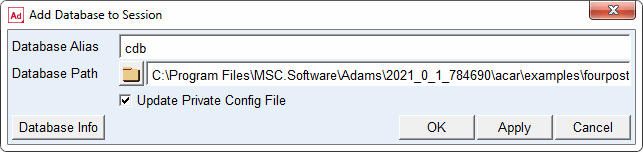
Open the assembly contained in the cdb database as follows:
1. From the File menu, point to Open, and then select Assembly.
2. Open the MDI_Vehicle_4PostRig.asy.
You can also create a new assembly by doing the following:
1. From the File menu, point to New, and then select Full-Vehicle Assembly.
2. Select the appropriate subsystem files.
3. Change the vehicle test rig from __MDI_SDI_TESTRIG to __acme_4PostRig.
4. Select OK.
Running a Test
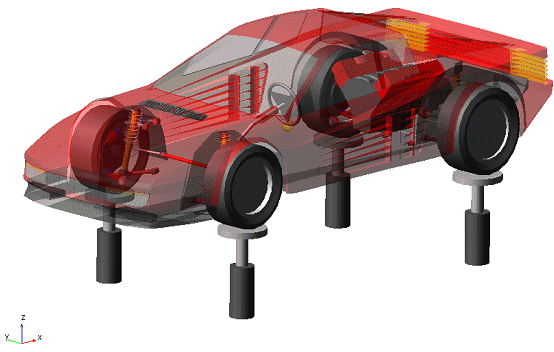
You should have a full-vehicle assembly mounted to the four-post test rig as shown next.
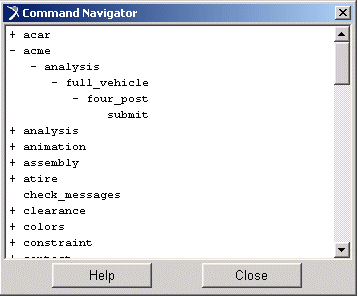
Use the Command Navigator to submit an analysis using the auto-generated dialog box:
1. To open the Command Navigator, from the Tools menu, select Command Navigator.
2. To run a full-vehicle analysis with the four-post test rig, you must select acme -> analysis -> full_vehicle -> four_post -> submit (double-click).
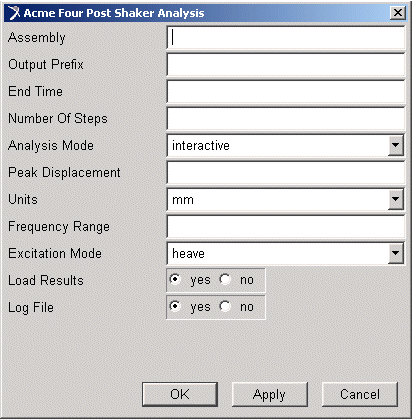
Adams Car displays the following dialog box (without the values, which we added for your convenience):
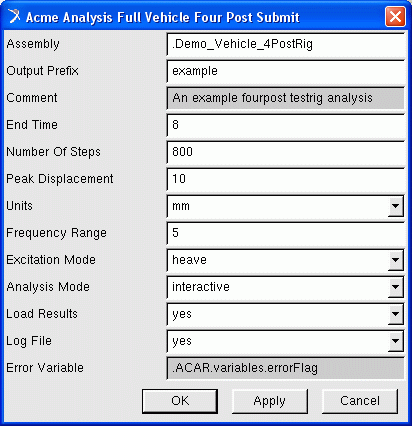
3. After the analysis is completed, review the results using the animation and post-processing tools.
Creating and Running a Macro
This topic introduces the concepts of creating and running a macro. While many of the code excerpts are contained in this topic, we also included the appropriate files in the examples directory (install_dir\acar\examples\fourpost\analysis\macros).
You can modify the macro in this directory and then rebuild it in to your Adams Car site binary file. This allows you to make changes and experiment with macro changes.
User-Input Parameters
Analysis input parameters are the values that you enter to control a simulation or some other event in the template-based products. Analysis input parameters can be grouped into two categories:
■Parameters common to all analyses:
■Output prefix
■End time
■Number of steps
■Type of analysis (interactive, background)
■Analysis log file (yes, no)
■Parameters specific to this four-post test rig. You use the four-post simulation input parameters to define the boundary conditions of the desired vertical excitation test. The parameters are:
■Peak displacement
■Displacement units (such as m, mm, inch)
■Frequency range (units hardcoded to Hz)
■Excitation mode (heave, pitch, roll, or warp)
About the Simulation Process
The following steps outline the simulation process. The simulation process for the vehicle and test rig is similar to any other suspension or full-vehicle simulation.
The simulation process steps are:
1. Perform a check to ensure that the assembly has the correct test rig.
2. Check if an analysis of the same name already exists.
3. Read in the property files.
4. Assign the z location of the marker std_tire_ref based on the average contact patch location of all of the tires to the four wheel pads.
5. Modify the analytical functions of the actuator (jms_left_front_actuator, jms_right_front_actuator, and so on), according to the user-input data:
Based on the analytical drive signal, you must assign the following functions to each actuator:
Left Front - LF_phase*Peak_Amplitude*sin(1/2*360D*Freq_Range/End_Time*Time**2)
Right Front - RF_phase*Peak_Amplitude*sin(1/2*360D*Freq_Range/End_Time*Time**2)
Left Rear - LR_phase*Peak_Amplitude*sin(1/2*360D*Freq_Range/End_Time*Time**2)
Right Rear - RR_phase*Peak_Amplitude*sin(1/2*360D*Freq_Range/End_Time*Time**2)
where the following values are assigned to the phase variables in the function:
Heave Mode - LF_Phase, RF_Phase, LR_Phase, RR_Phase = 1.0
Pitch Mode - LF_Phase, RF_Phase = 1.0 & LR_Phase, RR_Phase = -1.0
Roll Mode - LF_Phase, LR_Phase = 1.0 & RF_Phase, RR_Phase = -1.0
Warp Mode - LF_Phase, RR_Phase = 1.0 & RF_Phase, LR_Phase = -1.0
The simulation process involves submitting the simulation to Adams Solver using a process similar to the full-vehicle simulation process. The simulation needs:
■One static equilibrium
■An initial velocity of 0.0
■A dynamic simulation equal to the end time (specified by user)
To avoid aliasing of the input during the simulation, users should set the maximum time step that the integrator is allowed to take (HMAX argument on the integrator) to at least 1/10 of the maximum frequency range. For example, if the frequency range you set is 20 Hz, then the HMAX should be 1/10*1/20 = 1/200 (0.005).
Creating the Macro
This four-post vertical excitation example provides instructions to help you create your own macro based on a given user scenario. The objective of the analysis is described in Test Description.
Creating the macro involves the following:
Defining Parameters
We determined the parameters for the four-post analysis macro from User-Input Parameters (for a description of the parameters whose values are important for the success of the four-post simulation, see the table Parameter Descriptions):
! $assembly:t=model
! $output_prefix:t=string
! $comment:t=string:d=""
! $end_time:t=real:gt=0
! $number_of_steps:t=integer:gt=0
! $analysis_mode:t=list(interactive,graphical,background):d=interactive
! $peak_displacement:t=real:gt=0
! $units:t=list(mm):d=mm
! $frequency_range:t=real:gt=0
! $excitation_mode:t=list(heave,pitch,roll,warp):d=heave
! $load_results:t=list(yes,no):u=yes
! $log_file:t=list(yes,no):u=yes
! $error_variable:t=variable:d=.ACAR.variables.errorFlag
Parameter Descriptions
Parameter name: | Description: |
|---|---|
assembly | String value that specifies an existing model. t=model; t specifies type; examples could include real, integer, and so on. |
output_prefix | String value that specifies the name of the analysis. This name is used to write the analysis files (.adm, .acf, and so on) to the file system and also when the solver files are read back into Adams Car. |
comment | Stores comments in the Adams dataset, d=" "; d specifies default, which is an empty string. |
end_time | Real value that tells Adams Solver the end time of the four-post analysis. gt=0; gt specifies greater than. |
number_of_steps | Integer value that tells Adams Solver the number of output steps. |
analysis_mode | String value that specifies the mode of the analysis. The three valid modes are interactive, background, or graphical; the list specifies the valid options. |
peak_displacement | Indicates the maximum amplitude of the shaker pad vertical displacement. |
units | Hardcoded to millimeters for tutorial, but you can expand it to include other units. |
frequency_range | Real value indicating the frequency range of the actuator motion functions. |
excitation_mode | List value that indicates the direction of the shaker pad motions. |
load_results | Specifies whether to load the results once Adams Solver has finished the analysis. The default is yes. |
log_file | Indicates if Adams Car should generate an analysis log file. |
Handling Errors
With this macro, users must perform the four-post analysis with the .__acme_4PostRig test rig described in Test Rig Description. The assembly and test rig perform actions based on the elements that exist in the .__acme_4PostRig test rig. Therefore, as part of error checking, the macro checks for the correct test rig. For a description of the setup of the assembly and test rig, see About the Simulation Process.
In addition to verifying that the user is using the correct test rig, the macro also checks if the analysis name is unique for this assembly. Notice that we use indenting and comments to make the macro easier to read; as with all programming languages, this is a good practice to get into.
variable set variable_name=$error_variable integer=0
!---- Check to ensure the assembly has the proper test rig ----
if condition=($assembly.original_testrig_name != "__acme_4PostRig")
if condition=($assembly.original_testrig_name != "__acme_4PostRig")
acar toolkit warning &
warning="Analysis cannot be submitted!", &
"The assembly does not have the proper testrig. This analysis only", &
"works with assemblies using the '__acme_4PostRig' testrig."
variable set variable_name=$error_variable integer=1
return
end
!---- Check if analysis name already exists ----
if condition=(db_exists("$assembly.$'output_prefix'_fourpost"))
if condition=(alert("question","An analysis called \'$'output_prefix'_fourpost\' &
already exists. Overwrite it?","Yes","No","",2) == 2)
variable set variable_name=$error_variable integer=1
return
end
end
Reading Property Files
After the macro validates the assembly, it reads in and assigns the property file information, using the following code fragment:
!---- Clear out message window ----
acar toolkit message &
message=" " append=no display=no closeable=yes echo_to_logfile=no
!---- Read property files ----
acar toolkit read property_files &
assembly=$assembly &
verbose=yes &
error_variable=$error_variable
if condition=($error_variable != 0)
return
end
Setting Up the Assembly and Test Rig
In this section of the macro, you modify elements of the test rig and assembly to match the values and information entered by the user.
The code fragments for the four-post setup are shown next, with a description for each section, as needed.
!---- Set up the assembly for the maneuver ----
acar toolkit message &
message="Setting up vehicle assembly for four-post shaker..."
You must assign the tire reference markers to the appropriate test pad on the shaker table. The naming conventions for the communicator variables for the reference markers are considered fixed, in that the macro looks for the communicators known to exist in the four-post test rig. Note that the setup of the tire reference markers only occurs once for a particular assembly. If you use the same assembly for multiple four-post analyses, the initial setup will be valid for each analysis.
For each wheel, the tire reference marker is assigned to a shaker pad. The first step is to find each tire in the full-vehicle assembly. The reassignment occurs through an output communicator in the test rig. The communicator holds the name of the part on the shaker pad where you should attach the tire reference marker.
if condition=(!db_exists("$assembly.fourpostSetup"))
!--- Parameterize the 4post pad height to the global road height marker just previously adjusted ---
marker modify &
marker_name=$assembly.testrig.ground.std_tire_ref &
location=($assembly.ground.std_tire_ref.location) &
relative_to=$assembly.testrig.ground
variable set variable=$_self.frontWheel &
object_value=(eval(subsystem_lookup($assembly,"wheel","front")))
variable set variable=$_self.leftFrontWheel &
object_value=(eval(db_filter_name(db_children($_self.frontWheel[1],"ac_tire"),"til_*")))
variable set variable=$_self.rightFrontWheel &
object_value=(eval(db_filter_name(db_children($_self.frontWheel[1],"ac_tire"),"tir_*")))
variable set variable=$_self.rearWheel &
object_value=(eval(subsystem_lookup($assembly,"wheel","rear")))
variable set variable=$_self.leftRearWheel &
object_value=(eval(db_filter_name(db_children($_self.rearWheel[1],"ac_tire"),"til_*")))
variable set variable=$_self.rightRearWheel &
object_value=(eval(db_filter_name(db_children($_self.rearWheel[1],"ac_tire"),"tir_*")))
marker modify &
marker_name=(eval($_self.leftFrontWheel.object_value.ref_marker.object_value)) &
new_marker_name=
(eval($assembly.testrig.col_front_pad_mount[1]//"."//$_self.leftFrontWheel.object_value.ref_marker.object_value.name))
marker modify &
marker_name=(eval($_self.rightFrontWheel.object_value.ref_marker.object_value)) &
new_marker_name=(eval($assembly.testrig.cor_front_pad_mount[1]//
"."//$_self.rightFrontWheel.object_value.ref_marker.object_value.name))
marker modify &
marker_name=(eval($_self.leftRearWheel.object_value.ref_marker.object_value)) &
new_marker_name=(eval($assembly.testrig.col_rear_pad_mount[1]//"."//$_self.leftRearWheel.object_value.ref_marker.object_value.name))
marker modify &
marker_name=(eval($_self.rightRearWheel.object_value.ref_marker.object_value)) &
new_marker_name=(eval($assembly.testrig.cor_rear_pad_mount[1]//"."//$_self.rightRearWheel.object_value.ref_marker.object_value.name))
variable set variable=$assembly.fourpostSetup &
integer_value=1
end
You must reset the motion actuators driving the displacement of the shaker pads for each individual four-post analysis. This is in contrast to the tire reference marker setup, described in the previous paragraphs, which needs to occur only once for a particular assembly, and remains valid for all successive four-post analyses.
Each of the four shaker pads will have the same magnitude of motion, but a specific excitation mode will determine the direction of the motion:
■Heave mode - All four shaker pads move in the same direction.
■Pitch mode - The front and rear tires move in opposite directions.
■Roll mode - The left and right tires move in opposite directions.
■Warp mode - The left front and right rear tires move opposite to the direction traveled by the right front and left rear tires.
You set the different excitation modes by specifying a 1 or -1 multiplier at the beginning of the actuator function definition, as shown next:
!---- Assign actuator functions based on excitation mode ----
!-Heave Excitation
if condition=("$excitation_mode" == "heave")
acar template_builder actuator set function &
actuator=$assembly.testrig.jms_left_front_actuator &
function="1*$peak_displacement*sin(.5*360d*$frequency_range/$end_time*time**2)"
acar template_builder actuator set function &
actuator=$assembly.testrig.jms_right_front_actuator &
function="1*$peak_displacement*sin(.5*360d*$frequency_range/$end_time*time**2)"
acar template_builder actuator set function &
actuator=$assembly.testrig.jms_left_rear_actuator &
function="1*$peak_displacement*sin(.5*360d*$frequency_range/$end_time*time**2)"
acar template_builder actuator set function &
actuator=$assembly.testrig.jms_right_rear_actuator &
function="1*$peak_displacement*sin(.5*360d*$frequency_range/$end_time*time**2)"
!-- Pitch Excitation
elseif condition=("$excitation_mode" == "pitch")
acar template_builder actuator set function &
actuator=$assembly.testrig.jms_left_front_actuator &
function="1*$peak_displacement*sin(.5*360d*$frequency_range/$end_time*time**2)"
acar template_builder actuator set function &
actuator=$assembly.testrig.jms_right_front_actuator &
function="1*$peak_displacement*sin(.5*360d*$frequency_range/$end_time*time**2)"
acar template_builder actuator set function &
actuator=$assembly.testrig.jms_left_rear_actuator &
function="-1*$peak_displacement*sin(.5*360d*$frequency_range/$end_time*time**2)"
acar template_builder actuator set function &
actuator=$assembly.testrig.jms_right_rear_actuator &
function="-1*$peak_displacement*sin(.5*360d*$frequency_range/$end_time*time**2)"
!-- Roll Excitation
elseif condition=("$excitation_mode" == "roll")
acar template_builder actuator set function &
actuator=$assembly.testrig.jms_left_front_actuator &
function="1*$peak_displacement*sin(.5*360d*$frequency_range/$end_time*time**2)"
acar template_builder actuator set function &
actuator=$assembly.testrig.jms_right_front_actuator &
function="-1*$peak_displacement*sin(.5*360d*$frequency_range/$end_time*time**2)"
acar template_builder actuator set function &
actuator=$assembly.testrig.jms_left_rear_actuator &
function="1*$peak_displacement*sin(.5*360d*$frequency_range/$end_time*time**2)"
acar template_builder actuator set function &
actuator=$assembly.testrig.jms_right_rear_actuator &
function="-1*$peak_displacement*sin(.5*360d*$frequency_range/$end_time*time**2)"
!-- Warp Excitation
elseif condition=("$excitation_mode" == "warp")
acar template_builder actuator set function &
actuator=$assembly.testrig.jms_left_front_actuator &
function="1*$peak_displacement*sin(.5*360d*$frequency_range/$end_time*time**2)"
acar template_builder actuator set function &
actuator=$assembly.testrig.jms_right_front_actuator &
function="-1*$peak_displacement*sin(.5*360d*$frequency_range/$end_time*time**2)"
acar template_builder actuator set function &
actuator=$assembly.testrig.jms_left_rear_actuator &
function="-1*$peak_displacement*sin(.5*360d*$frequency_range/$end_time*time**2)"
acar template_builder actuator set function &
actuator=$assembly.testrig.jms_right_rear_actuator &
function="1*$peak_displacement*sin(.5*360d*$frequency_range/$end_time*time**2)"
end
Submitting the Analysis
After the macro sets up the assembly, you set up the macro to submit the assembly for the four-post analysis. Since this is a full-vehicle assembly, you use the corresponding full-vehicle submission utility macro. Note that the syntax for calling this macro is practically the same as that used in the standard Adams Car full-vehicle analyses. In this case, two additional parameters are specified to have non-default values for the four-post simulation: generate_road_geometry and simulation_type.
The following shows the code fragment for calling the full-vehicle submission utility macro:
!---- Perform the analysis ----
acar analysis full_vehicle submit &
assembly=$assembly &
analysis_name="$'output_prefix'_fourpost" &
end_time=$end_time &
number_of_steps=$number_of_steps &
analysis_mode=$analysis_mode &
load_results=$load_results &
brief=$brief &
road_data_file="BEDPLATE" &
generate_road_geometry=no &
simulation_type=fourpost
The following table describes the important parameters associated with the four-post full-vehicle submission macro.
Parameter name: | Description: |
|---|---|
load_results | String value that specifies if the results of the analysis should be read in after the analysis is complete. Expected values are yes or no. |
road_data_file | Hardcoded to BEDPLATE to indicate that the car will not be driven across a road surface. Adams Car internally interprets and understands this hardcoded value. |
generate_road_geometry | Set to no to indicate that Adams Car should not generate a geometric representation of the data found in the road_data_file. |
simulation_type | Hardcoded to fourpost to indicate that the full-vehicle will be attached to a four-post shaker table. Adams Car internally interprets and understands this hardcoded value to produce the correct .adm and .acf files. |
Logging the Analysis Results
Once the analysis completed, the macro logs the results to a file. In addition, you can set up the macro so it displays final diagnostic messages to the message window, as follows:
if condition=($log_file)
acar analysis full_vehicle log &
assembly=$assembly &
analysis_name="$'output_prefix'_fourpost" &
analysis_type="Four Post Shaker Test" &
analysis_log_file="$'output_prefix'_fourpost.log" &
comment=$comment &
end_time=$end_time &
number_of_steps=$number_of_steps &
road_data_file="BEDPLATE" &
initial_velocity=0.0 &
velocity_units="m_sec" &
input_parameters="general input" &
parameter_values=("$number_of_steps")
end
if condition=("$analysis_mode" != "background")
acar toolkit message &
message="Simulation is complete."
end
Finishing up the Macro
Delete all local variables created in the macro using the $_self nomenclature:
variable delete variable_name=(eval(db_children($_self,"variable")))
Adding the Four-Post Analysis Macro to a Binary
You can add the four-post analysis macro to either the private or site binary. The command shown next creates the macro by reading in the command file found at the location you specified. You must place this command either in the acar_build.cmd file as described in Configuring Your Product, or in the macros_ana.cmd file as we have done in the example analysis/macros_ana.cmd, which is read by acar_build.cmd.
macro read macro_name=.acme.macros.mac_ana_ful_fou &
file_name=(getenv("MDI_ACAR_SITE")//"/analysis/macros/mac_ana_ful_fou_sub.cmd") &
user_entered_command="acme analysis full_vehicle four_post submit" &
wrap_in_undo=no &
create_panel=no
Testing the New Analysis Macro
The easiest way to test the four-post analysis macro is to access it from the Command Navigator. The command you should use is the user_entered_command specified in the acar_build.cmd file shown in Adding the Four-Post Analysis Macro to a Binary.
When you access the four-post macro from the Command Navigator, Adams Car automatically creates a dialog box based on the parameters in the macro. Users can use this dialog box, shown next, to execute the macro and submit the four-post analysis.
Macro-Generated Dialog Box
Customizing the Four-Post Analysis Dialog Box
Now that you created the four-post analysis macro, the custom graphical interface is also almost complete. When you access the four-post macro using the Command Navigator, Adams Car displays a default dialog box associated with that macro, as shown in figure Macro-Generated Dialog Box. Compare this dialog box to the one shown in figure Customized Dialog Box. The customized dialog box illustrates an example of what you might want to do with the default dialog box generated using the Command Navigator:
■Change the dialog box title.
■Remove the Comments and Error Variable text boxes (they will take on their default values as defined in the macro).
■Modify the Load Results pull-down menu to be radio boxes, and then decrease the area they occupy.
■Shorten the Brief and Log File pull-down menus to match the Load Results radio boxes.
Customized Dialog Box
You can add the four-post custom dialog box to either the private or site binary (or interactively read it in during your Adams Car session). The command shown next creates the dialog box by reading in the command file found at the location you specify or we have provided an example dialog box in the examples directory (install_dir\acar\examples\fourpost\analysis\dboxes).
We have also provided dboxes_ana.cmd in the example, which contains the following code.
!---- Check if dialog box exists and delete it if it does ----
if condition=(db_exists(".acar.dboxes.dbox_ana_ful_fou_sub"))
interface dialog_box delete dialog_box_name=.acar.dboxes.dbox_ana_ful_fou_sub
end
!---- Read the Four Post shaker dialog box ----
file command read &
file_name=(getenv("MDI_ACAR_SITE")//"/analysis/dboxes/dbox_ana_ful_fou_sub.cmd")
!---- Check if menu button exists and delete it if it does ----
if condition=(db_exists(".gui.main.aca_sta_mbar.simulate.full_vehicle_analysis.ACME_FourPost"))
interface push_button delete &
push_button_name = .gui.main.aca_sta_mbar.simulate.full_vehicle_analysis.ACME_FourPost
end
!---- Add a menu option ----
interface push_button create &
push_button_name = .gui.main.aca_sta_mbar.simulate.full_vehicle_analysis.ACME_FourPost &
enabled = yes &
help_text = "Simulate a full-vehicle on the ACME FourPost testrig" &
units = relative &
horiz_resizing = scale_all &
vert_resizing = scale_all &
location = 0.0, 0.0 &
label = "&ACME Fourpost..." &
commands = "interface dialog_box display dialog=.acar.dboxes.dbox_ana_ful_fou_sub" &
default = false