Setting Up the Environment Through Configuration Files
To work efficiently with your template-based product, you must set a standard set of environment variables in a configuration file. The environment variable has the following format:
ENVIRONMENT VARIABLE_NAME VARIABLE_VALUE
We've set up default environment variables in the shared configuration file, but we recommend that you redefine them in the private or site configuration file to customize the work environment of your template-based product. You can also define your own environment variables for use with user-written subroutines or macros. See a list of Environment Variables.
Learn about the standard environment entries that you can set and how to create your own environment variables:
Setting User Access
You use the MDI_ACAR_USERMODE keyword in your private configuration file to set your user access, which determine you access to the Template Builder and other development tools (learn About User Access). Your private configuration file is found at $HOME/.acar.cfg, where $HOME is the location of your home directory.
Note: | The private configuration file is not located in the installation directory. Never change the acar.cfg file located in the installation. |
You can set USERMODE to:
■STANDARD - User can only access the Standard Interface.
■EXPERT - User can access the Template Builder and create and modify templates. User can access the Template Builder and other development tools that are located under the Tools menu. Expert users can use the MDI_ACAR_PLUS_AVIEW keyword in the private configuration file to access Adams View. Learn about accessing Adams View.
To change the value of this keyword, you must edit the private configuration file (.acar.cfg) using a text editor and modify the corresponding string. The following gives you expert access:
! Desired user mode (standard/expert)
ENVIRONMENT MDI_ACAR_USERMODE EXPERT
When you start a new session, your template-based product reflects the changes to the private configuration file.
Accessing Adams View
If you are an expert user, you can use the MDI_ACAR_PLUS_AVIEW environment variable in the private configuration file to obtain access to Adams View.
MDI_ACAR_PLUS_AVIEW has the following format:
ENVIRONMENT MDI_ACAR_PLUS_AVIEW (yes, no)
To access Adams View:
1. Set MDI_ACAR_PLUS_AVIEW to yes.
2. From the Tools menu, select Adams View Interface.
To return to your template-based product:
■From the Tools menu, point to Select Mode, and then select the interface mode to which you want to return: Standard Interface or Template Builder.
Setting Full Vehicle Solver Preference/Solver Preference
You can set your solver preferences, either from the settings menu or in your private configuration file.
See Solver Selection dialog box help.
Setting HHT Integrator Preferences
If using Adams Solver (C++), you can also set a preference for using the HHT integrator as the the default integrator, as explained next.
To set HHT integrator preference:
1. In a text editor, such as Jot or Notepad, open .acar.cfg in your home directory.
2. Add the following line to set HHT as the default integrator:
ENVIRONMENT MDI_AENG_HHT_ERROR 1e-5
This sets the HHT integrator as the default integrator with a default error tolerance of 1e-5 when using Adams Solver (C++).
3. Start a new session.
Setting Defaults and Display of the Welcome Dialog Box
Setting Defaults
You can use the MDI_ACAR_INITMODE environment variable to set the default selection in the Welcome dialog box when the user has expert-user access. MDI_ACAR_INITMODE has the following format:
ENVIRONMENT MDI_ACAR_INITMODE (template_builder, standard_interface)
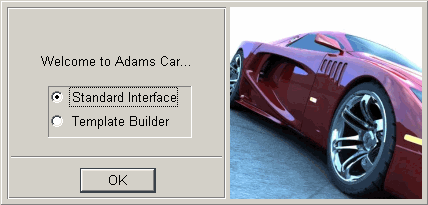
In Adams Driveline for example, if you set MDI_ACAR_INITMODE to standard_interface, the Welcome dialog box sets the selection of Standard Interface as the default, as shown next.
Setting the Display
You can use the MDI_ACAR_MODEPROMPT environment variable to set your template-based product so that it does not display the Welcome dialog box at start up. MDI_ACAR_MODEPROMPT has the following format:
ENVIRONMENT MDI_ACAR_MODEPROMPT (yes, no)
Setting it to yes displays the Welcome dialog box; setting it to no turns off the display of the Welcome dialog box.
Replacing the Image on the Welcome and Exit Dialog Boxes
You can replace the image on the Welcome and Exit dialog boxes with another image.
To replace the image:
1. Create a color X pixmap image (.xpm) with a size of approximately 197 x 192 pixels.
2. Copy the new pixmap file to a designated directory.
3. Add the following entry in your .acar configuration file:
ENVIRONMENT MDI_ACAR_LOGO_BMP <your_directory/filename>
Setting Up Side Preferences
You can use the MDI_ACAR_SIDE_PREF environment variable to define the preferred side for creation. When you set the side preferences:
■The creation dialog box in the Template Builder sets the default type based on the side preference you set.
■The guesses available in the pop-up menus of dialog boxes are limited to either "left" and "single", "right" and "single", or "left", "right", and "single" entities depending on the preferred side. Your template-based product does this to limit the number of guesses.
The MDI_ACAR_SIDE_PREF environment variable has the following format:
ENVIRONMENT MDI_ACAR_SIDE_PREF (right, left, single)
Setting the Orientation of the Global Reference Frame
You can set the orientation of the global reference frame using direction cosines. You use either of the following environment variables to define the orientation:
ENVIRONMENT MDI_ACAR_VEHICLE_REAR 1,0,0
ENVIRONMENT MDI_ACAR_VEHICLE_LEFT 0,-1,0
Managing Result File Output
Result files include all the simulation output from an analysis. The following environment variable sets the default attribute of whether the result file is output during the analysis. If the assembled model contains flexible bodies, your template-based product automatically outputs a result file regardless of the environment variable setting.
If the assembled model does not contain flexible bodies, use the following command (example is for Adams Car) to indicate that you want your template-based product to output a result file:
ENVIRONMENT MDI_ACAR_WRITE_RES yes, no)
If a result file exists, your template-based product will automatically read it in with the analysis, if you run an interactive simulation.
If you run the simulation externally (background, files_only), you can read in the result file using either of these two methods:
■Review -> Analysis Management -> Read
■File -> Import -> Adams Results File (*.res)
Setting the Default Template Save Format
You can set the default template save format for your template-based product with an environment variable. The possible values are one of binary, ascii, or eds, with the default being binary.
ENVIRONMENT MSC_ACAR_TPL_SAVE_FORMAT (binary, ascii, eds)
On startup the value affects the variable:
.ACAR.variables.template_default_save_format
which can be changed in the session to control the format from inside the template-based product session.
Note: | If the plugin Adams Driveline is loaded then the ascii option is not valid, as some components of these plugin are not compatible with the ascii format. If the value is set to ascii anyway, the save format will default to binary. |
Setting Property File Preferences
Property files can be read at different times during the modeling process. You can control when property files are read using the variable MSC_ACAR_READ_PROPERTY_FILES:
ENVIRONMENT MSC_ACAR_READ_PROPERTY_FILES (1,2,3)
■1 = read property files at analysis submission
■2 = read property files during subsystem open/update and object modify
■3 = read property files at analysis submission, subsystem open/update and object modify
Redefining Environment Variables
We've set up default environment variables in the shared configuration file, but we recommend that you redefine them in the private or site configuration file to customize the work environment of your template-based product.
To redefine environment variables, use the format below. Your template-based product initializes the variables at startup. The format is:
ENVIRONMENT VARIABLE_NAME VARIABLE_VALUE
For example, the following gives you expert access to your template-based product:
ENVIRONMENT MDI_ACAR_USERMODE expert
List of Environment Variables.
Defining Your Own Environment Variables
You can define your own environment variables in the private and site configuration files for use with user-written subroutines or macros. For example, you can define a variable named debug_mode in your private or site configuration file. Then, in your own macros, you can query for the value of debug_mode, and execute some instructions depending on its value. The example below shows a portion of the macro that would query for the value of debug_mode:
IF condition =(getenv("debug_mode")=="yes")
default command echo=on
END
.
.
.
To define your own environment variables, use the format below. Your template-based product initializes the variables at startup
ENVIRONMENT VARIABLE_NAME VARIABLE_VALUE
For the previous example, you would use the following:
ENVIRONMENT debug_mode yes
Editing Files Using a Text Editor
You can use an environment variable, MDI_ACAR_USE_EDITOR, to edit files from within your template-based product. Adding this environment setting to your .acar.cfg file causes the View Property File tool  to launch a text editor instead of the Information window.
to launch a text editor instead of the Information window. If this environment variable is not set, external files will be shown in the info window. If it is set to any value, notepad.exe is used to open file. The default editor can be changed by specifying the path via the Adams Settings utility (Adams registry editor -> AView -> Preferences -> textEditor). In the variable, simply specify the location of your preferred text editor executable.
For example, an Adams Car user who wants to launch Wordpad would set up the environment variable as follows:
ENVIRONMENT MDI_ACAR_USE_EDITOR yes
and specifies the following path for textEditor field using Adams Settings utility as described above.
C:\Program Files\WindowsNT\Accessories\wordpad.exe