Adams Auto Save
The Adams Auto Save feature periodically creates a backup of the database. In the event of an unexpected termination of an Adams View or Adams Car session, the recovery file (.bin) will be accessible upon the next launch of Adams. This recovery file is an Adams View database file or Adams Car session file. The default location for this file is the system's temporary directory, but the user has the option to specify a different directory if desired.
Enabling Auto Save Feature
By default, the Auto Save feature is set to “Off”. Users can access these settings from within the Adams interface, and any changes made will take immediate effect on the current session. Additionally, these settings will apply to all future Adams sessions as well. To access the Auto Save settings dialog in Adams View, go to Settings Auto Save and for Adams Car go to Settings Preferences then look in Files & Backup section.
A description of the dialog controls follows below:
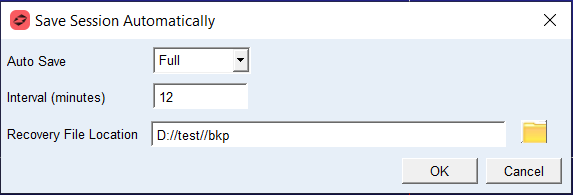
Description
Parameter: | Value Type: | Description: |
|---|---|---|
Auto Save | Off | Off - (default setting) no recovery files are generated |
Model | Model - Only the model(s) in the session are saved in the recovery database. | |
Full | Full - The entire database including analysis results, user customization, model containing plugin entities etc. will be saved in the recovery database. | |
Interval (minutes) | Minutes. Range (5 – 60) | Specify the number of minutes between which auto save recovery files are written. The default value has been set to 10 minutes. |
Recovery File Location | String | Specify the location at which Adams stores recovery files generated when automatically saving session. |
Note: | For large databases the auto-save action can temporarily halt interactive work. Choosing the "Model" option will auto-save only the model(s) in the session and may reduce the duration of these interruptions compared to the “Full” option. |
Loading the Recovery File
If a session terminates unexpectedly, the recovery file will be made available at the next launch of the software. If multiple recovery files are present when launching Adams, they will be displayed in a table with the options to open, ignore or delete the recovery file(s)
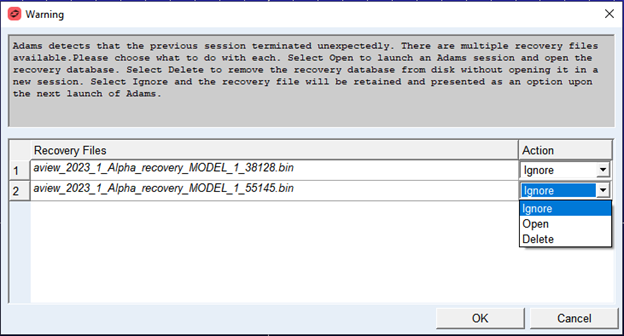
Ignore: Recovery file will be retained and presented as an option upon next launch of Adams.
Open: Launch new Adams session and open the recovery database, restoring to the point at which it was saved. Recovery file will be deleted once opening recovery database.
Delete: Remove the recovery database from disk without opening it in a new session.
Recovery File Name:
For Adams View sessions the recovery file name is generated in following manner:
<product_name>_<version>_recovery_<model_name>_<process id>.bin
Example: aview_2024.1_recovery_doubleCrank_38125.bin
For Adams Car sessions the recovery file name is generated in following manner:
<product_name>_<version>_recovery_<process id>.bin
Example: aview_2024.1_recovery_38125.bin
OK will perform the actions selected in the Action column.
Cancel will ignore all actions and retain all recovery file(s) in the system temp directory.