Linux Preferences
Some infrequently used configuration options for Adams View and Adams Solver require that you set environment variables by modifying startup scripts, such as your .cshrc file. These options include as setting license sharing, setting default colors for plotting in Adams Solver, and others.
You can also use the Adams toolbar to set preferences for Adams products.
Important: | Memory size changes do not take effect until you restart the Adams product. |
Adams Solver License Sharing
When you use Adams View to perform a simulation, it uses an Adams Solver license. Once the simulation is complete, by default, it does not check the license back in for another user. You must exit Adams View before other users can use the Adams Solver license. You can, however, set a simulation preference, hold_solver_license. You can change the simulation preference using the Adams View command:
simulation set hold_solver_license=yes/no
■If you set hold_solver_license to yes, then Adams View checks out the necessary licenses when you perform a model verify operation (because of the degrees of freedom calculation, which uses Adams Solver) or any type of simulation using the internal, or integrated, Adams Solver. It only releases the licenses when you exit Adams View or when you run a simulation using the external Adams Solver.
■If you set hold_solver_license to no, Adams View releases all Adams Solver licenses (static, kinematic, and dynamic), and all module licenses (Adams Tire) in these cases:
■You run a simulation using the external Adams Solver (as before).
■After a model verify operation.
■When you reset after a single simulation (transient, static, and so on) using the integrated Adams Solver.
■After a design study, design of experiment, or optimization analysis (licenses are held throughout the parametric analysis).
To change the default for only one Adams View session, use the Command Navigator to enter the commands simulation set. A dialog box appears in which you can temporarily set the default.
Adams Solver Preferences
You can use environment variables to do the following for Adams Solver:
■Modifying the Default Colors in Adams Solver
Default Colors in Adams Solver
You can modify the default colors for interactive graphics in Adams Solver by setting the values of the environment variables, shown below, in a startup script, such as .cshrc. You can set the screen so that it is monochrome or you can set the colors of background, line, text, and plots.
The following is an example of the Adams Solver color settings:
# Modify these variables to change the default colors for Adams Solver
#
setenv ADAMSPP_SCREEN_RENDITION "TYPE"
setenv ADAMSPP_BACKGROUND_COLOR "BLACK"
setenv ADAMSPP_LINE_COLOR "GREEN"
setenv ADAMSPP_TEXT_COLOR "WHITE"
setenv ADAMSPP_PLOT_GRID_COLOR "ORANGE YELLOW"
setenv ADAMSPP_PLOT_CURVE1_COLOR "CYAN"
setenv ADAMSPP_PLOT_CURVE2_COLOR "GREEN"
setenv ADAMSPP_PLOT_CURVE3_COLOR "BLUE"
setenv ADAMSPP_PLOT_CURVE4_COLOR "YELLOW"
Each command includes the instruction, the name of a variable, and the name of the color or type for the preceding variable.
Setting Monochrome Display
If you have a monochrome screen or if you want the screen image to appear in monochrome, you can set the following environment variable:
setenv ADAMSPP_SCREEN_RENDITION TYPE
In the environment variable, you can replace TYPE (in uppercase letters) with COLOR for color or MONOCHROME for a black and white.
Setting this variable to monochrome overrides any settings for color even if you set one or more environment variables for colors in the same Adams Solver session.
Setting Color Display
You can modify default colors for displays and plots by setting environment variables. To change the colors for some or all of the variables, set one or more of the following variables:
setenv ADAMSPP_BACKGROUND_COLOR "COLOR NAME"
setenv ADAMSPP_LINE_COLOR "COLOR NAME"
setenv ADAMSPP_TEXT_COLOR "COLOR NAME"
setenv ADAMSPP_PLOT_GRID_COLOR "COLOR NAME"
setenv ADAMSPP_PLOT_CURVE1_COLOR "COLOR NAME"
setenv ADAMSPP_PLOT_CURVE2_COLOR "COLOR NAME"
setenv ADAMSPP_PLOT_CURVE3_COLOR "COLOR NAME"
setenv ADAMSPP_PLOT_CURVE4_COLOR "COLOR NAME"
You can replace COLOR NAME (in uppercase letters) with any of the available 65 colors. You must use double quotation (" ") marks to enclose a type name with embedded spaces, such as "BURNT ORANGE". You do not need to use the double quotation marks to enclose a type name if it is a single word, such as GOLD.
Available colors are:
APRICOT | GREEN/YELLOW | PLUM |
AQUAMARINE | INDIAN/RED | RAW SIENNA |
BITTERSWEET | LAVENDER | RAW UMBER |
BLACK | LEMON/YELLOW | RED |
BLUE | MAGENTA | RED ORANGE |
BLUE GREEN | MAHOGANY | RED VIOLET |
BLUE GREY | MAIZE | SALMON |
BLUE VIOLET | MAROON | SEA GREEN |
BRICK RED | MELON | SEPIA |
BROWN | MIDNITE/BLUE | SILVER |
BURNT ORANGE | MULBERRY | SKY BLUE |
BURNT SIENNA | NAVY BLUE | SPRING GREEN |
CADET BLUE | OLIVE GREEN | TAN |
COPPER | ORANGE | THISTLE |
CORNFLOWER | ORANGE RED | TURQUOISE BLUE |
CYAN | ORANGE YELLOW | VIOLET/PURPLE |
FOREST GREEN | ORCHID | VIOLET/BLUE |
GOLD | PEACH | VIOLET/RED |
GOLDENROD | PERIWINKLE | WHITE |
GREY (GRAY) | PINE GREEN | YELLOW |
GREEN | PINK (CARNATION PINK) | SPRING GREEN |
GREEN/BLUE |
The color names in parentheses are alternative names for the preceding color. If you misspell a variable, Adams Solver uses the default color for that variable; it does not display an error message. If you misspell a COLOR NAME, however, Adams Solver displays an error message.
If you do not set a color for a given variable, Adams Solver uses the default color.
Remote X11 Access to Hexagon Applications
You can use a remote X11 device to display the Hexagon applications graphics by setting the DISPLAY environment variable. For example, if you are using an X terminal to log onto a workstation licensed to run Hexagon applications, you can set the DISPLAY environment variable at the operating system prompt to include the name of the X terminal:
X terminal name is: xcitement
DISPLAY variable: setenv DISPLAY xcitement: 0.0
DISPLAY variable: setenv DISPLAY xcitement: 0.0
For more information on accessing Adams View through remote X11 devices, see Adams View Preferences.
Adams Product License Checkout
You can specify the number of times an Adams product attempts to check out a license. The default is 60 attempts and the time interval between each check, which you cannot change, is 60 seconds. Adams Toolbar checks the registry entry licenseRetry to determine how many times it should try to check out its license.
To set the number of times to check out a license:
1. Right-click the Adams Toolbar tool, and then select Start Registry Editor.
The Registry Editor appears with options for setting all products.
2. In the treeview, click MSCA.
3. In the Registry area, click licenseRetry.
4. Set the number of times, and then select OK.
Temporary File Location
You can change where Adams places temporary files it generates during a simulation. By default, it places them in /var/tmp. You can use the environment variable TMPDIR in your .cshrc to set where Adams places the temporary files. You can direct Adams to place the temporary files in any directory, as long as you have the appropriate permissions to that directory.
For example, to direct Adams to place temporary files in the directory /usr/users/me/tmp, enter the following in your .cshrc:
setenv TMPDIR /usr/users/me/tmp
In the Adams Toolbar
Preferences in the Adams Toolbar
You can set preferences for all products at once or for a particular product. Not all products have preferences that you can set. In addition, many products share preferences with other products, and the Adams Registry Editor displays any shared preferences for each product.
To set all product preferences at once:
■Right-click the Toolbar tool  , and then select Start Registry Editor.
, and then select Start Registry Editor.The Registry Editor appears with options for setting all products.
To set preferences for a particular product:
1. Right-click the product's tool, and then select the Change Settings command.
2. Change the preferences as listed in the next sections:
3. Select OK.
Adams PostProcessor Preferences
Adams PostProcessor shares graphical settings with Adams View. For your convenience, the Graphics folder appears when you select Change Adams PostProcessor Settings from the Toolbar. For more information, see Adams View Preferences.
Note: | When you change graphical preferences for Adams Processor, you also affect the graphics preferences for Adams Car, and Adams View. |
Adams Solver Preferences
You can set preferences, listed in the table below, for standard Adams Solver and for user libraries that you created to run with Adams Solver. Each library has its own set of preferences. For more information about user libraries, see Creating User Libraries.
Before setting your preferences, be sure that you are setting the preferences for the desired library or standard Adams Solver.
To verify Adams Solver:
■On the Adams Toolbar, check the appearance of the Adams Solver tool:
 indicates that you are working with the standard Adams Solver.
 indicates that you are running Adams Solver with a user library.
Note: | You may have several user libraries. To verify which one is active, move your mouse over the tool until the tip text appears. The name you assigned to the library appears in the tip text. Alternatively, right-click on the tool, and select Info to see information about the library. |
Parameter: | Description: |
|---|---|
solverSelection | You can select either: ■Fortran Solver - Our commercially available solver (F77). ■C++ Solver - Our C++-based solver, which is faster, provides new linear analysis capabilities, and has an improved methodology for identifying and handling redundant constraints. For more information on the different solvers, see the online help for Adams Solver. |
remoteHost | Name of the remote host where you run Adams Solver. Note: Network access and multi-task package licenses allow you to submit tasks to Adams Solver while Adams View runs on one of many desktop workstations. To see if you can submit multiple tasks to Adams Solver, check the licensing information on the password certificate that is included in the Installer's Kit. If you do not know the type of license you have, check with the administrator who installed the Adams products. |
remoteHostWD | Specifies a directory that Adams Solver uses to write out its files and search for input files. The directory is optional. You need to specify it only if the user's file system is not automounted on the remote machine upon log in. |
remoteHostID | The name of the Adams Solver installation directory on the remote machine. |
memSize | Sets the memory model Adams Solver uses to simulate a model. You can select the standard memory models provided, as well as any custom models you created. For information on creating a memory model, see Creating a custom memory model. |
custMemModel | Sets the name of a custom memory model that you have previously created. For this to take effect, memSize must be set to custom. |
inputFile | Specifies that Adams Solver use the command language file (.acf) when running in scripted or batch mode. You can enter the path name of your command file or right-click in the text box and select one using the File Browser. |
workingDirectory | Specifies a directory where Adams Solver writes output files and searches for input files. By default, the parameter is empty and does not affect the location in which the output files are generated, or change the location where Adams Solver looks for input files. |
runMode | Sets the mode in which Adams runs: ■Interactive - Adams runs and waits for user input. ■Scripted - Adams runs with the command file that you specify in the parameter inputFile. (If you have not specified a command file and you run in scripted mode, Adams Solver launches in interactive mode.) ■Batch - Adams Solver runs with the command file specified in the inputFile. If you have not specified a command file, and run in batch mode, Adams Solver launches interactively. |
Adams View Preferences
You can set two types of preferences in Adams View:
■Preferences for Adams View and any user library - The parameters can be different for each user library that you create to run with Adams View and for standard Adams View.
■Preferences for Adams View only - The parameters are global graphics settings. They affect all Adams products that have a user interface, such as Adams Car. You can view and change them only when you are working with standard Adams View. They appear in the Registry area as a subfolder, Graphics.
Before setting your preferences, be sure that you are setting the preferences for the desired library or standard Adams View.
To verify Adams View libraries:
■On the Adams Toolbar, check the appearance of the product tool:
 indicates that you are working with standard Adams View.
 indicates that you are running Adams View with a user library.
Note: | If you have many user libraries, verify which one is active by moving your cursor over the tool until the tip text appears. The name you assigned to the user library appears in the tip text. Alternatively, right-click on the tool, and select Info to see information about the user library. |
General Preference Settings in Adams View | |
|---|---|
Parameter: | Description: |
workingDirectory | Specifies a directory where Adams View writes output files and searches for input files. By default, the parameter is empty and does not affect the location in which the output files are generated, or change the location where Adams View looks for input files. |
runMode | Sets the mode in which Adams View runs: ■Interactive - Adams View runs and waits for user input. ■Scripted - Adams View runs with the command file that you specify in the parameter inputFile. (If you have not specified a command file and you run in scripted mode, Adams View launches in interactive mode.) |
custMemModel | Sets the name of a custom memory model that you have previously created. For this to take effect, memSize must be set to custom. |
solverUserLibrary | Sets the Adams Solver user library to run from within Adams View. |
memSize | Sets the memory model Adams View uses to simulate a model. You can select the standard memory models provided as well as any custom models you created. For information on creating a memory model, see Creating a custom memory model. |
inputFile | Specifies that Adams View use a specified command language file (*.cmd) when running a product in scripted mode. |
searchPath | Allows you to specify the path file that contains search paths for different types of files that can be loaded into Adams View. For more information on path files, see Modifying the Adams Path Files. |
description | Available for user libraries only. Text that describes the library, such as what it does or how it was created. |
shortName | Available for user libraries only. A project name that appears on the Adams Toolbar and identifies the user library, such as AView1. |
fileCaching | Available for standard Adams View only. When performing animations that contain flexible bodies, Adams View often produces a large cache of data before it can perform the animation. The cache can be as large as several hundred megabytes. The default is to produce these caches on disk if there is enough disk space available. If the disk space is not available, Adams View places the cache in memory. Note that storing the cache on disk results in longer animation setup time (up to two times). You can disable file caching to increase animation setup speed but if there is not enough memory to produce a cache, Adams View may exit with an Out of Memory message. |
textEditor | Available for standard Adams View only. Specifies the text editor to be used by default. |
Global Graphics Settings in Adams View | |
|---|---|
Parameter: | Description: |
Graphics Driver | On all platforms, Adams View supports the X11 window driver as well as the one for the native graphics capabilities of the system. The X11 driver lets Adams View run from remote X terminals, and the native driver lets Adams View use any specialized or high-performance graphics hardware on the system. If the machine on which you are displaying Adams View does not have the hardware to meet Adams specifications, a warning message appears. Select X11 to resolve this problem. |
OpenGL Software Assisted | If you selected the option Native Open GL for Graphics Driver, it uses the hardware acceleration to render overlay planes. The overlay planes are used for the: ■Rubber band box drawn for selection or zoom. ■Temporary geometry (arrows) displayed when creating joints. ■Temporary geometry when sketching curves, extrusions, and revolutions. ■Object names when in selection mode. Some graphics cards do not offer hardware acceleration for overlay planes. If you have one of these graphics cards, then you should use OpenGL Software Assisted. Software assistance simply means that Adams View draws the overlay plane geometry instead of relying on the hardware. OpenGL Software Assisted is slower than Graphics Driver because the screen refresh rate for the overlay plane will be affected by the other geometry in the view. |
Double Buffering | Double buffering of screen updates in Adams View provides fluid animation updates. If you are using the X11 Window driver in Adams View, double-buffering uses more memory and generally runs slower than double-buffering with native graphics. |
Hardcopy Resolution | Specifies the resolution for shaded images written to a postscript file. Hardcopy Resolution does not affect wireframe images, such as xy plots. The default setting is 300 dots per inch (DPI). Note that earlier versions of Adams View (10.1 and earlier) used a default resolution of 75 DPI. We do not recommend that you use a resolution lower than 75 or higher than 600 DPI. Note also that larger values produce larger postscript files, and will likely increase processing time for the printer. |
Overlay Backgrounds | Controls whether or not a background appears behind pop-up text, such as the names of modeling elements and position coordinates. Because some graphics cards do not fully support OpenGL with overlay planes, which the background is, you may not be able to see the text. If this occurs, disable this option to remove the background and leave the text. |
Global Preferences in Shared | |
|---|---|
Parameter: | Description: |
minSpaceMB | Enter the amount of disk storage space (MB) available to the working directory below which certain file writing functions of Adams will not start. Specific actions which this will influence: ■Adams Solver execution |
maxBackups | Enter the maximum number of backups Adams should generate for file operations (0 for no backups). Adams will create backups with the following name pattern: <original filename>.yy-mm-dd.HHMMSS |
numSolverJobs | Enter the number of parallel Solver jobs to launch when submitting multi-runs. At present, the following multi-run analysis types support this setting: ■Adams Car ACF Runner ■Adams Car Event Browser (background and acf run options) ■Adams Car Dynamic KnC split analysis ■Adams Insight (background mode) |
autoSave | Automatically saves database (.bin) at autoSaveInterval (minutes). If the session terminates unexpectedly this recovery file will be made available at the next launch of the software. Note: For large databases the auto-save can temporarily halt interactive work. Choosing “Model”.will auto-save only the model(s) in the session and may reduce the duration of these interruptions. “Full” will save the entire database including analysis results which may increase the duration of these interruptions. |
autoSaveInterval | Specify the number of minutes between which autoSave recovery files are written. |
autoSaveLocation | Specify the location at which Adams stores recovery files generated when automatically saving session. |
Adams Car Preferences
The following preferences can be set for Adams Car, in addition to the preferences shown in the Template-Based Product Preferences table below.
Parameter: | Description: |
|---|---|
windowTop | Specifies the location of the main Adams Car window at startup. Positive values indicate the number of pixels from the top of the screen. Negative values indicate the upper location of the window as a percentage of the screen size. For example, windowTop = 0 specifies that the main window will be located at the top of the screen. |
windowLeft | Specifies the location of the main Adams Car window at startup. Positive values indicate the number of pixels from the left of the screen. Negative values indicate the horizontal location of the window as a percentage of the screen size. For example, windowLeft = 0 specifies that the main window will be located at the left of the screen. |
windowHeight | Specifies the default window height. Positive values indicate the height in pixels. Negative values indicate the height as a percentage of screen size. For example, windowHeight = 100 specifies that the main window will use all of the available screen height. |
windowWidth | Specifies the default window width. Positive values indicate the width in pixels. Negative values indicate the width as a percentage of screen size. For example, windowWidth = 100 specifies that the main window will use all of the available screen width. |
Template-Based Product Preferences
The template-based products have a private set of preferences, shown in the table below, and a shared set with Adams Solver and Adams View.
Parameter: | Description: |
|---|---|
siteDir | Specifies the location of the site repository in which you have created user libraries or binary files. For more information, see User Library Overview and Binary Files. |
privateDir | Specifies the location of your private repository. For more information, see the online help for your template-based product. |
privateCfg | Specifies the name and location of your private configuration file. For more information, see the online help for your template-based product. |
runMode | Sets the mode in which the product runs: ■Interactive - Runs and waits for user input. ■Scripted - Runs with the command file that you specify in the parameter inputFile. (If you have not specified a command file and you run in scripted mode, the template-based product launches in interactive mode.) ■Batch - Runs with the command file specified in the parameter inputFile. If you have not specified a command file, and run in batch mode, the template-based product launches in interactive mode. |
workingDirectory | Specifies a directory where the template-based product writes output files and searches for input files. By default, the parameter is empty and does not affect the location in which the output files are generated, or change the location where the product looks for input files. |
inputFile | Specifies that the template-based product use a specified command language file (*.cmd)when running in scripted mode. ■For Adams Solver: specifies the command file (.acf) when the Adams Solver executable runs in scripted or batch mode. ■For Adams View: specifies the command file (.cmd) when the Adams View executable runs in scripted mode. |
For your convenience, the preferences for Adams View and Adams Solver are included with the preferences for the template-based product in the Registry Editor, as shown next:
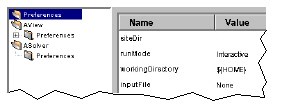
For information on preferences specific to Adams Solver and Adams View, see Adams Solver Preferences and Adams View Preferences.