On Windows
On Windows, use the Adams program folder and Selection Menu.
Running Adams on Windows
The Adams program folder and Selection Menu provide access to many of the Adams major products. Adams also has add-on modules or plugins, which expand the functionality of the major products, such as Adams Flex, Adams Controls, Adams Durability, and Adams Vibration. You run these products from within the major products. For example, to run Adams Vibration, you first run Adams Car or Adams View and then select the command to run Adams Vibration.
For instructions on running Adams products, refer to the online help for your product.
To start a product from DOS shell in Windows:
■Start → Adams 2024.1 → Command Prompt
■An alternative is to add the /bin directory under the Adams installation directory to your user PATH environment variable. You can do this via the Control Panel:
a. Type environment in the Control Panel search box.
b. Select the Edit environment variables for your account pick.
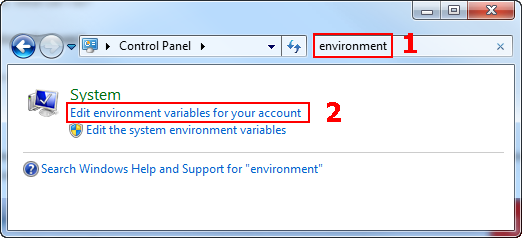
■Check to see if you already have a PATH variable defined under “User variables”. If it exists then edit it, add a semicolon “;” to the end of the existing value, and then add the “bin” directory under the Adams installation directory. Otherwise select New..., use PATH for the variable name and add the “bin” directory under the Adams installation directory as the value. The default location of this directory is:
Win64 Adams: C:\Program Files\MSC.Software\Adams\2024_1\bin
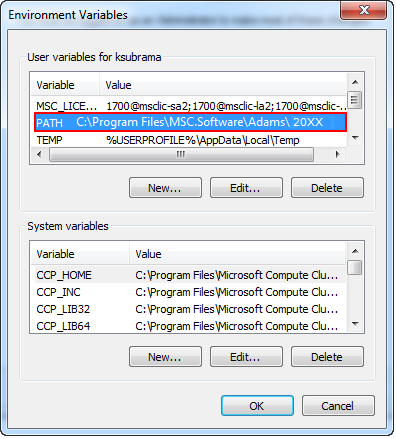
■Once you are done click OK.
Note: | Windows appends your User PATH to the System PATH environment variable, so there is no need to copy the existing System PATH variable to your user PATH variable. This behavior is unique to the User PATH variable. For all other environment variables, a User variables definition overrides a System Variables definition. |
Running Adams Solver
You can run either standard Adams Solver or Adams Solver with a user library, as explained below.
Standard Adams Solver
You can select to run Adams Solver without the Adams View graphical interface. Adams Linear and Adams Tire are analysis modules of Adams Solver. You access them by selecting the Adams Solver option, if you are licensed to do so.
To run Adams Solver:
1. Do one of the following:
■From the Start menu, point to Programs, point to Adams x (where x is the release number), and then select Adams Solver.
■From the Adams Selection Menu, enter ru-standard.
A window appears prompting you for information.
2. Enter the name of the Adams command file (.acf), if you have created one, or press Enter.
Adams Solver starts running.
Note: | The Adams command file (.acf) cannot reside in a directory whose path includes either an exclamation point (!) or an ampersand (&). |
For more information on the commands and execution of Adams Solver, see the Adams Solver online help.
User Libraries with Analysis Products
You can run user Adams Solver libraries from either the Program Folder or the Selection Menu, as well as run user libraries with Adams Tire.
To run a user library:
1. From the Start menu, point to Programs, point to Adams x (where x is the release number), and then select Command Prompt.
2. Enter ru-user.
3. Enter the name of the custom library that you want to run.
4. Enter the name of the Adams command file (.acf), if you have one, or press Enter.
Adams Solver starts running.
For more information on the commands and execution of Adams Solver, see the Adams Solver online help.
Running Adams View
Adams View is a powerful modeling and simulating environment, which helps you solve your design problems. You can use Adams View to build, simulate, and refine virtual models of any mechanical system. You can run Adams View from the program folder or the selection menu, as well as run it with user libraries. Running Adams View from the Selection Menu lets you select the mode in which to run Adams View.
For information about working with Adams View, refer to its online help.
Adams View from the Program Folder
To run Adams View from the program folder:
■From the Start menu, point to Programs, point to Adams x (where x is the release number), and then select Adams View.
The Adams View main window appears.
Standard Adams View from the Selection Menu
You use the Adams View Selection Menu that appears when you select aview from the main Selection Menu to run and create Adams View user libraries.
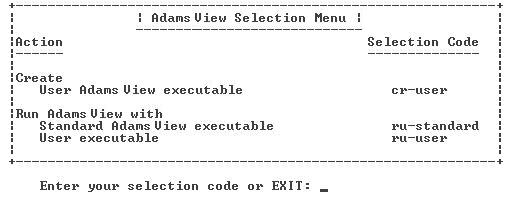
This selection code: | Provides this action: |
|---|---|
cr-user | Leads you through the creation of an Adams View library. |
ru-standard | Selects standard Adams View. |
ru-user | Runs Adams View with a user library. |
When you run a Adams View, you can select the following modes:
■Interactive mode - The product starts (a graphical interface is displayed or at least would be displayed if a monitor is hooked up to the machine) and waits for you to enter commands. Typically this means using the graphical interface to interactively work with the product and any commands are actually entered automatically by the product behind the scenes. But, one can use the interface’s command window to issue commands directly. Also, one can provide files containing commands (aka “scripts”) to issue a series of commands at once, including files that are automatically run during startup of the product.
■Interactive file mode - The product starts (a graphical interface is displayed or at least would be displayed if a monitor is hooked up to the machine) and specified input file is automatically run during startup of the product.
■Batch mode - No graphical interface product is ever displayed. You must provide a file of commands (aka a “script”) to be run. Information about the batch run is collected in a batch log file that you specify. Batch mode differs only slightly from importing a command file during an interactive session in the graphical interface in that the graphical interface is never actually displayed. Be advised that many commands available in the Adams View command language may require the graphical interface to be displayed in order to execute. So, not all command scripts which work interactively can be expected to work in batch mode.
To run standard Adams View through the Selection Menu:
1. In the Adams Selection Menu, enter aview.
2. Enter ru-standard.
3. Select the mode in which you want to run the executable.
■To run in interactive mode, select i or press Enter.
■To run in interactive mode with specified file (.cmd or .bin), select f and specify input file or press Enter.
■To run in batch mode, select b.
4. If you selected batch mode, enter the name of a file containing Adams View commands.
The Adams View main window appears.
User Libraries with Adams View
You can run Adams View with user libraries that you created, including Adams Solver user libraries.
Note: | You can also set the Adams Solver user library after you've started Adams View. For information on setting the Adams Solver user library after starting Adams View, select Settings -> Solver -> Executable, and then press F1 for help. |
To run Adams View with a user library:
1. From the Start menu, point to Programs, point to Adams x (where x is the release number), and then select Command Prompt.
The Selection Menu displays.
2. Enter aview.
3. Enter ru-user.
4. Enter the name of the Adams View user library.
5. Enter the name of an Adams Solver user library.
Adams View begins running.
Running Template-Based Products
Hexagon provides products built on Adams View, referred to as Adams template-based products. The products are:
■Adams Car lets you create, catalogue, and analyze suspension and full-vehicle assemblies.
■Adams Driveline lets you model drivelines to create and analyze virtual prototypes of driveline subsystems.
You can run the template-based products alone or with different user libraries in your private, site, and standard locations. Adams Car, or Adams Driveline runs the first user library that it finds as it searches your private, site, and, finally, the standard location. If you use the Selection Menu to run a product, you can also choose the binary (for example, acar.bin ) you want to use. A binary contains the database information for a customized interface.
For information on the different products, see the online help for that product. For information on creating user libraries, see Custom Template-Based Product Libraries.
Template-Based Products from the Program Folder
The Adams program folder lets you run the template-based products through Adams View or Adams Solver. When you enter a command to run a template-based product, the product searches the private, site, and standard locations for a user library to run. It runs the first library it finds.
Tip: | If you want to run the standard version of the product without a user library, be sure that there are no user libraries in your private or site location. |
To run template-based products from the program folder:
■Depending on whether you want to run the product through Adams Solver or Adams View, do one of the following:
■From the Start menu, point to Programs, point to Adams x (where x is the release number), and then select the appropriate command. For example, select Adams Car (solver).
The Adams Car, Adams Driveline (Solver) main command window appears.
■From the Start menu, point to Programs, point to Adams x (where x is the release number), and then select the appropriate command. For example, select Adams Car (view).
The Adams Car, or Adams Driveline, (View) main window appears.
Template-Based Products from the Selection Menu
The Selection Menu lets you run the template-based products and choose the binary that you'd like to use. The following sections explain how to use the Selection Menu to choose the version for the product to run:
Displaying the Selection Menu
To display the template-based product's selection menu:
■At the Adams Selection Menu, enter acar, or adriveline.
A Selection Menu appears. The following figure applies to Adams Car. The Adams Driveline, Selection menu contain the same type of options.
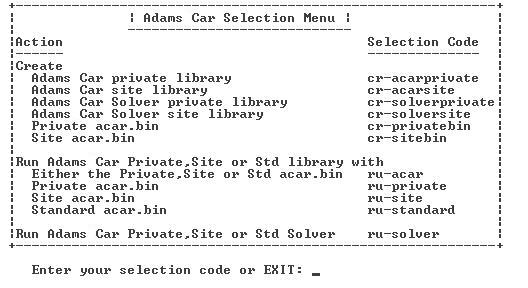
The code(s): | Do(es) the following: |
|---|---|
cr-acarprivate, cr-acarsite, cr-solverprivate, cr-solversite | Creates a user Adams Car library and places it in your home (private) or site directory. The string after the cr- identifies where Adams Car places the library and whether the version runs with Adams View or Adams Solver. |
cr-privatebin, cr-sitebin | Creates a custom Adams Car binary file that Adams Car runs when it starts up. The string after the cr- identifies where Adams Car places the binary. Note: We strongly encourage you to review your product's log file (acar.log, aride.log, and so on) for any warnings or error messages that may have occurred during the building of the binary file. |
ru-acar | Runs the first private, site, or standard library of Adams Car that it finds. It also uses the first version of the Adams Car binary that it finds as it searches the private, site, and standard locations. |
ru-private, ru-site, ru-standard | Runs the first private, site, or standard library of Adams Car that it finds and then uses the specified private, site, or standard binary. The string after the ru- identifies which binary to use. |
ru-solver | Runs the Adams Car version of Adams Solver that it finds as it searches your private, site, and standard locations. |
Running Template-Based Products with Adams View
When you enter a selection code to run a template-based product, the product searches the private, site, and standard locations for a library to run. It runs the first library that it finds.
Tip: | If you want to run the standard version of the product without a user library, be sure that there are no user libraries in your private or site location. |
The template-based product then reads the binary file that you have specified. You can specify a binary file in the private, site, or standard locations. You can also specify to search the private, site, and standard locations and read the first binary found.
To run template-based products with Adams View:
1. At the Adams Selection Menu, enter acar, or adriveline.
2. At the Selection Menu, enter one of the selection codes depending on the binary file that you want to read. For more information on the selection codes, refer to the table above.
Running Template-Based Products with Adams Solver
You can run the standard version of a template-based product with Adams Solver or run user libraries that are in the private or site locations. The Selection Menu searches the private, site, and standard locations and runs the first user library that it finds.
Tip: | If you want to run the standard version of the product without a user library, be sure that there are no user libraries in your private or site location. |
To run template-based products with Adams Solver:
1. At the Adams Selection Menu, enter acar, or adriveline.
2. Enter ru-solver.
3. At the command file prompt, do one of the following:
■Press Enter.
A main command window appears.
■To launch the product with a command file, type the name of the command file and press Enter.
The product reads in your command file and its main command window appears.