Initialization
Initialization Sequence
Adams Controls performs an Initialization Sequence, consisting of a few different steps, before commencing with the Co-simulation or Function Evaluation run. The initialization sequence is as follows.
1. If desired, necessary Adams Solver or Adams View commands are submitted (for example, ADAMS_init variable for MATLAB; see the Initialization Commands section for more details).
2. Following sequence is followed depending on the status of static simulation:
a. If static simulation is requested, then static analysis is performed at time = 0. (for example, ADAMS_static='yes' for MATLAB)
b. If static simulation is requested and the simulation fails, the initial conditions analysis is submitted.
c. If static simulation is not requested, then initial conditions analysis is submitted.
3. Dynamic co-simulation/function evaluation run begins at time = 0.
Thus, equivalent commands in Adams View and Adams Solver work in a similar manner. The exception is that with Adams View, the model is not registered with the Adams Solver until after all the user commands in Step 1. have been submitted, which means you may create modeling entities with Adams View commands. In general, when the model is submitted to Adams Solver, you cannot create new modeling entities, so this feature will not be available.
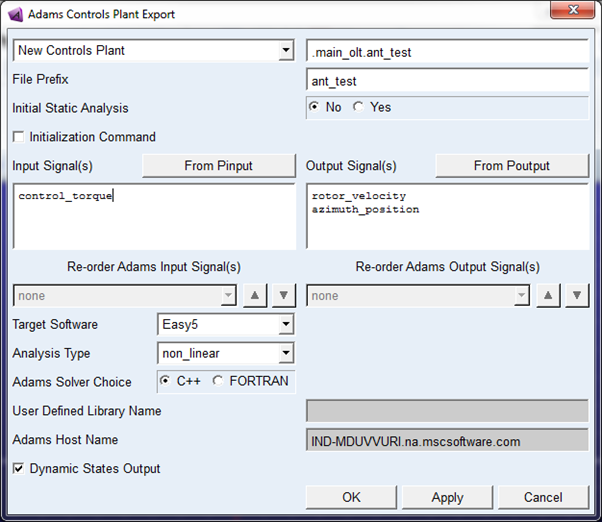
The Plant Export dialog box below displays the options that correspond to the steps listed above. The option Initialization Command corresponds to Step 1. above, while Initial Static Analysis corresponds to Steps 2.a.-c.
Initialization Commands
Initialization commands are Adams commands which are executed before the controls package starts the co-simulation. If you run a simulation with animation in interactive mode, you must use Adams View commands to initialize your model. If you are in batch mode, use Adams Solver commands.
You can specify a command in two ways. For example, if you want to change the color of the antenna model, for an interactive (Adams View) simulation, you can issue one of the following commands:
■At the MATLAB prompt, enter:
Adams_Init=‘geometry attributes geometry_name=.main_olt.antenna.REV15 color=RED’
Within the Adams mask, Initialization command field reads: Adams_Init.
■Alternatively, in the Initialization commands text box, you can enter the complete command string enclosed in single quotes and square brackets as follows:
[‘geometry attributes geometry_name=.main_olt.antenna.REV15 color=RED’]
For Adams Solver, you can also place all of your initialization commands in a single file, and reference it with the FILE command. You can do this in the Plant Export dialog box or you can manually edit your .inf or .m files. For Easy5, your .inf file might look like this:
NUMBER OF COMMANDS
1
file/command=myfile.acf
This reads in and executes the .acf file.
In MATLAB, you would modify the following variable, either in the .m file, or in the workspace:
ADAMS_init='file/command=myfile.acf'