Using TCP/IP
About TCP/IP
TCP/IP (Transmission Control Protocol/Internet Protocol) is the standard for network communications. In addition to the default pipes-based communication protocol, you can use TCP/IP communication Adams Controls. TCP/IP-based communication allows you to run Adams on one workstation while running controls software, such as Easy5 or MATLAB, on a second networked machine of the same or different architecture. In the Adams Controls communication protocol, the controls software is the client and Adams is the server.
A python script, adams_daemon.py, is used to setup TCP/IP communication between Adams and Easy5 or MATLAB. This script can be found in /$install_dir/controls/utils, where $install_dir is the directory in which Adams is installed.
Once started, the default mode of Adams daemon will be available to sequentially service requests from clients for successive Adams simulations. When a client terminates an Adams simulation, the daemon becomes available to start another Adams simulation for the next client. In the default mode, the daemon does not terminate until you explicitly terminate it from the operating system. To terminate the process, you can either close the window of the process, or enter:
■Windows: Ctrl + Break
■Linux: Ctrl + C
Optionally, you can enter the number of runs before termination with the -n flag for adams_daemon.py.
Starting the Adams Daemon Process
Note: | Although it is not required for general use, for the instructions below, copy the file /$install_dir/controls/utils/adams_daemon.py to your local working directory, where $install_dir is the directory in which Adams is installed |
To start the Adams daemon process:
1. On the workstation on which you will run Adams daemon process, export the Adams plant as instructed in Exporting Adams Controls Plant Files. Verify that the name automatically detected for Adams Host is a fully qualified hostname (To be fully qualified, the hostname must contain the workstation and domain name). If the Adams Host is not fully qualified, edit the value in the text box so that it is fully qualified.
2. Select OK, and then exit Adams View.
3. Move or copy the .inf or .m file created in step 2 to the directory on the client machine from which you intend to run Easy5 or MATLAB.
4. To view the options available for the Adams daemon, in a command shell, issue one of the following commands:
■On Windows: adams2024_1 python adams_daemon.py -h
■On Linux: adams2024_1 -c python adams_daemon.py -h exit
The script returns the available options and the acceptable values for each option, as shown next
This script can be invoked in the following ways:
On Linux: $adams_alias -c python topdir/controls/utils/adams_daemon.py [-h] [-p port] [-n #] exit
On Windows: $adams_alias python topdir\controls\utilsdams_daemon.py [-h] [-p port] [-n #] exit
topdir is the installation directory of Adams and can be got by issuing "$adams_alias -top".
-h print this help message.
-p port specify the port number. The default value: 30001
-n # specify the number of runs before the daemon stops.
The default is -1 = infinite loop until process closed.
-x Required for Executing on dSPACE SCALEXIO (except for FMUs created before 2024.1. See the following note.)
Note: | “-x” argument must be omitted when starting the adams daemon to execute FMUs generated before 2024.1 on dSPACE SCALEXIO. |
Note: | $adams_alias is the adams command line alias. |
5. Start the default Adams daemon in your current working directory by entering one of the following commands in a command shell:
■On Windows: adams2024_1 python adams_daemon.py
■On Linux: adams2024_1 -c python adams_daemon.py exit
If using MATLAB and you are running the Simulink and Adams models on the same machine, optionally you can start the same process by using the start_adams_daemon.m script found in the Adams installation. To use it after importing the .m file from the Plant Export, simply enter the following at a MATLAB command prompt:
>> start_adams_daemon
The Adams daemon starts and displays the following:
---------------------------------------------------------------
The Adams Controls server daemon is now operational for
TCP/IP communication with Easy5, Matlab or Adams FMI client(s).
This server daemon will remain in the send/receive mode
until this window is closed or the following keyed in:
Windows: Ctrl+Break
Linux: Ctrl+C
-------------------------------------------------------------
Note: | When your client connects to the Adams daemon, it displays information similar to the following: 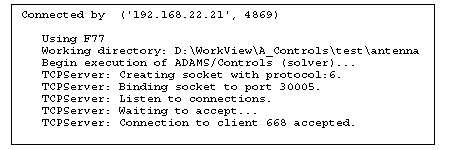 |
Running Adams with MATLAB
To run Adams with MATLAB:
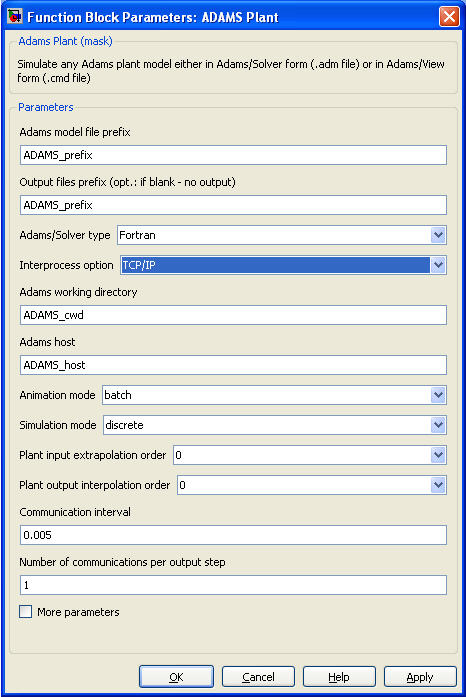
1. In the Adams plant mask in MATLAB/Simulink, make the following changes in the mask:
■Set Interprocess Option to TCP/IP.
2. Note that the Adams working directory is the directory where the Adams files are on the server specified by Adams host. These are specified by the .m file generated by Plant Export. Confirm that these values are appropriate for your simulation or change them accordingly.
3. Select OK to save your settings.
4. Start the Adams daemon on the Adams host before starting the simulation in MATLAB/Simulink
Running Adams with Easy5
To run Adams with Easy5:
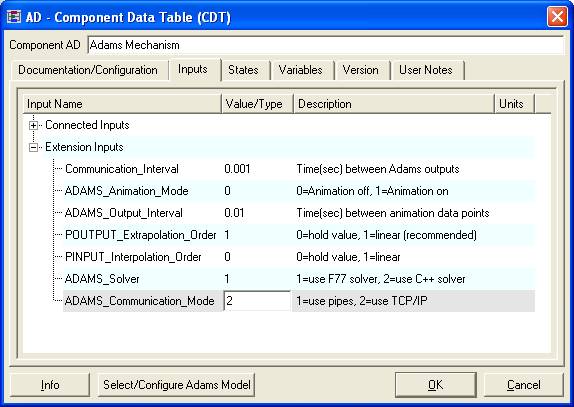
1. In the component data table for the AD block in Easy5, change the following:
■Adams_Communication_Mode to 2.0
The component data table should look as follows:
2. To save your settings, select OK.
3. Note that the .inf file generated by the Adams Controls Plant export contains the Adams working directory (ADAMS cwd) and host (ADAMS Host). These specify the directory where the Adams files are on the Adams server. Confirm that these values are appropriate for your simulation or change them accordingly. For example:
ADAMS Host
My_machine.my_domain.com
ADAMS cwd
C:\adams\antenna
My_machine.my_domain.com
ADAMS cwd
C:\adams\antenna
4. Start the Adams daemon on the Adams host before starting the simulation in Easy5.