Importing an FMU
An external FMU could be loaded in Adams by using the Adams Controls System Import dialog box. The FMU should conform to FMI 1.0 or 2.0 Co-Simulation or Model Exchange standard. Currently Adams cannot handle events during co-simulation, nor does it support interpolation/extrapolation. Adams will not allow string inputs, outputs or parameters.
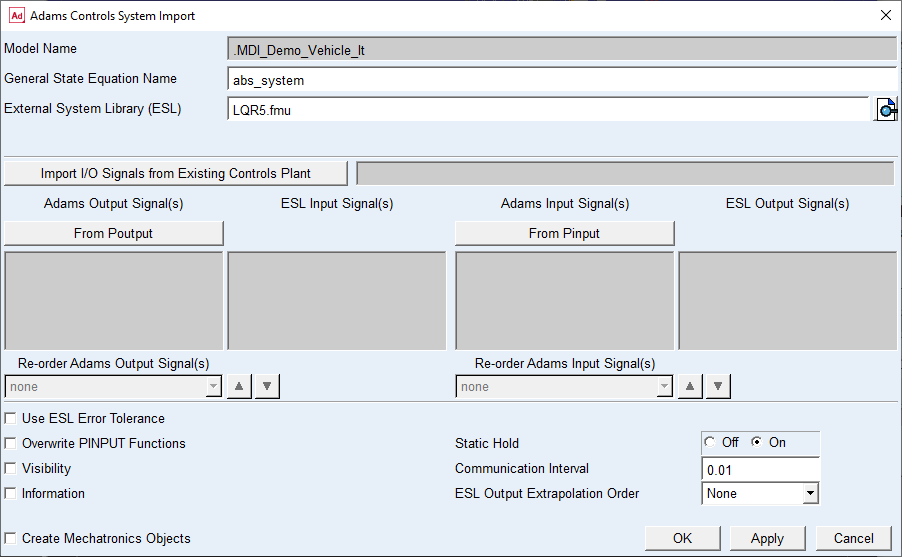
To import an FMU into Adams, simply choose the FMU in the External System Library field. The Output and Input signals should be selected using Existing Controls Plant or from Poutput/Pinput.
The Communication Interval should be set according to the frequency of interest of the FMU model (above the Nyquist Frequency). The Visibility specifies whether the importing FMU could be visible or not during the Co-Simulation (needs to be supported by the importing FMU). If the imported FMU belongs to Adams, then after the simulation, GUI of the imported FMU would not be closed automatically. It would remain open so that users can continue perform other simulation activity by interacting with the FMU parent Adams window. The GUI of the imported FMU does not support any user interaction. It automatically gets closed once user resets the simulation from the FMU parent Adams window.
The Communication Interval and Visibility fields are automatically disabled if the imported FMU is of Model Exchange type. If the FMU supports FMI 2.0 and supports both Model Exchange and Co-Simulation, the user would be presented with an option to choose the kind of simulation that is to be run. Accordingly, the corresponding simulation would be executed.
The imported FMU will be extracted in the current working directory under /fmu/<General State Equation Name>/.
There are two default parameters created under the GSE (general state equation) when importing a co-simulation FMU. They are listed below.
1. adams_parent_communication_interval - This allows users to dynamically modify the communication interval between two different simulation runs without having to delete the GSE and reimport the FMU which creates a new GSE.
2. adams_parent_output_extrapolation_order - This allows users to dynamically modify the extrapolation order between two different simulation runs without having to delete the GSE and reimport the FMU which creates a new GSE.
In addition to the above two default parameters, any parameters exposed by the FMU are also created as design variables underneath the GSE. Currently, the supported data types are integer, real, Boolean and Enumeration. Strings are not supported during FMU import. If an FMU contains string parameters, they are ignored and the corresponding variables are not created underneath the GSE. All variables are created as real data type in the GSE irrespective of the data type in the FMU. The data type translation is handled internally when setting/getting the parameter values.
If Create Mechatronics Object check-box is selected, it creates Mechatronics Transducer & Actuator objects for the Control System Inputs/Outputs. Also creates a Mechatronics Control System object in the model, which encapsulates several elements needed by Adams Controls. Requires a license of Adams Mechatronics.
If an Adams exported FMU is to be imported into a different version of Adams than with which it was exported, an environment variable "ADAMS_PATH_FOR_FMU" needs to be set with a value containing a path to the Adams installation with which it is to be imported. This feature is applicable only to FMUs exported with Adams 2017.1 and higher. Alternately, the FMU fixed string parameter "adams_path_for_fmu" can also be modified to point to the Adams path. This parameter is applicable only to FMUs exported with Adams 2019 and higher. The value specified in the environment variable takes precedence in case both options are used.
For example, consider a scenario where FMU was exported with Adams 2017 and is to be imported and run in Adams 2017.1. The installation path for Adams 2017.1 is "C:\Program Files\MSC.Software\Adams\2017.1". Then user has to set the environment variable "ADAMS_PATH_FOR_FMU" to the value "C:\Program Files\MSC.Software\Adams\2017.1". This would enable the FMU exported with Adams 2017 to run with Adams 2017.1. Otherwise, it would run only with Adams 2017 (version with which it was exported).
When the FMU is exported for FMI V1.0, then that FMU can be imported only on the platform with which it was exported. For example, if the FMU is exported on Windows, it can only be imported on Windows and similarly if it is exported on Linux, it can be imported only on Linux.
In case an FMU is exported for FMI V2.0, then the same FMU can be imported in both Windows and Linux platforms. The only condition that needs to be met during import is that the same version of Adams needs to be used and the alias needs to be set (see the Exporting an FMU section for more details on setting of the alias). If a different Adams version is used during import, then the ADAMS_PATH_FOR_FMU environment variable needs to be defined or the FMU fixed string parameter "adams_path_for_fmu" needs to be set as mentioned above.