Exporting an FMU
Adams model could be exported as an FMU with the FMI 1.0 or 2.0 Co-Simulation Tool standard. This could be done by using the existing Adams Controls Plant Export dialog box.
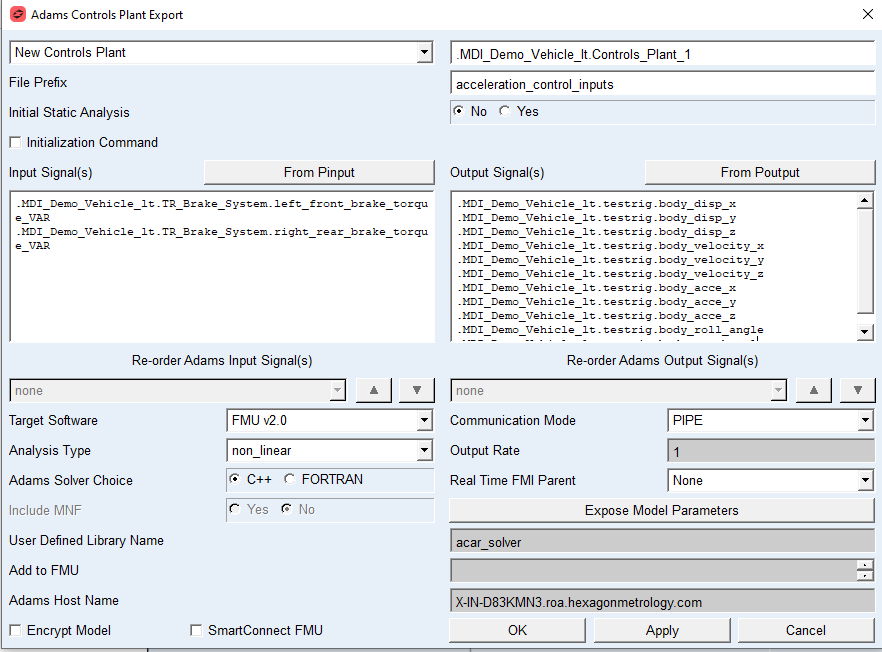
You need to specify the Input and Output signals, select the Target Software as FMU and then choose the communication mode (whether to use TCP/IP, PIPE or DIRECT during the co-simulation). You can select DIRECT to speed up communication between parent and child. It is available only if the C++ solver is selected. It should be selected only if the FMU is intended to be imported by a parent other than Adams. In case an FMU that was exported using the DIRECT option for Communication Mode is imported into Adams, the initialization would fail. Output files for Adams model inside the FMU (.res, .msg) are not generated (by default) during simulation run for improving the overall performance. If output files are required, or if the exported FMU will be used in a real-time environment, please refer to section Default fixed parameters in an Adams FMU.
The Include MNF radio button is enabled only if there are flexible bodies in the model that is to be exported and the Adams solver does not need them. If the solver needs the files, then the radio button is automatically set to Yes and it is in a disabled state. If there are no flexible bodies, then it is set to No and it is in a disabled state.
The Real Time FMI Parent option is used to select the FMI Parent in case of real-time simulations. Currently two real-time FMI Parents are supported. SIMulation Workbench® from Concurrent REAL-TIME and SCALEXIO® from dSPACE. Selecting either of these two disables some options from being set by the user and are managed internally. When a generic FMI Parent is to be targeted selecting None would allow individual settings to be selected.
The Expose Model Parameters button opens another dialog where users can select the parameters to be included in the FMU. These appear as fixed parameters (not tunable). For more details, refer to the section Exporting model specific parameters in an Adams FMU.
The Real Time FMI Parent option is useful for generating customized FMUs for real time parents. Currently supported realtime parents are SIMulation Workbench and SCALEXIO. The latter is supported only for FMU v2.0. The default selection is None, which is equivalent to generating a normal FMU which can be imported to any FMI Parent. When realtime parent selection is not "None", some values like Adams Solver Choice and Communication Mode are not available for selection to the end user.
The Encrypt Model option is available only when the target software selected is FMU v1.0 or FMU v2.0. It generates an encrypted FMU. Such an FMU contains an encrypted Adams Solver dataset file with extension .adme. It does not contain an Adams View command file (.cmd) representation of the model. If the Encrypt Model option is selected, the "Expose Parameters" button will be disabled because exposed parameters are not supported by the encrypted FMU.
For more information on SmartConnect FMU, please refer the section What is a SmartConnect FMU?
On clicking the OK or Apply buttons, an FMU file will be created in the current working directory with the name specified in "File Prefix" field and the extension .fmu. A pair of .cmd and .adm file will also be generated with the same name.
The exporting FMU will have the following capability flags:
canHandleEvents="false" // The child does not support event handling during co-simulation.
canSignalEvents="false" // The child cannot provide information about events during a communication step.
canBeInstantiatedOnlyOncePerProcess="true" // Only one instance per FMU is possible.
maxOutputDerivativeOrder="0" // The child is not able to provide derivatives of outputs.
canInterpolateInputs="false" // The child is not able to interpolate continuous inputs.
canHandleVariableCommunicationStepSize="true" // The child can handle variable communication step size.
Note: | An FMU with DIRECT option for Communication Mode would not work with Adams as parent. A limitation has also been found with Simulink as parent. It has currently been validated to work with FMU Compliance Checker (tool provided by FMI organization for FMU validation), Easy5 and Concurrent's SIMulation Workbench® (SimWB) as parents. |
Note: | To use an Adams FMU with DIRECT option for Communication Mode on Linux with other FMU parents, the “linux64” folder in the Adams installation directory must be added to the LD_LIBRARY_PATH. If the FMU contains an Adams machinery model, an environment variable called KISS_INI must be set. The value of this environment variable is the full path to the kiss.ini file located in the Adams installation directory at <Adams Install Directory>/amachinery/kisssoft.For e.g. on a Linux machine using a bash shell, with Adams installed at /home/user/adams/20XX: set the LD_LIBRARY_PATH using the following command - “export LD_LIBRARY_PATH=$LD_LIBRARY_PATH: /home/user/adams/20XX/linux64”. Set the KISS_INI environment variable using the following command – “export KISS_INI=/home/user/adams/20XX/amachinery/kisssoft”. |
To use this FMU on a different machine, the alias "adamsXXXX" (where XXXX is the version of Adams, for example adams2024_1) needs to be set up. To do this, on Windows platforms, add "Adams_installation_path\bin\" (for example, C:\Program Files\MSC.Software\Adams\2024_1\bin) to the User PATH environment variable, which could be found under Control Panel → System → System Properties →Advanced → Environment Variables.
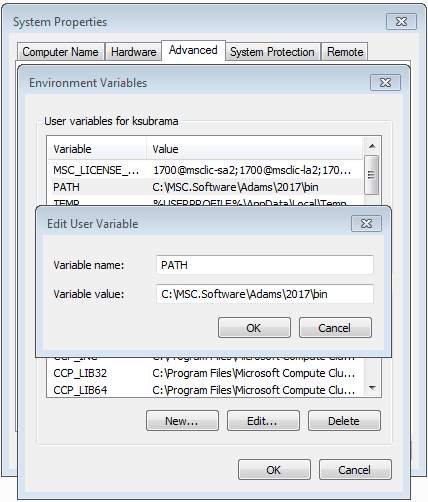
On linux64 platform, create the alias as specified in the Adams installation guide. It is suggested that the exporting and importing machine has the same Adams installation path. Otherwise the Adams cannot be called during a Co-Simulation. Or the user could use TCP/IP instead of PIPE as the communication mode.
The addition of the Adams installation path to the PATH environment variable in Windows is performed automatically by the installer. Similarly, the creation of the alias in Linux is automatically performed by the installer when being installed as root. If the above are not done automatically due to some permission issues on the PC, then these steps have to be taken care of manually using the above prescribed procedure.
To use TCP/IP, the Adams Host Name should be set correctly and adams_daemon.py should be running on the host machine. The adams_daemon.py could be found under "Adams_installation_path\controls\utils\" (for example, C:\Program Files\MSC.Software\Adams\2024_1\controls\utils\). To run the adams_daemon.py, see Using TCP/IP in the help document.
After the Co-Simulation, the Adams FMU generated result files could be found in the resource directory of the extracted FMU. This is decided by the software importing the Adams FMU. For example, if the Adams FMU is imported into another Adams session, the extracted FMU could be found in the current working directory. Other software may use the user temporary directory.
Running an Adams FMU with Simulink as parent
An Adams FMU with PIPE and TCP/IP options for Communication Mode is supported on all Operating Systems that Adams supports when used with Simulink as a parent (Simulink FMI Import block). A limitation exists using DIRECT for communication mode. A complete overview is found in the table below.
Operating System | Simulink as parent (FMI import block - Adams FMU) | ||
|---|---|---|---|
PIPE | TCP/IP | DIRECT | |
Windows 10 | X | X | |
Linux RH 7.9/8.6 | X | X | X |
Linux SUSE 12 SP5/15SP3 | X | X | |