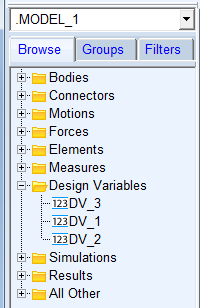
Customizing the Model Browser for Adams Car and Adams Driveline
The appearance of the model browser is configured through an .xml file, ModelBrowser.xml, which is present in <topdir>\linux64 or <topdir>\win64 or <topdir>\win32 depending on the platform upon which Adams is installed. This .xml file determines the way in which the model browser is configured for the supported modes.
■The standard interface mode for the Adams Car and Adams Driveline is acar.
■The template builder mode for the Adams Car and Adams Driveline is template_builder.
Structure of ModelBrowser.xml
The various tags and attributes in ModelBrowser.xml explained in the below table.
Tag | Attribute | Value | Description | Notes |
|---|---|---|---|---|
Folder | Name | string | Name of the folder as it appears in the Model Browser | |
Dynamic | string | A value of "true" makes this folder dynamic that is, the folder will not be displayed if there is no content beneath it. | This attribute is valid only for top level folders. | |
IncludeNameFilter | string | Name filter for entities to be included in the folder | If this attribute is specified, ExcludeNameFilter cannot be used | |
ExcludeNameFilter | string | Name filter for entities to be excluded from the folder | If this attribute is specified, IncludeNameFilter cannot be used | |
L1 | Exhaustive | true/false Default is false | The entity type appearing at the first level under a folder | If set to true, all entities of the specified type under the active model will be shown, irrespective of whether they are direct children or not |
L2 | Exhaustive | true/false Default is false | The entity type appearing below the L1 level entities | If set to true, all entities of the specified type under the parent entity will be shown, irrespective of whether they are direct children or not |
ModelNameExclusion | - | - | Model names specified with this filter will be excluded from appearing in the Model Browser | |
EntityNameExclusion | - | - | Entity names specified with this filter will be excluded from appearing in the Model Browser | This exclusion is in addition to the ExcludeNameFilter specified for a Folder |
EntityTypeExclusion | - | - | Entity types specified with this filter will be excluded from appearing in the "All Other" folder of the Model Browser |
Customizing the Model Browser Appearance
1. Copy the ModelBrowser.xml from the installation directory to one of the following directories:
♦MDI_ACAR_PRIVATE_DIR or MDI_ACAR_SITE - (Adams Car)
♦MDI_ADRV_PRIVATE_DIR or MDI_ADRIVELINE_SITE - (Adams Driveline)
2. Edit the copied .xml and make the required modifications.
♦For customizing the Standard Interface mode, make the necessary modifications in the acar section of the .xml.
♦For customizing the Template Builder mode, make the necessary modifications in the template_builder section of the .xml.
3. Launch Adams Car or Adams Driveline
4. The Model Browser appears as per the updated specifications in the .xml file.
Example: Customizing the Model Browser for Variables
The ModelBrowser.xml available with the installation is configured to display 2 levels of design variables in the 'Design Variables' folder.
For example, if variable DV_1 is a child MODEL_1 and variable DV_2 is a child of DV_1 the model browser will show:
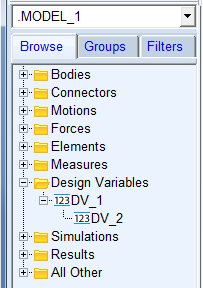
A variable created under DV_2 will not be shown since the model browser does not support more than 2 levels.
In order to see all variables under the model, the model browser will have to be customized.
Copy the ModelBrowser.xml to the current working directory and modify the section related to 'Design Variables' as below:
<Folder Name="Design Variables">
<L1 Exhaustive="true">variable</L1>
</Folder>
On running Adams car or Adams Driveline with the above change, all the variables under the active model can be seen in the model browser