Exporting a workbook File in Adams View
1. Navigate to the Design Exploration Tab on the Adams View ribbon.
2. Click on the  button in the Explore container.
button in the Explore container. 3. Input a name for the file to be exported.
4. Select an open model.
5. Select entities to export on the Model tab.
Supported entities for export currently are:
Points, Mass properties, Design Variables, Motions, and Splines
6. Add information about the where the job shall be run and which analyses to be exported, for example like below:
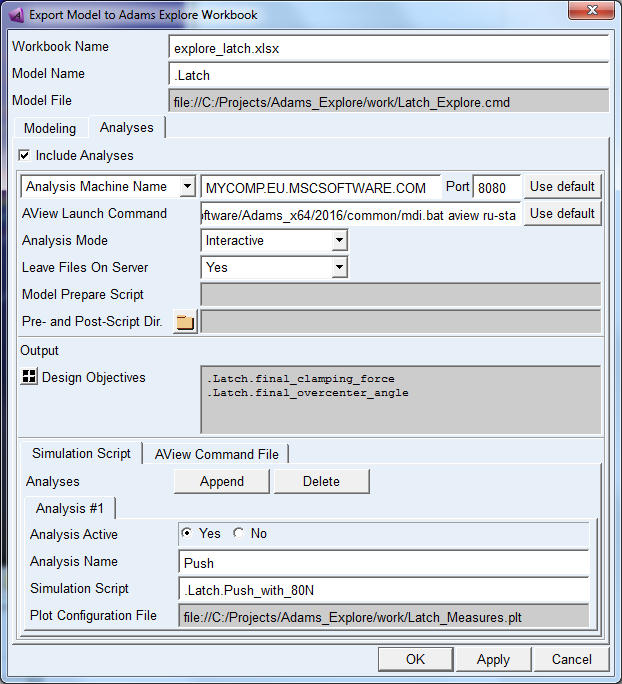
Note that some computer systems are not configured to resolve computer names into IP addresses. In this case, instead input an IP address in the field of the Analysis Machine Name. Or change to "Analysis Machine IP" and press "Use default" to the right of Port to use the default value (which is the local computer).
For more information on the input press F1 to get the Export Model to Adams Explore Workbook dialog box help.
Important is that the paths of all files are valid for the computer specified as Analysis Machine.
7. Press OK or Apply.
Note: | The filenames that are referenced in the dialog box and subsequently exported to the workbook must be valid on the computer specified under Analysis Machine Name. |