Working with Results
Response Surfaces and Fitting Results
A response surface is a mathematical surface represented by a series of polynomials. It gives an approximate value of the response (dependent variable or objective) as a function of the factors (independent variables or Design Variables). The techniques you use to create and analyze response surfaces are collectively called Response Surface Methodology (RSM). RSM is widely used for developing and optimizing processes and products of all kinds (see References).
Adams Insight computes the least-squares fit of the polynomial when you use the Fit results tool. In statistical terms, Adams Insight performs a multiple linear regression of polynomial models. It computes standard analysis of variance (ANOVA) statistics for the fit, and provides a large set of ANOVA statistics, like R2 and R2adj, to help you assess quality of fit.
Adams Insight can export the response surface polynomial as an HTML Web page or SYLK format spreadsheet file.
You can use response surfaces as a simplified model of a system. For example, you can use the HTML page or SYLK file to quickly predict the effects of changing factors in your design matrix. Load the HTML page in a browser or the SYLK file in a spreadsheet program, and modify values for factors to the change in estimated response.
You can also use the response surface to estimate an optimal design. Because it is much quicker to evaluate a polynomial than run a full series of simulations, optimizing estimated response is a quick way to get an approximate optimum. You can use data in the SYLK file to do this in a spreadsheet application, such as Microsoft Excel™.
Evaluating the Fit
This section provides a brief explanation of fit results. Consult a statistics, regression, or RSM reference for more information on evaluating regression results.
R2 (R-Squared) indicates how well the response surface represents the results. It is the square of the multiple correlation coefficient (R). R2 is the fraction of variability in the data for which the model accounts. The larger it is, the better the fitted equation explains variations in the data. R2 is between 0 and 1. If R2 = 1, the equation exactly matches the data. A high R2 (.9 for example) indicates a good, but not exact, fit. A low R2 (.3 for example) indicates a poor fit.
High R2 values can be deceiving. Adding more terms to the equation almost always increases R2. If you add enough terms, you can always achieve an exact fit. However, you usually want the most efficient fit: the fit that gives the best results with the fewest terms.
Because of this, it's useful to look at R2adj (Adjusted R-Squared), which is similar to R2 but is adjusted to account for the number of terms. Adding terms does not always increase R2adj. If you add unnecessary terms, R2adj often decreases. If R2 is much higher than R2adj, it indicates that at least one of the terms is not as useful as the others and could probably be removed without hurting the fit. You find which term to remove by further examining the results, or by trial and error.
Even after checking R2adj, a high R2 does not always mean you have a suitable response surface. At a minimum, you should review Residuals. Residuals are differences between original response values and estimated values. In other words, a residual is the amount by which a fitted surface misses an original value. Adams Insight provides residuals for each Trial.
If a trial has an unexpectedly large residual, it could indicate that the trial is an outlier, meaning that it might not be consistent with the other runs. Perhaps something unexpected happened or there was a simulation error during the run. Review the results of that run, looking for unusual behavior or results. If necessary, correct the model so that all runs complete successfully and consistently.
Large residuals can also mean that data are irregular and difficult to fit. Review your objective function and values, looking for sudden changes in value or the slope of values. Gaps or cusps in objective values cause poor fits. If necessary, adjust your objective function to produce smoother values.
If the runs seem consistent and objective values vary smoothly, then large residuals probably mean the polynomial is just not a good fit and you should add more terms or fit across a smaller range of values.
When evaluating the fit, if the R2 and R2adj are red, review the workspace matrix as follows:
■Verify that all of the runs completed successfully.
■Review the residuals and determine if there is a pattern in actual versus estimate.
■Refine the model to improve the fit.
■See if the factors you selected have any impact on the response (review Term Significance in the Terms form).
■Check the Error DOF in the fit summary.
Refinement of a Fit
Following are the typical steps of refining a model:
1. Fit regression model
2. Check R2 and interpret ANOVA table
3. Verify residuals plots
4. Remove outliers, if needed
5. Remove terms, if needed
6. Check R2 and interpret ANOVA table
7. Transform response, if needed
8. Change model order, if needed
9. Check R2 and interpret ANOVA table
10. Monitor error Degrees of Freedom (DOF)
Exporting Results
You can export your results to a file using these file formats:
■HTML - HTML-format Web page
■SYLK - Symbolic Link (SYLK) format spreadsheet file
■Visual Basic - Visual Basic subroutines
■MATLAB - MATLAB M-File
The SYLK and HTML formats show you a table of the responses and factors where you can change variable values, and automatically compute new estimates. To do this, display the HTML page in a Web browser enabled to read JavaScript, or load the SYLK file into a spreadsheet program, such as Microsoft Excel. The SYLK format is a convenient way to transfer response surface equations to a spreadsheet program for further study.
The Visual Basic format file contains Visual Basic subroutines to compute the responses.
The MATLAB format file contains MATLAB matrices that can be used to compute the responses.
Using HTML Files
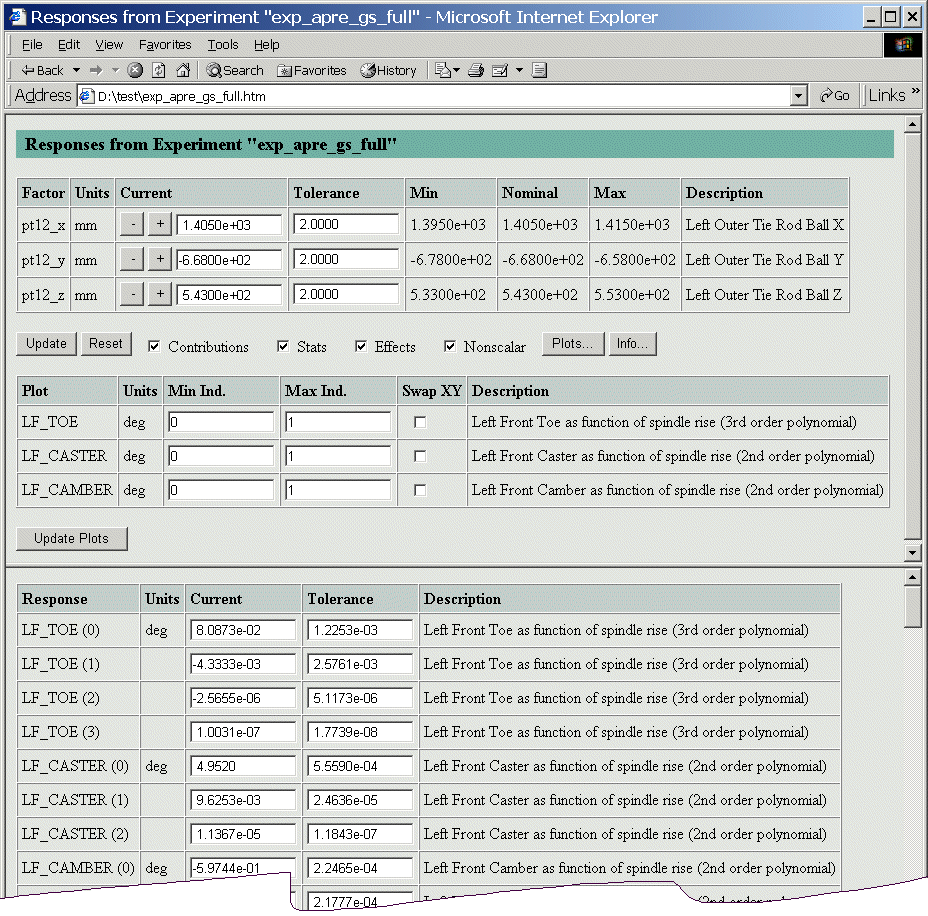
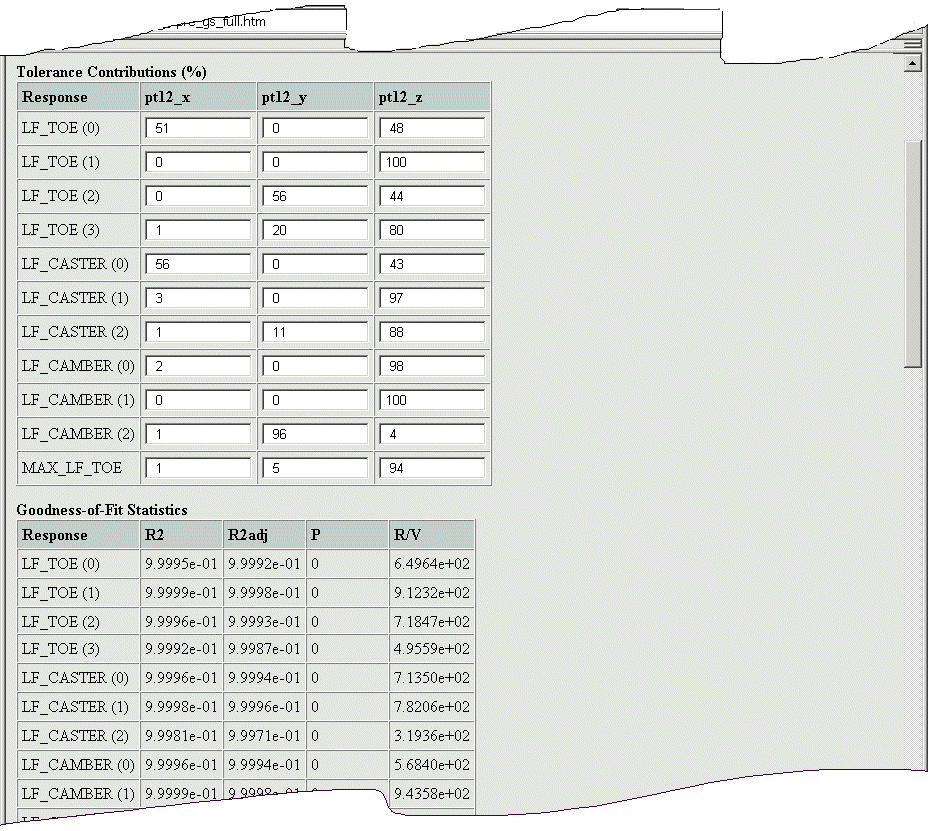
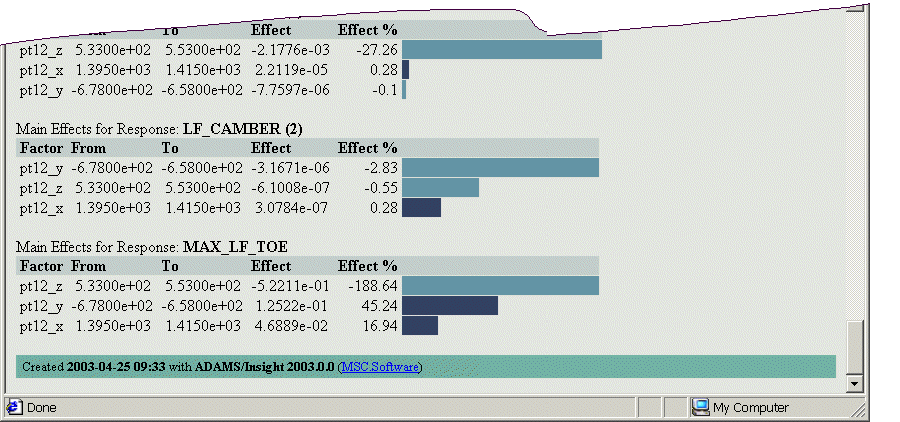
When you open an HTML results file that you exported from Adams Insight, you see something similar to what’s shown in the figure below.
Put your mouse over a section of the following example to get more information.
HTML: Factor
The factor section lists each factor in the design matrix. Each row shows information about one factor including the factor name, units, current value, tolerance (optional), minimum, nominal, and maximum value.
You can modify the current value by typing a number in the text box or by selecting the increment/decrement buttons. After entering a value in a factor current value text box, you must select the Update button or press Enter to see the response effect.
HTML: Plot
The plot section lists the composite responses only. You can make changes to the values in this section and press Update Plots to redraw the plots in the separate window. You can also check the Swap XY check box to invert the x and y axes.
HTML: Response
The response section lists each response in the design matrix. Each row shows information about one response including the response name, units, and current value.
HTML: Tolerance Contributions
The Tolerance Contributions table provides the percent contribution of each factor to the tolerance of each response. A high value means the factor tolerance greatly contributes to the response tolerance. The response tolerance and tolerance contributions vary with both factor values and factor tolerance values. For more information, click on Tolerance Contributions in the left pane of this window.
HTML: Goodness-of-Fit Statistics
Displays response statistics for each response. These statistics help you evaluate the goodness of the fit.
HTML: Design Matrix Table
This section has a table for each response in the design matrix. Each row of each table shows the effect and percentage effect of varying a factor from its minimum to its maximum value. There is also a bar graph that shows the relative impact each factor has on the response.
At the end the form displays the date and time of the run, and the version of Adams Insight that created the HTML file.
Main Effects
Main effect refers to the primary effect of a factor. A good way to examine the main effects is through a Pareto chart.
The Adams Insight .htm file computes main effects on the fly using JavaScript.
The displayed main effect of a factor is the difference between the response at the factor maximum value and the response at the factor minimum value, while all other factors are at their average values. Effects may be positive (response increases with larger factor value) or negative (response decreases with larger response value).
Note that the minimum and maximum factors' values do not necessarily produce the minimum and maximum response values. If a response is highly nonlinear over the factor value range, the minimum and/or maximum response values may be in the middle of the curve. In this case, the main effects values are meaningless.
The effect % is the ratio of the effect value to the response value with all factors at their average values. An effect % greater than 100% means that the variation in the response value is larger than the average response value.
The effects are sorted largest to least absolute value. The longest bar is always the same length. The other bars are proportional to the largest based on the effect value relative to the largest value. Positive effects have a dark blue bar, negative effects have a light blue bar.
Using SYLK Files
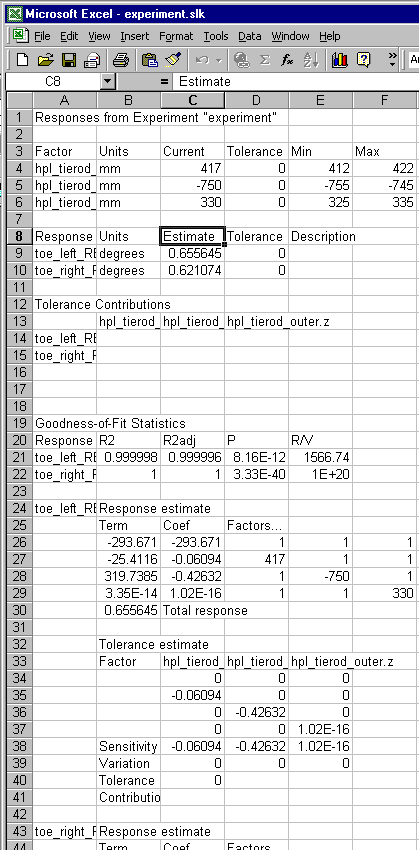
You can export an SYLK file from Adams Insight. When you open an SYLK results file in Microsoft Excel, it appears similar to the image shown below. If you change factor values, the spreadsheet program automatically recomputes estimated response values.
SYLK: Factor
The factor section lists each factor in the design matrix. Each row shows information about one factor including the factor name, units, current value, tolerance, minimum, and maximum value.
You can modify the current value by typing a number in the text box. After entering a value in a factor text box and pressing Return or Tab, you can see the response effect.
SYLK: Response
The response section lists each response in the design matrix. Each row shows information about one response including the response name, units, current value estimate, and tolerance.
SYLK: Tolerance
The Tolerance Contributions table provides the percent contribution of each factor to the tolerance of each response. A high value means the factor tolerance greatly contributes to the response tolerance. The response tolerance and tolerance contributions vary in both factor values and factor tolerance values. For more information, click on Tolerance Contributions in the left pane of this window.
SYLK: Goodness-of-Fit Statistics
Displays response statistics for each response. These statistics help you evaluate the goodness of the fit.
SYLK: Design Matrix Table
This section has a table for each response in the design matrix. Each row of each table shows the polynomial terms, coefficients, and factors used in the fit. There is a separate table that shows the tolerance estimate for each factor along with sensitivity and variation.
Tolerance
The tolerance value can be initially specified as one of the factor attributes. If any of the factors have a nonzero tolerance attribute, the published Web page will present this value and the responses will have a tolerance computed for each time a factor value is modified.
The computed tolerance reflects the same amount of variation as the factor tolerance values. For example, if you enter factor tolerances that are three times the standard deviation, then the computed response tolerance will be three times the standard deviation of the response.
Note that the tolerance calculation always assumes a normal distribution for factor variations. This is true even if you have selected None or Uniform for Monte Carlo Distribution in the Factor form. Adams Insight only uses the Monte Carlo Distribution setting for Monte Carlo experiments, not for the tolerance calculations in the exported HTML file.
The method Adams Insight uses to compute the response tolerance is described in several papers. A specific reference is "A New Tolerance Analysis Method for Designers and Manufacturers" by Greenwood and Chase. See References for more details.
The assumptions of this computation are:
■The variability of the inputs are all normal distributions.
■The mean is at the midpoint.
■They are statistically independent.
■The relationship between the response and the factor is effectively linear over the variation range.
This approach has been successfully used in many real manufacturing problems at various customers, and the results are extremely close to the results obtained through Monte Carlo simulation. This is to be considered an "up-front" manufacturing analysis tool, not a manufacturing plant tolerance analysis tool.
Tolerance Contributions
The Tolerance Contribution table shows the relative contribution by each factor to the variation (tolerance) in each response. The contributions are rounded to the nearest percent. The values in each row add to 100%, plus or minus a few percent due to the rounding.
A high value indicates that the factor variation greatly contributes to the response variation. A low value indicates that the factor does not contribute much to the response variation. A value of zero indicates either that the factor does not affect the response at all, or that the variation in the factor has only an insignificant effect compared to the other factors.
The contribution values only show relative importance, they do not directly indicate how much the response variation will drop if the factor variation is eliminated. For example, if there are two factors and each contributes 50% to the response variation, eliminating the variation of one factor will not cut the response variation in half. Instead, it will reduce it by about 30%.
This is because the total response variation is the square root of the sum of the individual factor contributions squared. The percentage contribution is calculated as the ratio of the factor contribution squared to the sum of all the contributions squared.