Export KISSsoft Data
In order to export Gear AT readable format file you need to instruct KISSsoft to use the user-defined report instead of standard one. The current Gear AT version provides report template for Z17 module.
To make it, you need to do following before start of KISSsoft:
1. Copy report from Gear AT to KISSsoft installation
a. copy report template Z170Le0.rpt from …\Adams_topdir\gear_at\kisssoft_templates\Z170Le0.RPT
to folder
…\KISSsoft_install_dir\ext\rpt
to folder
…\KISSsoft_install_dir\ext\rpt
b. Depending on the language, the letter „e“ in Z17xLe0.RPT has to be changed to reflect your preference; (d = German, e= English, read KISSsoft help document for more information).
2. Start KISSsoft and open input deck of the model to be exported to Gear AT :
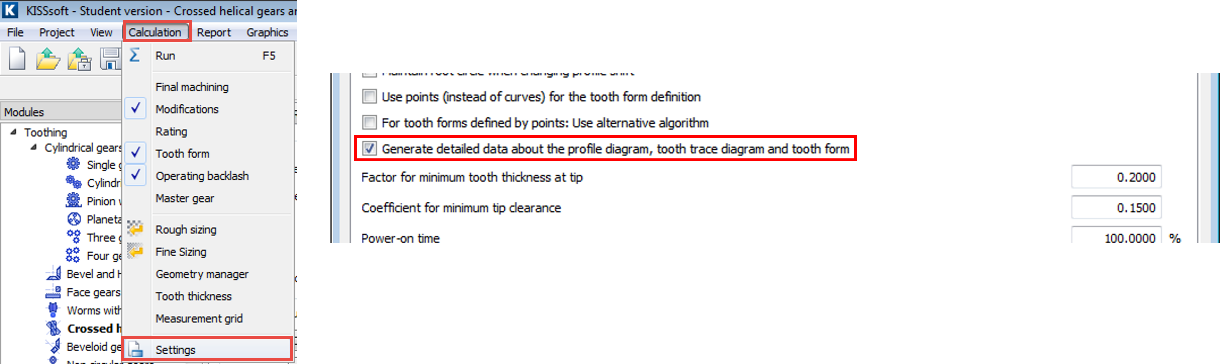
a. Go to Calculation → Settings → General and turn on Generate detailed data…
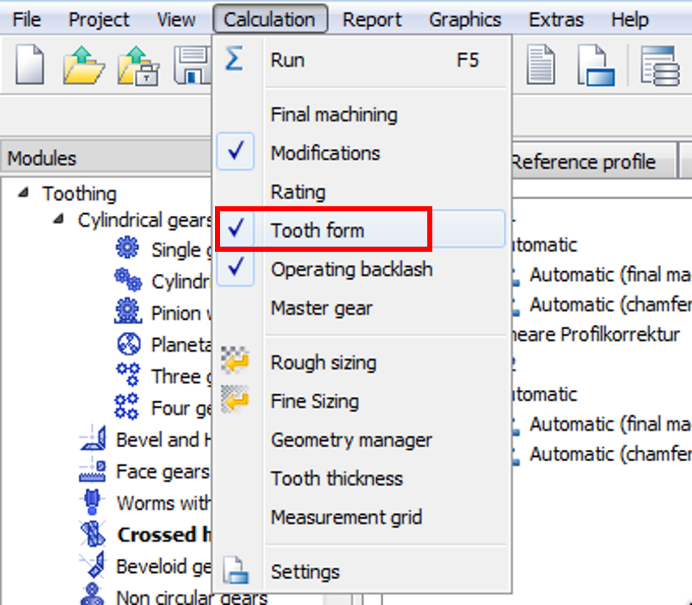
3. Go to Calculation menu:
a. Activate Tooth form card
b. Check that Permissible deviation in Tooth Form card is sufficiently small i.e. epsilon <=1.0E-3

c. Select Polygonal course as this setting generates highest number of points on profile

4. While still in Tooth Form card, run the Calculation (F5) button

5. Export Worm Profile
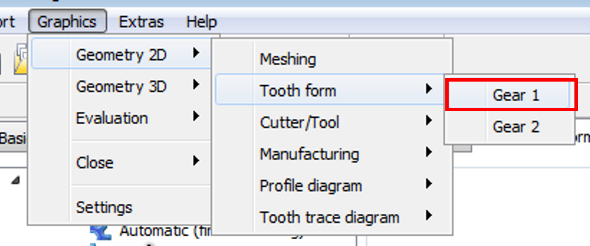
a. Go to Graphics menu and point to Geometry 2D → Tooth form → Gear 1
b. Select Half tooth for export (axial direction)
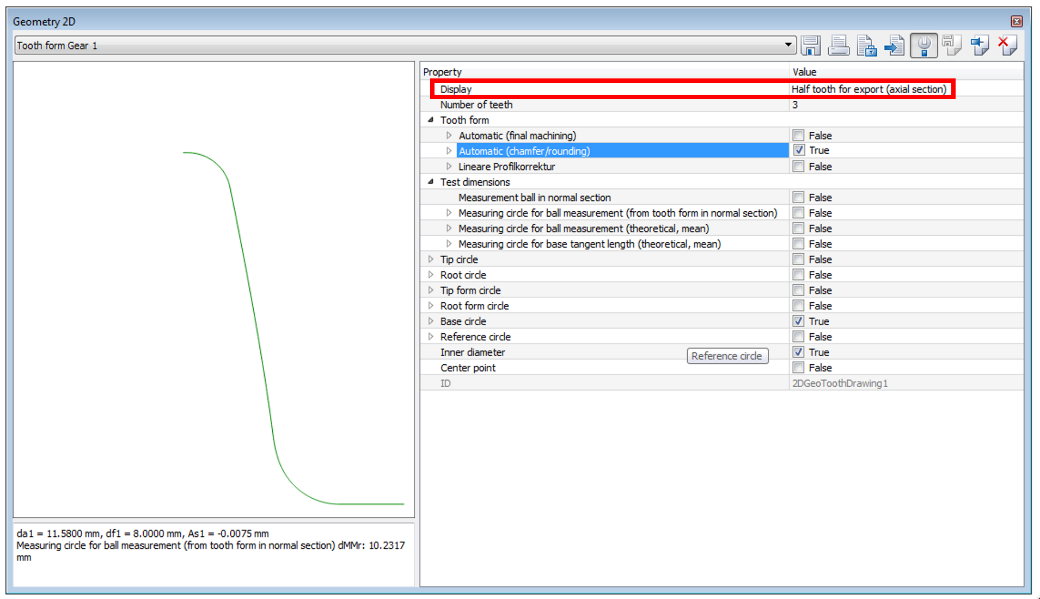
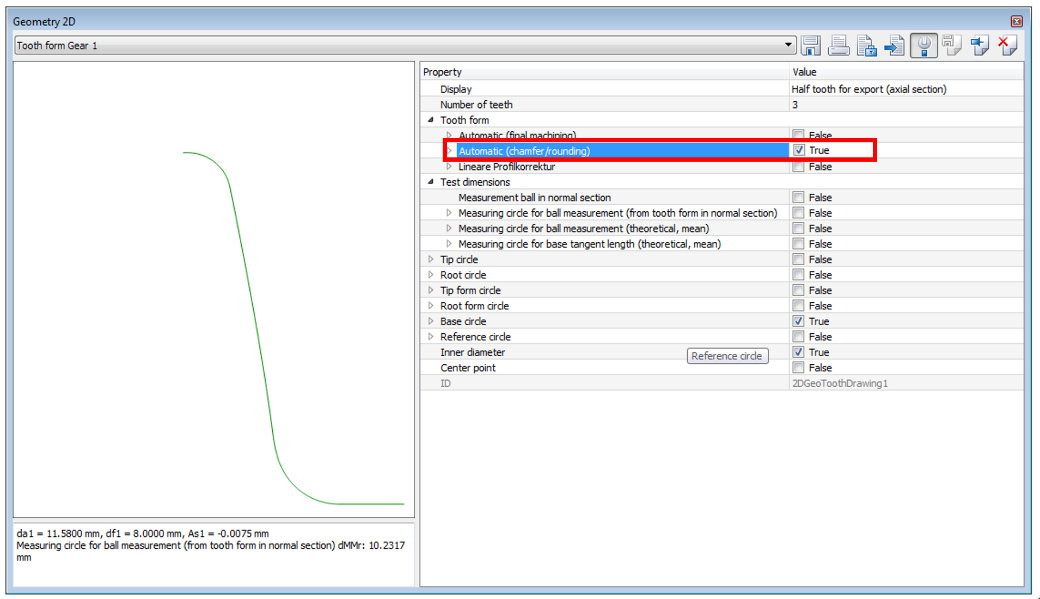
c. Activate Automatic (chamfer/rounding), i.e. profile with macro modifications
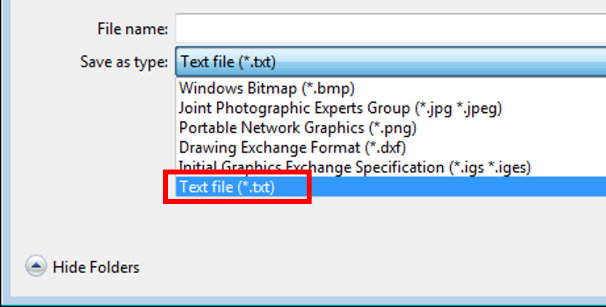
d. Save the file in *.txt format
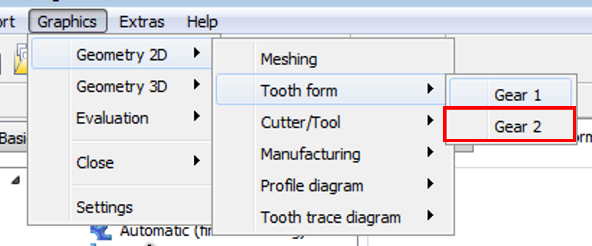
6. Export Worm Wheel Profile
a. Select Half tooth transversal direction
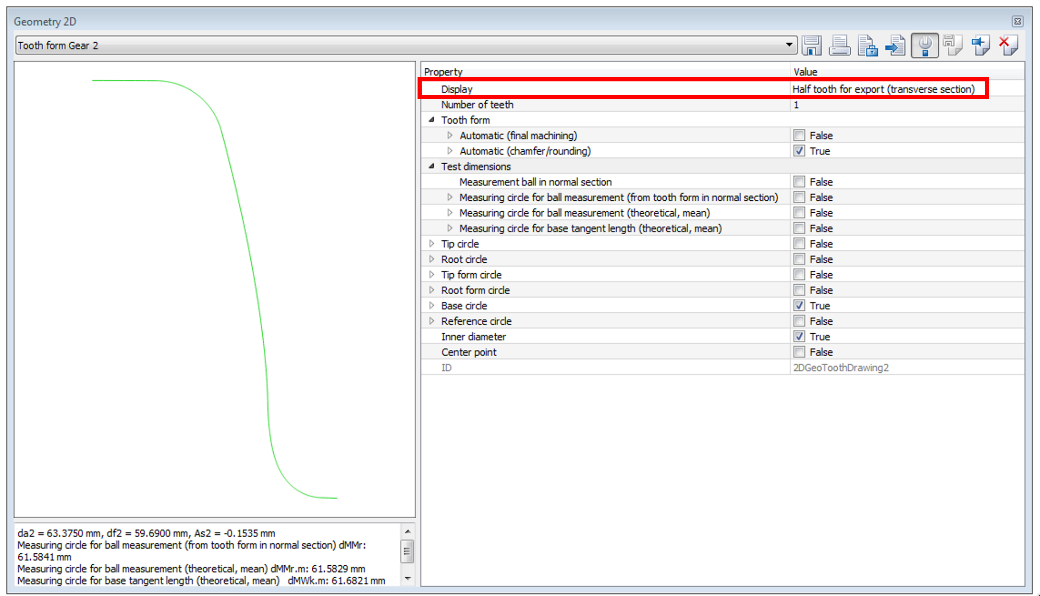
b. Activate Automatic (chamfer/rounding), i.e. profile with macro modifications
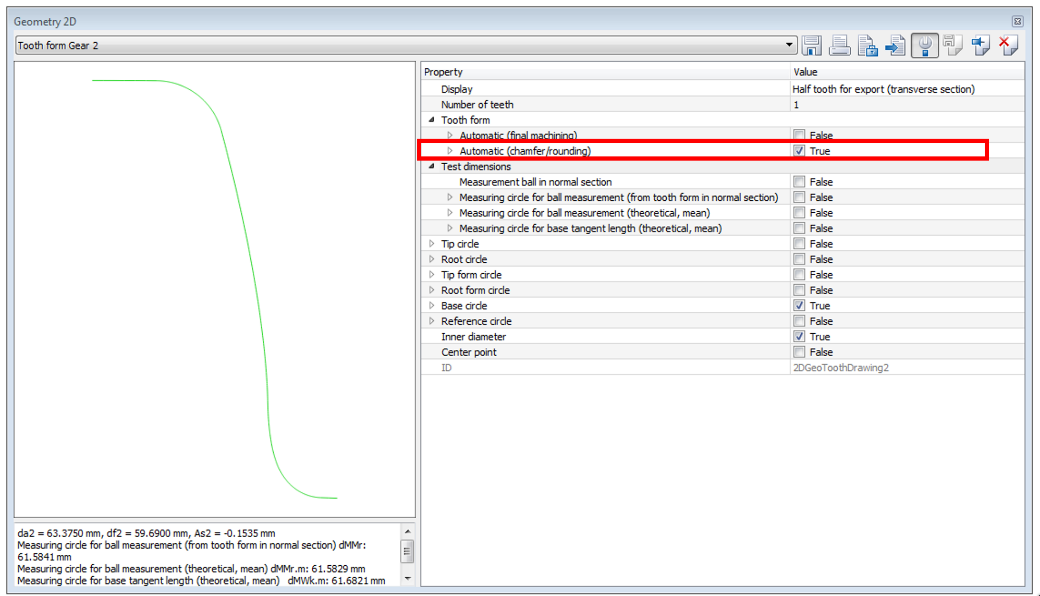
c. Save the file in *.txt format
7. Save the Report
a. switch to Basic data card

b. While still in Basic data card, run again the Calculation (F5) button
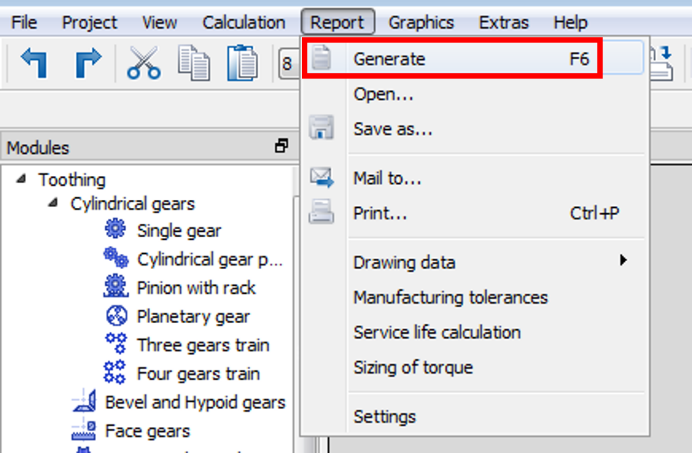
c. Create the report by pushing Generate / (F6) button
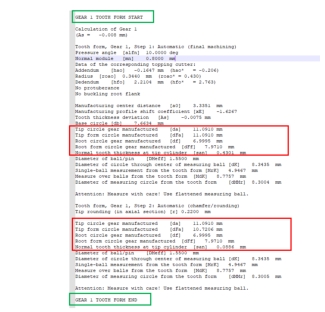
d. Make sure the report contains Gear x Tooth Form section data for both gears.
For each manufacturing step, diameter and tip thickness are required.
For each manufacturing step, diameter and tip thickness are required.
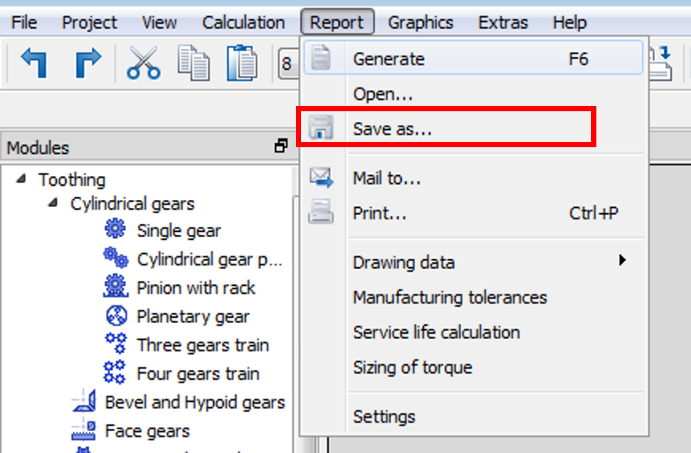
e. Save the report by clicking Save as button
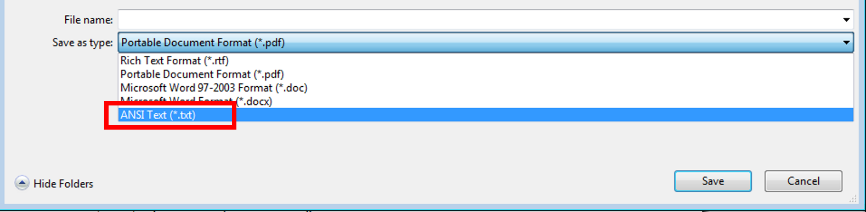
f. Save the report file in *.txt format
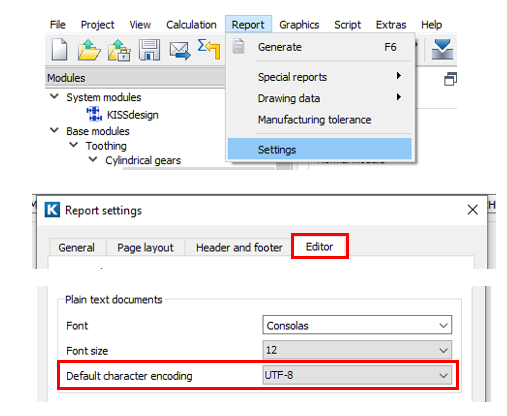
g. Click Report → Settings to know the encoding used for report file