Create / Modify Axial Roller Bearing Element
The dialog box allows you to create Adams View roller bearing element. The bearing geometrical parameters are displayed in the Bearing Specifications part of the dialog box.
Main
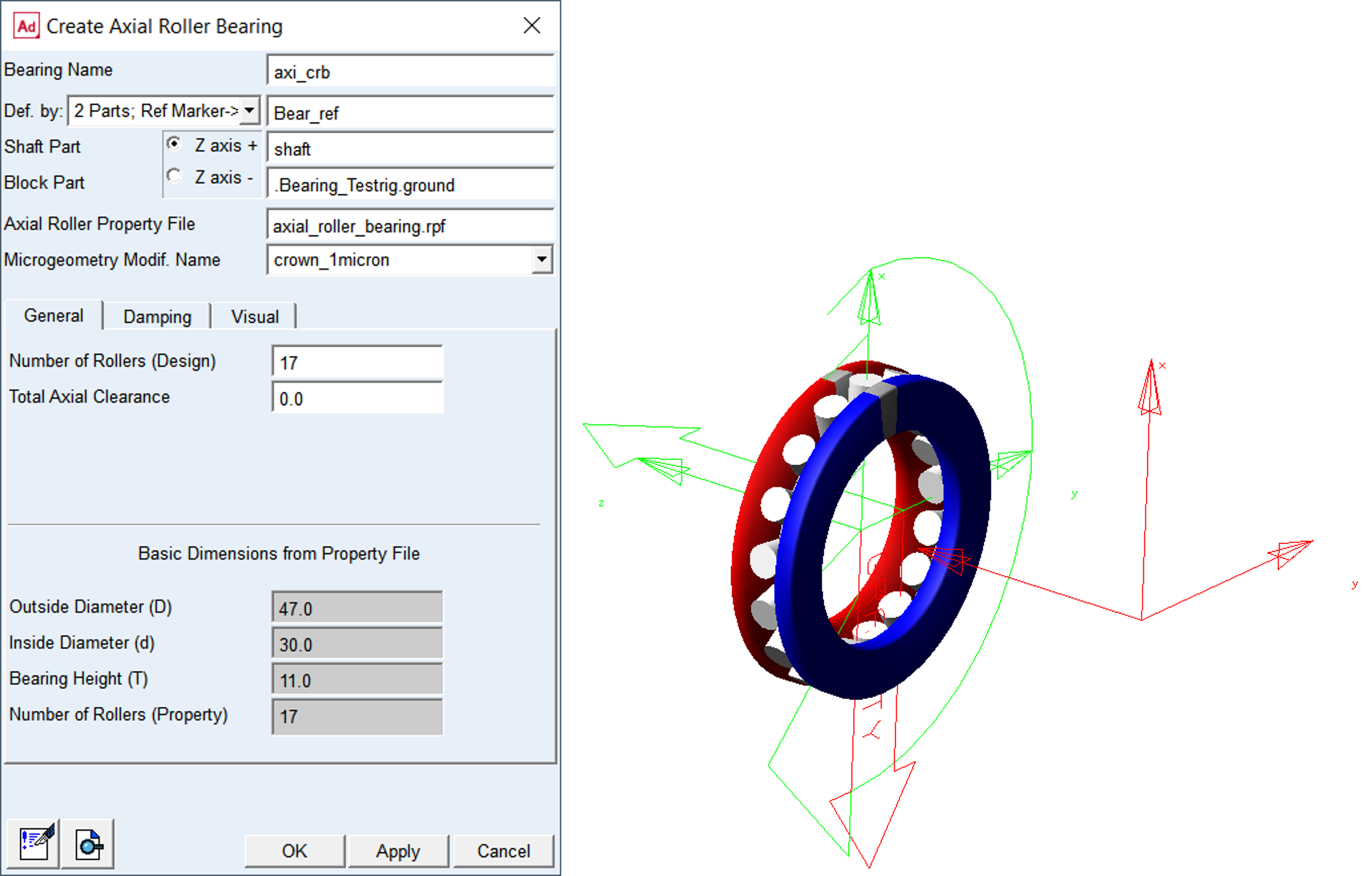
Figure 116 Create axial roller bearing element dialog box - general
For the options | Do the following |
|---|---|
Bearing Name | Enter the name of the bearing |
Def. by. | Select the method of bearing element creation ■2 Parts; Ref Marker -> Select the reference marker to locate and orient new bearing element on any part; select shaft part and block part to attached new bearing element ■2 Markers -> Select markers on shaft part and block part to locate and orient new bearing element Note: Z-axis of reference marker defines rotational axis of bearing element |
For the 2 Parts; Ref. Marker option you need to specify the Shaft Part and Block Part and one Reference marker to define unique location. | |
Ref. Marker | Select the bearing reference marker to define unique location and orientation of the bearing element. Note: The orientation of the Z axis can be flipped by the “Z axis +” / ”Z axis –” radio button. |
Shaft Part | Select the shaft part in your model to attach the bearing shaft ring to. The marker will be automatically created on the selected part. |
Block Part | Select the block part in your model to attach the bearing body ring to. The marker will be automatically created on the selected part. |
For the 2 Markers option you need to specify the Shaft Marker and Block Marker on respective parts to define both, the connectivity and location / orientation of the bearing element. Note: With this option you effectively define initial displacement of bearing rings relative to each other. | |
Shaft Marker | Select a marker on the shaft part in your model to attach the bearing shaft ring to. |
Block Marker | Select a marker on the block part in your model to attach the bearing body ring to. This is reference marker of bearing. |
Axial Roller Property File | Specify the axial roller bearing property file (*.rpf) |
Microgeometry Modif. Name | Select one of the contact property files including micro-geometry variants you have preprocessed for previously. |
General
For the options | Do the following |
|---|---|
Number of Rollers (design) | You can define arbitrary number of rolling elements for Adams simulation regardless of the number used for the preprocessing phase which is stored in the property file. |
Total Axial Clearance | It is axial operating clearance determined on a fitted bearing still warm from operation. It is defined as the amount by which the shaft ring can be moved in axial direction from one extreme position to the other in relation to the body ring. The total axial clearance can be positive or negative. In case of negative clearance, the rolling elements are already preloaded at the design position. The default value is 0.0 |
Basic dimensions from Property File: These fields are for information only, the values cannot be changed in the respective fields. |
Damping
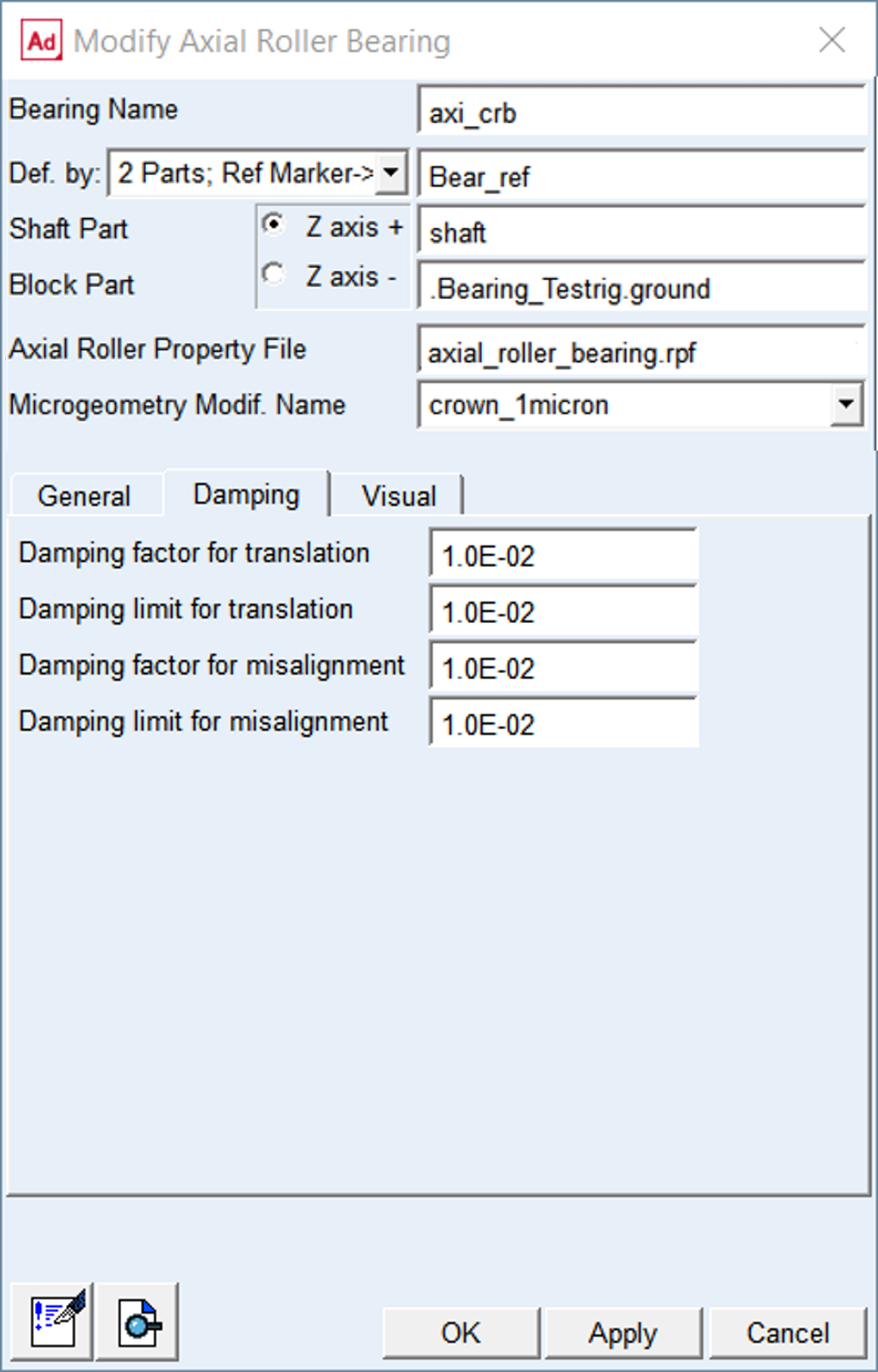
Figure 117 Create / Modify dialog box - Damping tab
For the options | Do the following |
|---|---|
Damping factor for translation | Damping force is applied per roller, when the compression of the roller is increasing. The damping force is defined by following equation: Damping_force = roller_load * ( tran_velocity * damping factor ) Default: 0.01 |
Damping limit for translation | If the expression ( tran_velocity * damping factor ) exceeds the Damping Limit specified then the damping force is becoming: Damping_force = roller_load * damping limit Be aware that very high damping can slow down the integrator. The Damping Limit was introduced to prevent unintentional high damping. Default: 0.01 |
Damping factor for misalignment | Damping torque is applied per roller, when the compression of the roller is increasing. The damping torque is defined by following equation: Damping_torque = roller_torque * ( ang_velocity * damping factor ) Default: 0.01 |
Damping limit for misalignment | If the expression ( ang_velocity * damping factor ) exceeds the Damping Limit specified then the damping torque is becoming: Damping_torque = roller_torque * damping limit Be aware that very high damping can slow down the integrator. The Damping Limit was introduced to prevent unintentional high damping. Default: 0.01 |
Visual
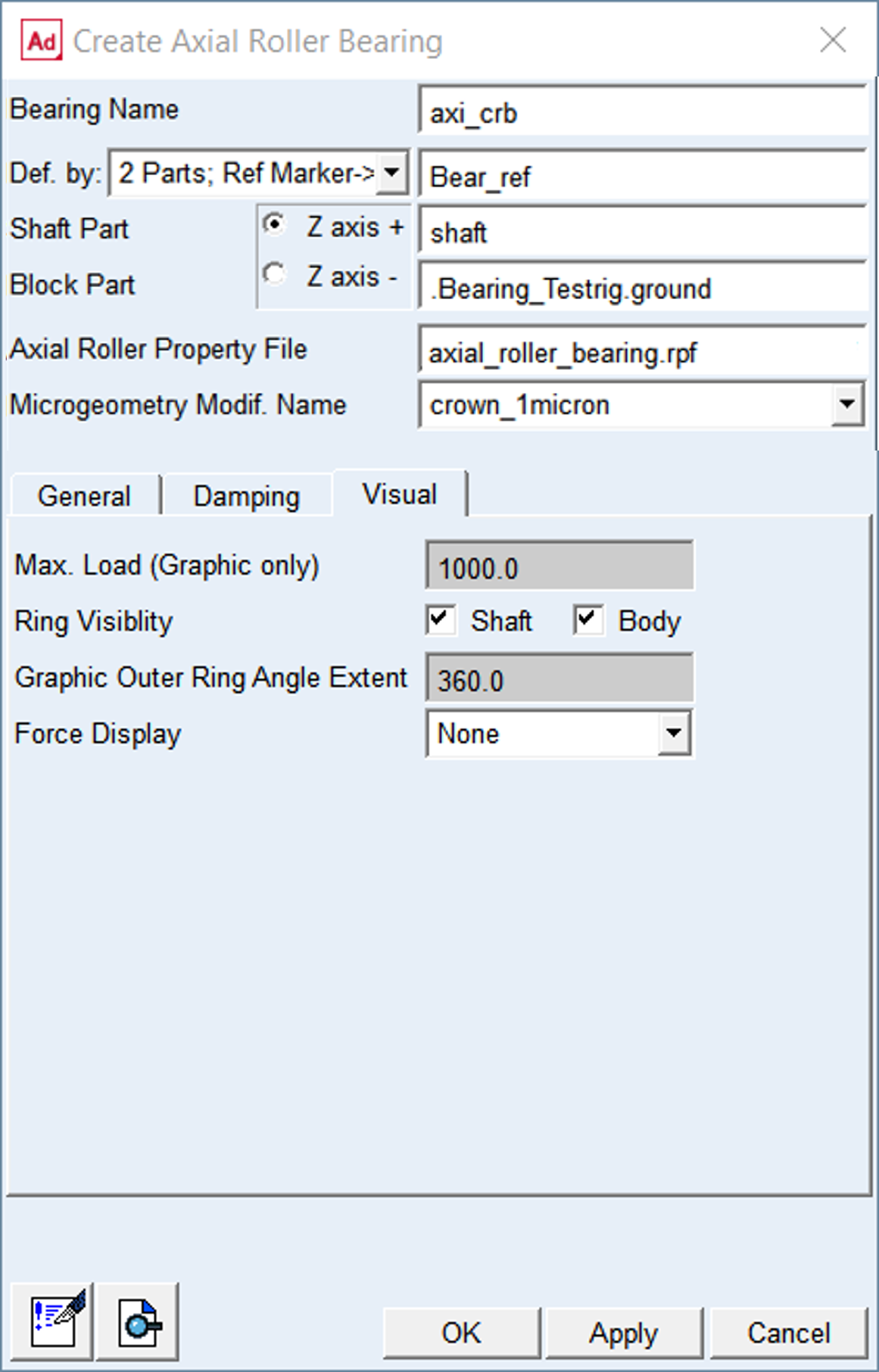
Figure 118 Create / Modify dialog box - Visual tab
For the options | Do the following |
|---|---|
Max.load (Graphics Only) | Enter value of maximum roller load. This parameter is used as load threshold for animations, when color of the rollers indicate the level of loading. The roller is colored red, when the roller load reaches the value of specified load. This color code (Figure 119) is activated, by the option menu from Bearing AT -> Animation Settings. |
Ring Visibility | Toggle ON or OFF to put the Shaft and Body ring visible or invisible state |
Graphic Outer Ring Angle Extent | Adjust this parameter to take a look into the bearing. A portion of both rings from this input till 360 degrees is not displayed. |
Force Display | Set to whether you want to display force graphics for shaft part or none |
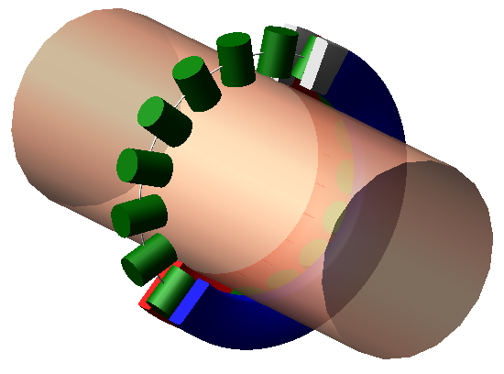
Figure 119 Load color coding