Introduction
Rolling bearings are a widely used component in mechanical engineering. It is evident that trivial modeling by idealized joints is a strong abstraction of reality. Rolling bearings are often represented as linear and non-linear springs and bushings. In this simplified modeling, the complex contact mechanics is generally modeled insufficiently. The next common level of modeling is rigid body contact; a valid estimation of the contact stiffness is not so trivial, as one may consider. The large number of bodies for each rolling element is another deficiency.
Adams Bearing AT is designed to enable fast and accurate modeling of rolling bearings. Accuracy is achieved by application of finest FE-meshes for deriving the compliances between ring and rolling element. Fast modeling and user-friendliness are granted by the automated design and modeling process. All input is limited to common engineering data: no FEA-expertise is required and basic Adams expertise is sufficient for applying Adams Bearing AT. The CPU-time of Adams is only slightly increased by the more advanced modeling of Adams Bearing AT against simplified forces.
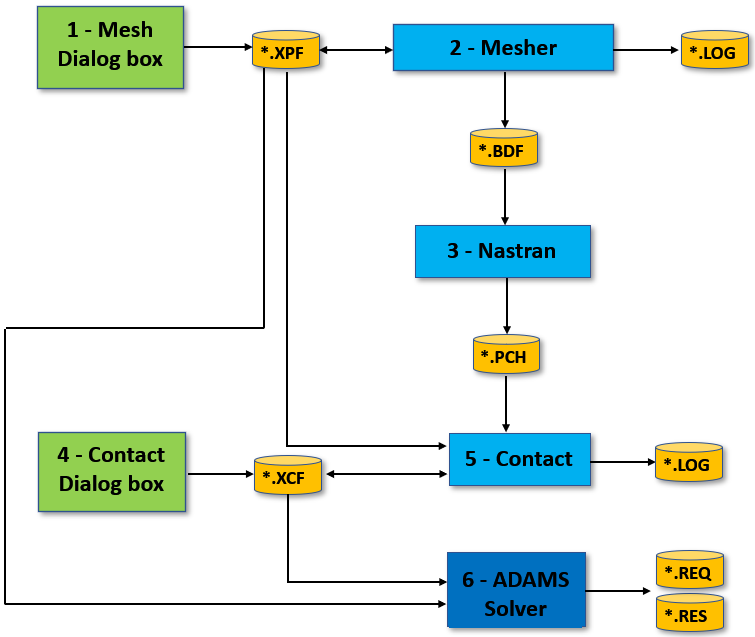
Figure 1 Modeling Process
A rolling bearing is typically defined by a limited number of geometric and material data; all this data is stored in the *.xpf file (bearing property file) in the first step. 'x' depends on the type of rolling bearing (b=deep groove ball bearing, r=cylindrical rolling bearing, n=needle bearing, t=tapered roller bearing). The build-in mesher of Adams Bearing AT reads the *.xpf file and creates Nastran input files (*.bdf) for the inner and the outer race. In a normal application, these Nastran input files are automatically submitted to a Nastran SOL 101 analysis; results of these analyses are stored in Nastran punch files (*.pch).
The compliances of the rolling element against the ring are computed by a high performance contact algorithm in step 5. The user input (workspace of rolling element against ring) is stored in the *.xcf file; a *.log file provides information about contact processing. The resulting compliance forces are stored on the *.xcf file.
Note: | For more detailed information about the process, please read Bearing AT user manual accessible from Bearing AT → Help → Bearing AT Manual menu. |
Help
You can get online help within each dialog box by pressing F1 key to get essential information about data required to accomplish the task. For your convenience you can access getting started guide from help menu as shown below or from windows start menu.
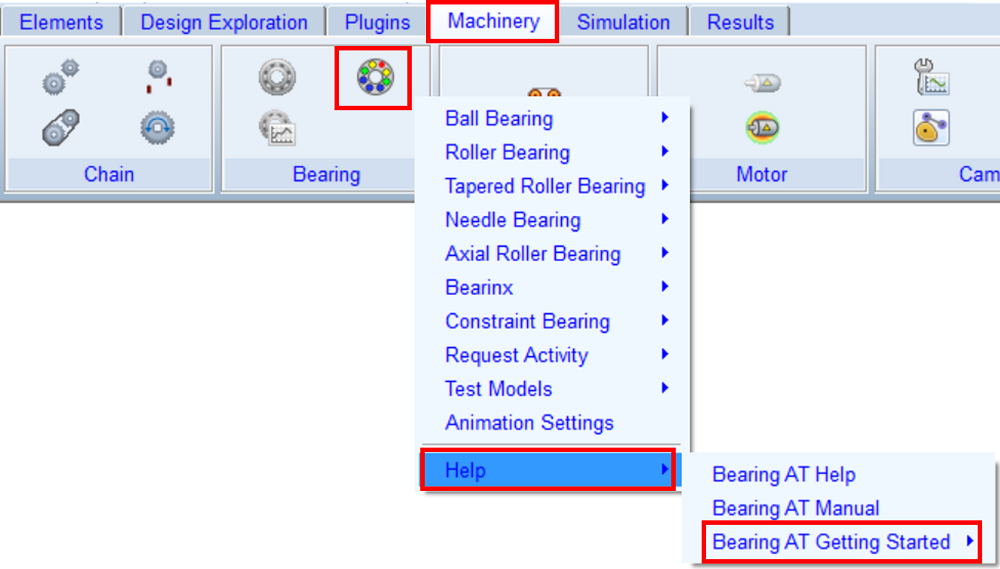
Figure 2 Help menu
This help document is intended to serve as combination of reference manual and of a user guide. It should explain the input variables with sufficient depth and it should give the reader an idea how to interact with the GUI.
Other documentation of Bearing AT:
■Getting Started: Machinery - Bearing AT - Help - Bearing AT Getting Started
■User reference manual: Machinery - Bearing AT - Help - Bearing AT Manual
In case of problems with the installation, licensing or any support question, please contact your local Hexagon office or please contact Technical Support.
Bearing AT initialization
You can configure the setup of Bearing AT product for your convenience. When the plugin is loaded, configuration file Bearing_AT_ini.cmd is automatically imported from the Adams_Install_Dir/bearing_at directory. You can use this file to set your personal preferences such as:
■FE preprocessor
■Request activity
■Background color
■Solver settings
■Relative path for property files
■Backup of property files
■Nastran installation path to use with Bearing AT preprocessing
Or any other of your choice. The file could be placed in any of following location and is read in that order so the last one takes preference:
■Plugin installation directory – Adams_Install_Dir/bearing_at
■Home directory
■Working directory
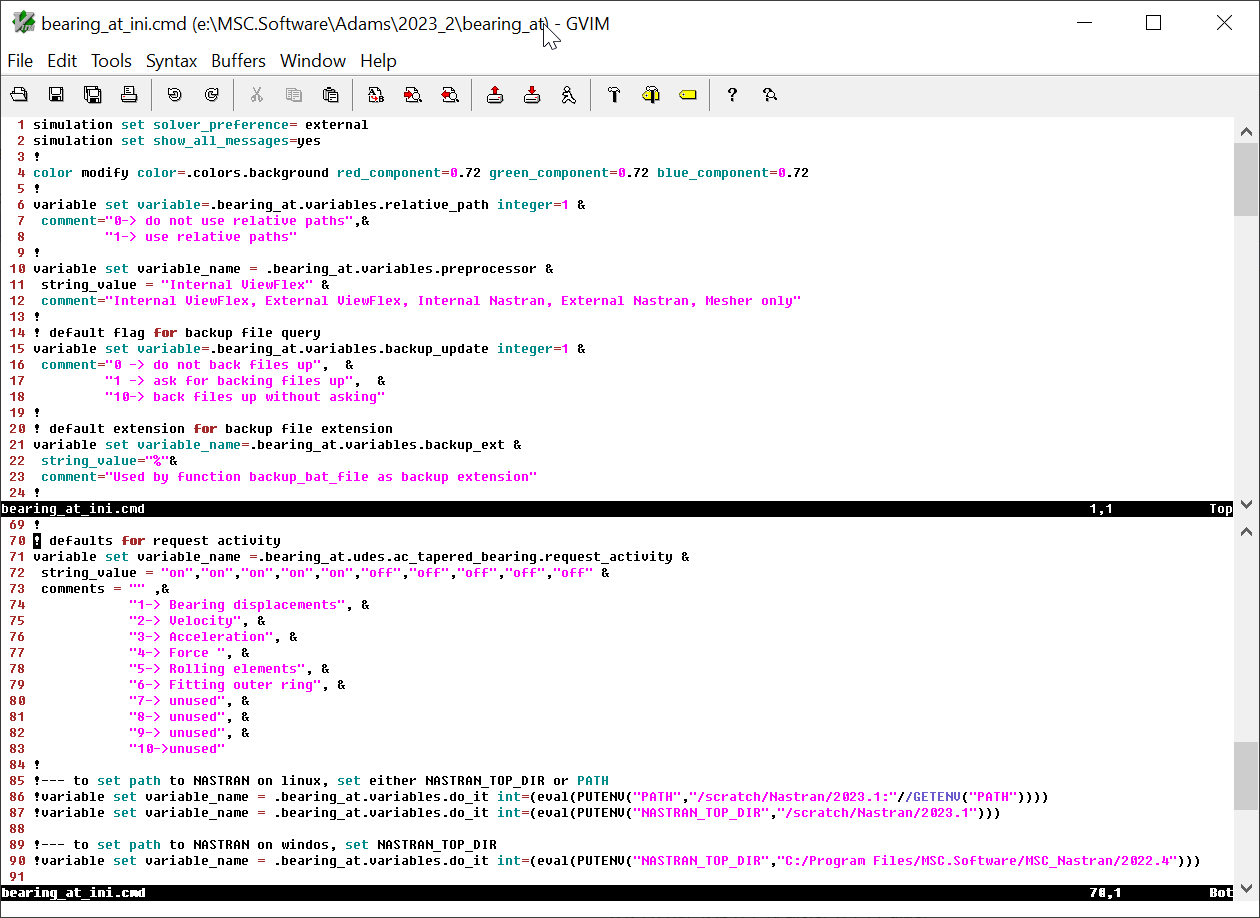
Figure 3 Bearing AT configuration file
Nastran usage
The meshing and FEA are fully automated and leverage Nastran technology embedded directly in Adams, the Adams ViewFlex solver. In case you have Nastran installation available, on Windows OS it gets automatically detected from windows registry, on Linux OS it searches the paths specified in the PATH environment variable. If detected, the Nastran choice will be available in the Preprocessor option menu of Bearing Preprocessing Mesh dialog box. You can override the logic described above by setting NASTRAN_TOP_DIR environment variable either in the OS or by use of Bearing_AT_ini.cmd configuration file. This variable should point to the Nastran installation directory, e. g.:
■On Windows OS: C:/Program Files/MSC.Software/MSC_Nastran/202X
■On Linux OS: /opt/msc/Nastran/202X
The advantage of standalone Nastran installation usage is that it makes use of shared-memory parallel (SMP) processing in several numeric modules if corresponding license feature is available. The SMP processing reduces elapsed time at the expense of increased CPU time. By default, the maximum number of processors is used by Bearing AT mesh preprocessing.