Clearance Studies
You can perform a clearance study that reports the minimum distance between objects in your model at each frame of an animation. For example, you might want to perform a clearance study to ensure packaging requirements are satisfied.
When you view an animation of the clearance study, Adams PostProcessor displays a line between the two objects in the study to track the minimum distance. You can also plot the data and generate reports. For an example of a clearance study, refer to the tutorial in Getting Started Using Adams PostProcessor.
Defining a Clearance Study
To define a Clearance study:
■Select the pair of objects on which you want Adams PostProcessor to report distance information - You select objects, either parts or geometry, to be used in the study. The bodies can be rigid or flexible. You can define many clearance objects at once by selecting multiple objects in the lists.
■Set maximum distance reported - To reduce the calculations in the clearance study, you can also define a maximum distance above which Adams PostProcessor does not calculate any distance information. When you play an animation, if the distance between the pair of objects is greater than the maximum distance, Adams PostProcessor does not display a line between the objects. In addition, in clearance study reports, if the distance is exceeded at a given frame, Adams PostProcessor records the distance as the maximum distance and not the actual distance.
■Set method used for calculations - Adams PostProcessor uses two different calculations for clearance studies: Polygon and Vertex.
To create a clearance study:
1. From the Tools menu, point to Clearance, and then select Create.
The Create Clearance Study dialog box appears.
2. Set up the pairs to be investigated in the study.
■In the Model list, select the model to be used for the study.
■In the I Body list, select the first object in the pair. You can also select Pick to select the object from the screen. (You can select more than one object at a time.)
■In the J Body list, select the second object in the pair. You can also select Pick to select the object from the screen. (You can select more than one object at a time.)
3. Enter a name for the study. If you are creating several studies (by selecting more than one pair of I and J Bodies), you can enter a base name for the studies, and Adams PostProcessor will add a suffix to the name (base_1, base_2, and so on).
4. Set the maximum distance for the clearance beyond which clearances will not be computed at any given frame. For more information, see the overview on the previous page. Leave the text box empty if you always want to calculate the minimum distance.
6. Select OK.
7. Run clearance study as explained in Running a Clearance Study.
Running a Clearance Study
When you request to run a Clearance study, Adams PostProcessor calculates the minimum and maximum distances between a pair of objects using data from a selected Simulation. It adds the information to the animation associated with the simulation, which you can subsequently run. You can also generate a report of the data and plot it.
Tip: | The number of frames in your animation can have a significant effect on the accuracy of the distances reported. Therefore, for best results, we recommend that you perform at least one clearance study with a large number of frames in the animation (time steps in the simulation). |
To run a clearance study:
1. Set up the clearance study as explained in Defining a Clearance Study.
2. From the Tools menu, point to Clearance, and then select Compute.
The Clearance Compute dialog box appears.
3. Select the simulation data against which you want to run the clearance study.
4. From the pull-down menu, select if you want to calculate the clearance study as if flexible bodies were rigid. This reduces computations and allows the clearance study to run faster but does not give you information about the effects of flexibility.
5. Select OK.
Playing an Animation of the Clearance Study
You can review an animation of the Clearance study. When you run the animation, Adams PostProcessor displays a line representing the minimum distance at each frame between the objects in the clearance study. No line appears between objects if the distance between the objects is greater than the maximum value you set, above which Adams PostProcessor performs no calculations. For more information, see Defining a Clearance Study.
You can change the color of the minimum distance line, its visibility, and width. Learn how to change the clearance study.
To review a clearance study as an animation:
1. In the Treeview, under the model and Simulation on which you selected to perform the clearance study, select the name of the clearance study.
Viewing Clearance Data as Reports
You can export summaries of all clearance studies run for a particular Simulation in different formats:
The format: | Does the following: |
|---|---|
Complete report in HTML or text format | Displays the objects in the studies, frame at which minimum and maximum distances occurred, and position of objects at minimum distances. The text file has a .clt extension. |
Example:
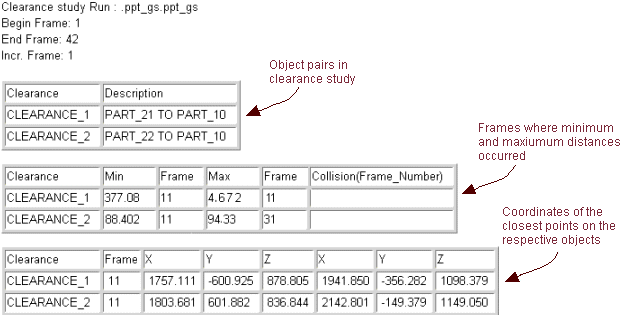
The format: | Does the following: |
|---|---|
Report of minimum distances at each frame in text format | Displays minimum distances at each frame. Has a .clr extension. |
Example:
Clearance study : CLEARANCE_1
Analysis name : ppt_gs
Min 377.083 at frame 11
Max 476.712 at frame 31
Frame Distance
---------------------------
1 420.791
2 420.791
3 412.919
4 405.346
...
Clearance study : CLEARANCE_2
Analysis name : ppt_gs
Min 881.402 at frame 11
Max 940.895 at frame 31
Frame Distance
---------------------------
1 912.850
2 912.850
3 907.660
4 902.446
...
To export reports:
1. From the Tools menu, point to Clearance, and then select Write.
The Clearance Export Results dialog box appears.
2. Enter the name of the file and the simulation result against which you created the clearance studies.
3. Select OK.
For more on working with reports in Adams PostProcessor, see Viewing Reports.
Plotting Clearance Data
After you run a Clearance study, you can plot the following information:
■X, Y, and Z location of objects (I Body and J Body) in study
■Minimum distance
You plot clearance study data much like you plot any data in Adams PostProcessor. For more information on plotting, see Plotting Results.
To plot clearance study results:
1. From the Dashboard, select the simulation on which you performed the clearance study.
2. Set Source to Clearances.
The dashboard changes to show the clearance data available for plotting.
3. From the Request list, select the clearance study whose data you want to plot.
4. From the Component list, select one or more components of the characteristic that you want to plot.
5. Select Add Curves to add the data curve to the current plot.
Changing the Clearance Study
You can use the Property Editor to change many of the aspects of the Clearance study and run it again.
To change the clearance study properties:
1. In the Treeview, under the model and Simulation on which you selected to perform the clearance study, select the name of the clearance study.
2. In the property editor, change the following:
■Visibility - To set the display of the minimum distance line, set Visibility to:
On - Turns on the display of the line during animations.
Off - Turns off the display of the line during animations.
■Inherit - Lets the line simply inherit the display settings from its parent.
■Line weight - Select a line weight for the minimum distance line. The weight values range from 1 to 5 screen pixels.
■Color - Set Color to the color for the minimum distance line.
■Maximum - Set the maximum value beyond which Adams PostProcessor does not calculate. For more information, see Defining a Clearance Study.
3. If you changed the method or the maximum value, run the study again as explained in Running a Clearance Study.