Using Python scripts in Adams
There are three ways in which Python scripts can be run in Adams.
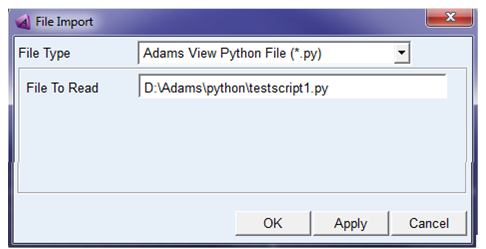
File Import Dialog
A new option has been added to the dialog for importing Python scripts
Command Window
The command window in Adams now supports both cmd language and Python.
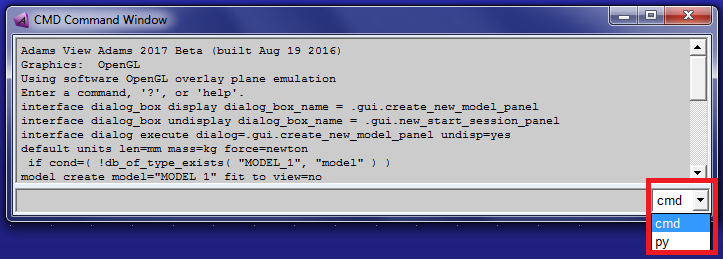
On switching to the "py" option in the drop down, the command window starts accepting Python commands.
Command line
Python scripts can be executed in batch from the Adams command line
On the Windows platform in an Adams shell:
adams2024_1 aview ru-s b testscript1.py
On Linux platforms in a command shell:
adams2024_1 -c aview ru-s b testscript1.py
Running a Python script at startup
Two methods are available for executing a Python script during Adams View startup.
1. Set PYTHONSTARTUP environmental variable to the full path of the python script. If PYTHONSTARTUP gives the path of a readable python file, the Python commands in that file is executed after aview.cmd start up file when Adams view is launched. The file is executed in the same namespace where interactive commands are executed so that Adams view objects defined or imported in it can be used in the Adams view interactive session.
2. Put the line below in the aview.cmd file in the working directory.
var set var= int = (eval(run_python_code("exec(open('<python_file_path>').read())")))
The Adams session object
The Adams class represents the Adams session object. This class can be used to create and lookup models and also to obtain the current active model.
Creation and lookup of objects
While writing a Python script for Adams, some of the things that will done frequently are creation of objects, lookup of created objects and modification of object properties. The Adams python api documentation has a complete listing of object managers and properties.
The Adams Python interface provides an easy to use and convenient way for the above. The following section shows creation of Adams objects using python. These commands are typed in the Adams View command window.
Object creation
The creation of objects is handled by "managers" designed to create objects of a particular class. Every object has a handle to these "managers" for types of objects that can be created under them. A model is created in the current session with this command:
mod = Adams.Models.create() # creates a model with an auto generated name
mod = Adams.Models.create(name="MODEL3") # creates a new model with a specified name
Variable mod is the python handle to the model just created. Model class has a handle to the "manager" for creation of Part objects. A part of type 'RigidBody' can be created under mod with this python command.
p = mod.Parts.createRigidBody()
This will create a rigid body part under the model "mod". Managers that support multiple object types have create methods of the form create<Class Name> for each class they support. The part manager supports creation of - RigidBody, FlexibleBody and PointMass objects with corresponding creation methods createRigidBody, createFlexBody, and createPointMass.
The "create" function can also take in additional optional parameters as below:
p = mod.Parts.createRigidBody(name="PART1", adams_id=10)
Object lookup
Object managers implement the collections.Mapping interface, and hence behave like a Dictionary which maps object names to their corresponding objects. Here are some examples making use of this dictionary-like behavior:
# Create a part in the current model with 5 child markers
part = Adams.getCurrentModel().Parts.createRigidBody()
for i in range(5):
part.Markers.create(name="marker_" + str(i))
# Look up the marker named "marker_3"
m3 = part.Markers["marker_3"]
# Get a list of markers and marker names
marker_names = part.Markers.keys()
markers = part.Markers.values()
As with python dictionaries, managers are iterable. It's important to note that, as in python dictionaries, iterating over the manager iterates over its keys, which are the names of the child objects.
# Print the names of each marker under our part
for name in part.Markers:
print(name)
# Shift the location of each marker
for marker in part.Markers.values():
loc = marker.location
loc[0] += 10
loc[1] += 5
marker.location = loc
For managers that support multiple object types, methods related to the dictionary-like behavior accept class names as strings, allowing you to filter down to specific object types:
# Get a list of all Block and Ellipsoid geometries under our part
g = part.Geometries.values("GeometryBlock", GeometryEllipsoid")
Note: | The above lookup mechanism is based on the object name. For lookup based on the object full name, use keys_full(). # Get a list of marker full names under the part marker_full_names = part.Markers.keys_full() The Manager classes also provides items_full(), which is based on the object full name. |
Object Properties
The classes of the Adams Python interface have properties which map to the database attributes of the Adams object in the database. These properties can be set and/or retrieved by simply accessing the relevant descriptor with a class object.
p_PART_001.properties #Get all properties for a modeling object
['adams_id', 'cm', 'cm_name', 'comment', 'density', 'exact_phi',…]
Properties can be set and retrieved from the property names
p_PART_001.adams_id = 19910 # set the Adams ID for this part
p_PART_001.adams_id # print property value to verify that it was set
19910
Defining Array property
Several Adams modeling classes with properties of type array. These properties can be defined by python objects of one of these types:
List
Tuple
Range
Example:
model=Adams.defaults.model
rcount=10
d1=[0,1,2,3,4,5,6,7,8,9] # values as a list
mat1=model.DataElements.createMatrixFull(row_count=rcount, column_count=1, values=d1)
d2=(0,1,2,3,4,5,6,7,8,9) # values as a tuple
mat2=model.DataElements.createMatrixFull(row_count=rcount, column_count=1, values=d2)
d3=range(rcount) # values as a range
mat3=model.DataElements.createMatrixFull(row_count=rcount, column_count=1, values=d3)
len(mat1.values)==rcount # verify number of values in matrix
True
mat1.values==mat2.values # verify matrices are identical
True
mat2.values==mat3.values
True
Using expressions
The Adams Python Interface provides methods to enable setting an expression or the value of an evaluated expression on properties.
Adams.expression(expression_string) - to set an expression
Adams.eval(expression_string) - to set the evaluated value of an expression
Here are some examples:
# Parameterize the radius of a circle
mod = Adams.defaults.model
p = mod.Parts.createRigidBody(name="PART_1")
m = p.Markers.create(name="MAR_1")
c = p.Geometries.createCircle(name="CIRCLE_1", center_marker=m)
dv1 = mod.DesignVariables.createReal(name="DV_1", value=100.0)
#Parameterize the radius property with DV_1
c.radius=Adams.expression(dv1.full_name)
#Evaluate DV_1 and set the value as the radius
c.radius=Adams.eval(dv1.full_name)
# Parameterize the location and orientation of a marker
mod = Adams.defaults.model
p = mod.Parts.createRigidBody(name="PART_1")
m1 = p.Markers.create(name="MARKER_1")
m2 = p.Markers.create(name="MARKER_2")
#Parameterize the location property with MARKER_1
m2.location = Adams.expression("(LOC_RELATIVE_TO({0.0, 0.0, 0.0},%s))" % m1.full_name)
#Evaluate ORI_RELATIVE_TO with respect to MARKER_1 and set as the orientation
m2.orientation = Adams.eval("(ORI_RELATIVE_TO({0.0, 0.0, 0.0},%s))" % m1.full_name)
Using Extended Names
■Object creation
mod = Adams.Models.create(name="MODEL 3") # creates a new model with a specified name. User can use Unicode String or Special characters( ~`@# $ ^ ()'%. &-+;',{}[]= ) in name.
p = mod.Parts.createRigidBody(name="PART .1", adams_id=10)
Standard Python Command:
bs = p1.Geometries.createBSpline(name='Gcurve_1', ref_marker_name = '.MODEL_1.Part_1.Marker_1', ref_curve_name = 'MODEL_1.Curve_1', segment_count = 20)
If MODEL_1 changed to MODEL.1, Part_1 to Part 1 and Marker_1 to Marker 1 then
Python command syntax with the special characters will be
bs = p1.Geometries.createBSpline(name='Gcurve_1', ref_marker_name = '.\'MODEL.1\'.Part 1.Marker 1', ref_curve_name = '.\'MODEL.1\'.Curve 1', segment_count = 20)
If dot('.') character is present in an object name then the object name must be enclosed in single quotes.
■CMD execution using Python command
If executing CMD commands from a Python script, then those commands must follow the CMD enhanced naming syntax.
Example:
Adams.execute_cmd("interface dialog_box display dialog_box_name = .gui.design_variable_cremod parameters = \"DV TEST.123\"")
■To handle unicode characters, Adams Python scripts should use encoding as "UTF-8"
Open("file_name", "w") should be Open("file_name", "w", encoding="UTF8")