SENSOR
The SENSOR statement is used to modify the simulation when a user-defined event occurs during run-time. The event is defined by a logical expression which compares an expression to a target value. If the logical expression becomes true during the simulation, the sensor modifies the simulation by the means described below.
Format
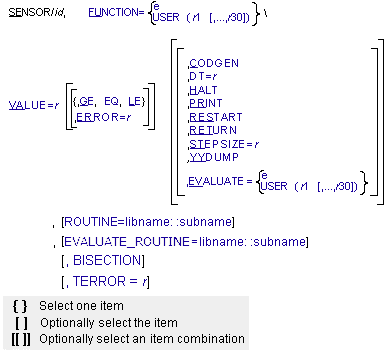
Arguments
BISECTION | Specifies that a bisection search algorithm will be used to isolate the activation time of the sensor. When not present the default, secant-type root-finding algorithm is used. |
CODGEN | Generates a new pivot sequence for matrix factorization when the event Adams Solver (C++) is monitoring becomes true. This may help the integrator to produce more accurate data or to proceed more smoothly at troublesome points in time. A pivot sequence for matrix factorization is generated before the start of a simulation. A new pivot sequence is not generated unless the CODGEN argument is used or Adams Solver (C++) determines it is necessary to reach convergence. Default: Off |
DT=r | Redefines the time between consecutive output steps when the event Adams Solver (C++) is monitoring becomes true. Default: Time between output steps determined by SIMULATE command |
EQ | Used to define the event logical expression. The event is true (active) if the function expression (or user-written subroutine) minus VALUE is equal or less than ERROR. Default: EQ |
ERROR=r | Used to define the event logical expression. ERROR specifies the absolute value of allowable error to be realized in VALUE. Default: 0.001 |
 | Specifies an expression or defines and passes constants to a user-written subroutine that is evaluated when the event Adams Solver (C++) is monitoring becomes true. The scalar value of the expression or the return value of the user-written subroutine can then be obtained using the SENVAL function expression. If you want to define the evaluated function with an expression, EVALUATE must be followed with an equal sign and the expression. If you want to define the evaluated function with a user-subroutine, FUNCTION must be followed with an equal sign, the character string USER, and the selected values (r1[,...,r30]) that Adams Solver (C++) passes to the user-written subroutine SEVSUB. If the EVALUATE argument is used, it must either be the last argument in the SENSOR statement or be followed by a backslash (\). |
EVALUATE_ROUTINE=libname::subname | Specifies an alternative library and name for the user subroutine SEVSUB. Learn more about the ROUTINE Argument. |
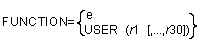 | Specifies an expression or defines and passes constants to a user-written subroutine to define the event logical expression. To define an expression, follow FUNCTION with an equal sign and the expression (e). To define a user-written subroutine, follow FUNCTION with an equal sign, the character string USER, and the values (r1[,...,r30]) that you want Adams Solver (C++) to pass to the user-written subroutine SENSUB. If the FUNCTION argument is used, it must either be the last argument in the SENSOR statement, or be followed by a backslash (\). Default: None Range: An expression or user-parameter list of 1 to 30 real values |
GE | Used to define the event logical expression. The event is true (active) if the function or user-written subroutine is equal to or greater than (VALUE-ERROR). Default: EQ |
HALT | Terminates execution when the event Adams Solver (C++) is monitoring becomes true (active). Default: Off |
LE | Used to define the event logical expression. The event is true (active) if the function or user-written subroutine is equal to or less than (VALUE + ERROR). Default: EQ |
PRINT | Writes data to the request, graphics, and results files when the event Adams Solver (C++) is monitoring becomes true. Default: Off |
RESTART | Restarts the integration when the event Adams Solver (C++) is monitoring becomes true. Adams Solver (C++) reduces the integration order to one. If the SENSOR includes STEPSIZE, the integration step size is reinitialized to the specified value. If you do not specify STEPSIZE, Adams Solver (C++) reinitializes the integration step size to HINIT. Default: Off |
RETURN | Stops the simulation and returns to the command level when the event Adams Solver (C++) is monitoring becomes true. Default: Off |
ROUTINE=libname::subname | Specifies an alternative library and name for the user subroutine SENSUB. Learn more about the ROUTINE Argument. |
STEPSIZE=r | Redefines the trial integration step size when the event Adams Solver (C++) is monitoring becomes true. This change is temporary and lasts only for the next step. Default: An integrator determined value except when the SENSOR statement includes the RESTART argument. In this case, STEPSIZE defaults to HINIT. Range: STEPSIZE > 0 |
TERROR | Specifies the temporal error with which the activation time of the sensor is isolated. Default: 1e-6 |
VALUE=r | Specifies the value to be compared to the function expression (or evaluation of the user-written subroutine). When using GE with VALUE, the event logical expression is true only if the function expression is equal to or greater than (VALUE - ERROR). When using EQ with VALUE, the event logical expression is true only if the absolute value of the function expression minus VALUE is equal to or less than ERROR. When using LE with VALUE, the event logical expression is true only if the function expression is less than (VALUE + ERROR). Default: None Range: Any real number |
YYDUMP | Dumps the state variable vector when the event Adams Solver (C++) is monitoring becomes true. Default: Off |
Extended Definition
The SENSOR statement defines a user-defined event that affects a set of simulation controls when the event occurs. The event is defined by a logical expression that compares a function expression (or evaluation of a user-written subroutine) to a target value using a relational operator. If the logical expression becomes true during the simulation, the sensor modifies a set of simulation controls, which include output and integration step sizes, simulation end time, and the Jacobian pivot sequence. A sensor can also output diagnostic information and store the value of a function expression for later recall.
Adams Solver (C++) evaluates the logical expression after every successful integration step when doing dynamic analysis and after every successful output step when doing other types of analyses. To define the function, use a function expression or a user-written subroutine. User-written subroutines and utility subroutines discuss the subroutines they can access.
Adams Solver (C++) uses a different algorithm for sensor detection from the one used by Adams Solver (FORTRAN). Adams Solver (FORTRAN) uses a prediction to try to pick an integration step that will detect the sensor. Adams Solver (C++) uses three methods of search algorithms for sensor detection:
1. Bisection method (primarily meant for discrete signals)
2. Time-based method
3. Secant method
If the method is chosen as bisection, then the sensor will look at the current sensor function value and determine if it is within the ERROR tolerance. If the sensor function is within the ERROR, then it will use bisection method to refine the time to within TERROR. This method does not use a sign change to detect if the sensor function crosses the trigger value, so it is possible to cross the value outside of the ERROR, and the sensor will not trigger. If bisection is not explicitly selected, then the sensor looks at the function itself to determine the sensor detection algorithm. If the sensor function depends on time, or uses a SENSUB and sysfnc or sysary are not called, then it uses a time-based algorithm to predict exactly when the sensor value is hit.
If the sensor function depends on Adams states, or uses a SENSUB, then it uses a secant algorithm for sensor detection. This method will determine if the current and last values of the sensor function have crossed the trigger values, and if so, will use the secant method to attempt to refine to the trigger value. Finally, it will then determine if the sensor function is within the ERROR specified and trigger the sensor if this is true. This method behaves differently to the bisection method in that it will trigger the sensor even if the current and last sensor values do not fall within the sensor ERROR. However, if there are even roots in the sensor function, the sensor may miss this case unless a smaller integrator step is used.
Importing MATLAB controls systems dlls into Adams as GSEs creates the following sensors:
Sensor for continuous state reset
This SENSOR is for a GSE/External System Library (ESL).
Purpose: to detect continuous state change in ESL that requires integrator restart.
Function returns 1 if states are changed/reset by the ESL; otherwise, -1.
The cdriver parameters are as follows:
1. adams id of array for GSE continuous states (-1 = none used)
2. adams id of array for GSE inputs (-1 = none used)
3. adams id of array for parameters (-1 = none used)
4. adams id for string for name of library
5. number of parameters for library
6. length of string for name of library
7. adams id of the GSE associated with this sensor
This sensor is added to the database.
Sensor for tracking Zero-Crossings
This sensor is created when Zero-crossings are enabled in MATLAB/Simulink/RTW ESL.
Purpose: to track zero crossing functions in MATLAB/Simulink/RTW ESL
Function returns the MATLAB zero-crossing function value
To remove, disable Zero-Crossings in MATLAB/Simulink before creating ESL and importing into Adams
The subroutine Sensub_zc_eq parameters are as follows:
1. adams id for string for name of library
2. length of string for name of library
3. number of parameters for library
4. adams id of the GSE associated with this sensor
5. index of the zero crossing vector in ESL to track
This sensor is added to the database.
Sensor created by the Adams Solver to manage discrete GSEs
Adams Solver (C++) may automatically create SENSORs to manage discrete GSEs in the model. In those cases, Adams Solver (C++) will print an info message and assign an Adams ID to the created SENSOR. (This Sensor is custom created and it is not to be found in the database.)
SENSORs in the model are verbose objects that may print large quantity of messages into the message files and the output display. To silence a SENSOR or a set of SENSORs, set the environment variable MSC_ADAMS_SENSOR_MESSAGES to a comma separated list of options. Options are the words ON, OFF, ALL and a list of Adams IDs. For example:
MSC_ADAMS_SENSOR_MESSAGES=OFF, 4, 7, 11-20
will disable sending messages from SENSORs with Adams IDs provided in the list.
MSC_ADAMS_SENSOR_MESSAGES=OFF, ALL
will disable sending messages from all SENSORs in the model.
MSC_ADAMS_SENSOR_MESSAGES=ON, 3
will enable sending messages from SENSOR/3
Caution: | ■When using the default search algorithm in Adams Solver (C++), the SENSOR function must be continuous. The secant-type search algorithm is inaccurate and time consuming when the function is discontinuous. For that reason, functions of time or displacements work best for sensors; functions of velocities, accelerations, and forces are less desirable. |
■Use the BISECTION attribute when discontinuous SENSOR functions must be used, or when a slower but more robust search algorithm is desired. | |
■Adams Solver (C++) tests the sensor after every successful time step during dynamic analyses and after every output step during other analyses. If the sensor becomes active, Adams Solver (C++) modifies the simulation control accordingly and does not test the sensor again until it has completed three time steps. Then, Adams Solver (C++) again tests the sensor after every time step. | |
■If you want Adams Solver (C++) to take an action, make sure to include one of the action arguments (CODGEN, DT, HALT, PRINT, RESTART, RETURN, STEPSIZE, EVALUATE, and YYDUMP) in the SENSOR statement. The sensor can become active even if one of the action arguments is not included. However, Adams Solver (C++) does not, of course, take action unless one is specified. | |
■If a MOTION statement generates nonzero initial part accelerations, the Adams Solver (C++) integrator may not produce reliable accelerations and velocities for the first two or three internal integration steps. Adams Solver (C++) automatically corrects for this, so that the values returned at the first output step are accurate. A SENSOR, however, which depends on the accelerations or reaction forces due to this motion may trip unexpectedly prior to the first output step, even though the solution appears correct when the SENSOR is removed. If this occurs, you should modify the displacement function in the MOTION statement so that the initial accelerations are zero. | |
■In some cases, Adams Solver (C++) may not be able to use the specified STEPSIZE. ■If this step size gives poor convergence or generates too much error, Adams Solver(C++) tries other step sizes. ■For those INTEGRATOR statements where you set INTERPOLATE=OFF, if the specified step size steps past the next output step, Adams Solver (C++) reduces the step size to reach the output step exactly. ■If the specified step size is larger than HMAX, Adams Solver (C++) uses HMAX. ■If the specified step size is smaller than HMIN, and you specify RESTART, the value of HMIN overrides the value of STEPSIZE. ■Adams Solver (C++) may occasionally have difficulty enforcing an equality (EQ) SENSOR, especially if the specified error is very small. In these cases, Adams Solver (C++) may appear to pass through the sensed value without invoking the sensor action. If this occurs, you should try increasing the error tolerance, if possible. An alternative is to change to an inequality (GE or LE) sensor, then DEACTIVATE the sensor after it has triggered. |
Examples
SENSOR/231, FUNCTION=DX(0201,0307)/
,VALUE=3.24, RETURN
,VALUE=3.24, RETURN
This SENSOR statement senses the x-component for the displacement of Marker 0201 with respect to Marker 0307 and resolves the displacement in the ground coordinate system (GCS). When the relative x displacement equals 3.24 (+/- 0.001), the statement stops the simulation and returns to the command level.
See other Analysis parameters available.