Matrices
When creating or modifying a data element matrix, you can specify its values:
Matrix Format Types
■A data element matrix is a general M x N array that can be a rectangular or square two-dimensional matrix or a row or column matrix. You can enter the data in:
■Full format - You list all the M x N values or specify the results of a Simulation (Result set components).
■Sparse format - You list the row position, column position, and value for only nonzero entry values.
■External file - Enter a file containing a matrix.
If one-third or more of the entries in a matrix are nonzero, we recommend that you use full format since it takes less time to create. If the matrix is mostly empty and entering each nonzero entry's row position, column position, and value takes less time than entering all of the values, you should use the sparse format
About the Format for Matrix Data Files
You can use a data file to read a large matrix into Adams View. There is no limit to the size of an array read from the file. The data file can be in one of three formats:
■Adams Solver format - An ADAMSMAT or ADAMSMAT2 format file consists of variable-length records that must be laid out as described in the following paragraphs. Header Characters and File Formats lists the file format details.
■Standard FSAVE or the optional MATSAVE format supported by the MATRIXx software package - See the MATRIXx literature for a description of the FSAVE and MATSAVE formats.
Although no other formats are supported, the ADAMSMAT option is fairly general because the format for reading in the data is specified within the file, and should meet your requirements.
The first record in any file type contains an 80-character header that indicates the format of the file as listed in the table below. The remainder of the first record can be used as a title to identify the kind of data in the file.
Header Characters and File Format Types
If the characters are: | Then the file format is: |
|---|---|
ADAMSMAT or ADAMSMAT2 | Adams Solver code format |
MATRIXx | FSAVE format of the MATRIXx software package |
MATSAVE | MATSAVE format of the MATRIXx software package |
Note that the specifications for the format of the data file are case-sensitive. Uppercase letters and a lowercase x must be used to indicate MATRIXx.
The second record contains only an integer n, right-justified within the first five spaces (the I5 FORTRAN format). It tells how many matrices are contained in the file. The next several records (one or more) contain the alphanumeric names (eight characters or less) of all of the matrices in the file. The names are listed sequentially, four to a line, in eight-character fields separated by ten blanks. That is, the FORTRAN format for the records containing the matrix names is A8, 10X, A8, 10X, A8, 10X, A8.
Sets of contiguous records define each matrix. Without any intervening blank lines, the blocks of records begin immediately after the last line of matrix names. The first record in each block contains the name of the matrix in the first eight characters of the line. The code searches through the file until it finds the block of records corresponding to the name of the matrix element.
The first record of the block contains the type of matrix (either FULL or SPARSE ) within the second eight spaces on the record. If the type is FULL, the next eight spaces (from 17 through 24) contain the string CORDER or RORDER to indicate that the values are listed by column or by row, respectively. Otherwise, if the type is SPARSE, the space is left blank. Learn about Matrix Format Types.
The numerical values specified on the first record of the block include the:
■Number of rows M in the matrix.
■Number of columns N.
■Total number of entries to be assigned values from the file.
If the matrix type is SPARSE, then the total number of entries must be less than or equal to (generally much less than) M x N. If the matrix is FULL, the total number must be equal to M x N.
■For a matrix in the ADAMSMAT format, the values for M, N, and the total number of entries must be right justified in the fields 25 to 29, 30 to 34, and 35 to 39, respectively.
■For a matrix in the ADAMSMAT2 format, the values for M, N, and the total number of entries must be separated by spaces.
The final entry on the first line of the block of records defining each matrix is the format specification for the records containing the values of the matrix. Beginning in column 40, 41 spaces are allowed for the character string containing the FORTRAN format specification, which must include delimiting parentheses. The lines of data begin on the next record and continue with successive records until the code has read into storage either M x N values if the matrix is full or the total number specified if the matrix is sparse.
Specifications for ADAMSMAT Data File
Item: | Number of records: | Contents: | Argument/Symbol: | FORTRAN format: |
|---|---|---|---|---|
1 | 1 | Header for the file | ADAMSMAT | A |
2 | 1 | Number of matrices in the file | n | I5 |
3 | (n +3)/4 | Names of the n matrices | NAME | 4 (8A,10X) |
4 | 1 | Name of the matrix {FULL or SPARSE } {CORDER or RORDER if FULL or blank if SPARSE } | NAME | A8, A8, A8, |
Number of rows, columns | M , N , | 315, | ||
Total number of entries | number | |||
FORTRAN format specification | FORMAT | A41 | ||
5 | variable | All entries in the matrix if FULL. The indexes and nonzero entries in the matrix if SPARSE. | A(I,J) or I,J, A(I,J) | FORMAT FORMAT |
Note: Items 4 and 5 have to be repeated n times, once for each matrix named in Item 3. | ||||
Specifications for the ADAMSMAT2 Matrix File
Item: | Number of records: | Contents: | Argument or symbol: | FORTRAN format: |
|---|---|---|---|---|
1 | 1 | Header for the file | ADAMSMAT2 | A |
2 | 1 | Number of matrices in the file | n | I5 |
3 | (n +3)/4 | Names of the n matrices | NAME | 4 (8A,10X) |
4 | 1 | Name of the matrix {FULL or SPARSE} {CORDER or RORDER if FULL or blank if SPARSE} | NAME | A8, A8, A8, |
Number of rows, columns, and total number of entries | M,N, number | Values separated by spaces | ||
FORTRAN format specification | FORMAT | A41 | ||
5 | variable | All entries in the matrix if FULL. The indices and nonzero entries in the matrix if SPARSE. | A(I,J) or I,J, A(I,J) | FORMAT FORMAT |
Note: Items 4 and 5 have to be repeated n times, once for each matrix named in Item 3. | ||||
For a full matrix, the code simply reads matrix entries sequentially from the file. If the matrix is sparse, organize the data in triplets; Adams View reads the row and column indexes followed by the corresponding entry in the matrix. One triplet follows another until Adams View has read the specified total number of values into the storage arrays.
If the file contains another matrix, the block of records defining its structure and containing its values must follow immediately after the last line of data for the previous matrix.
Example of Matrix File in ADAMSMAT Format
In the following example, the prob.dat is in the directory, /home/staff/demo, and contains the following data:
1 2 3 4 5 6 7 8
12345678901234567890123456789012345678901234567890123456789012345678901234567890
ADAMSMAT Floating platform example
3
TRF VALK STL
TRF FULL RORDER 4 2 8 ( 8F8.5 )
1.36400 0.00000 0.00000 0.00000 -3.54600 4.00800 0.00000 0.79900
VALK FULL CORDER 3 3 9 ( 3F6.3 )
1.970 0.000-3.440
0.000 4.510 6.020
-3.440 6.020 2.110
STL SPARSE 6 1 4 ( 2( 2I5, E14.6 ) )
1 1 0.169805E+02 2 1 -0.230745E+02
4 1 0.016390E+00 5 1 0.011271E+00
The second and third records are read with format I5 and 4(A8,10X), respectively. Then, the first record of each of the blocks corresponding to the three matrices TRF, VALK, and STL is read with the format 3A8, 3I5, A41. Finally, as can be seen in the copy of the file shown above between the two strings of 80 characters that mark the columns (which, of course, are not part of the file), the single record of data for the matrix TRF is read with the format 8F8.5; the three records for VALK are read with 3F6.3; and the two records for STL with 2(2I5,E14.6).
Example of Entering Matrix File in ADAMSMAT2 Format
ADAMSMAT2 KILOGRAM METER SECOND NEWTON TTTTFTTTF [bar_se.mnf@Thu Jan 18 16:11:41 2003 ]
12
SELMOD SELNOD GENSTIFF INVAR1
INVAR2 INVAR3 INVAR4 INVAR6
INVAR7 INVAR8 T_MODE R_MODE
SELNOD FULL RORDER 3 4 12 ( 1I8, 3E14.6 )
1 0.000000E+00 0.000000E+00 0.000000E+00
11 1.000000E+00 0.000000E+00 0.000000E+00
11 1.000000E+00 0.000000E+00 0.000000E+00
SELMOD FULL RORDER 10 2 20 ( 1I8, 1E14.6 )
2 2.653209E+03
3 5.241086E+03
4 7.699911E+03
5 9.969139E+03
6 1.199289E+04
7 1.372134E+04
8 1.511193E+04
9 1.613041E+04
10 1.675170E+04
11 1.696051E+04
INVAR1 FULL RORDER 1 1 1 ( 1E14.6 )
7.830000E-01
INVAR2 FULL RORDER 1 3 3 ( 3E14.6 )
3.915000E-01 0.000000E+00 0.000000E+00
INVAR3 SPARSE 3 10 1 ( 2I8, E14.6 )
1 1 0.000000E+00
INVAR4 SPARSE 3 10 1 ( 2I8, E14.6 )
1 1 0.000000E+00
INVAR6 SPARSE 10 10 10 ( 2I8, E14.6 )
1 1 1.000000E+00
2 2 1.000000E+00
3 3 1.000000E+00
4 4 1.000000E+00
5 5 1.000000E+00
6 6 1.000000E+00
7 7 1.000000E+00
8 8 1.000000E+00
9 9 1.000000E+00
10 10 1.000000E+00
INVAR7 FULL RORDER 3 3 9 ( 3E14.6 )
0.000000E+00 0.000000E+00 0.000000E+00
0.000000E+00 2.623050E-01 0.000000E+00
0.000000E+00 0.000000E+00 2.623050E-01
INVAR8 FULL RORDER 10 9 90 ( 9E14.6 )
0.000000E+00 0.000000E+00 0.000000E+00
0.000000E+00 -2.556825E-01 0.000000E+00
0.000000E+00 0.000000E+00 -2.556825E-01
0.000000E+00 0.000000E+00 0.000000E+00
0.000000E+00 0.000000E+00 0.000000E+00
0.000000E+00 0.000000E+00 0.000000E+00
0.000000E+00 0.000000E+00 0.000000E+00
0.000000E+00 -3.035794E-02 0.000000E+00
0.000000E+00 0.000000E+00 -3.035794E-02
0.000000E+00 0.000000E+00 0.000000E+00
0.000000E+00 0.000000E+00 0.000000E+00
0.000000E+00 0.000000E+00 0.000000E+00
0.000000E+00 0.000000E+00 0.000000E+00
0.000000E+00 1.251399E-02 0.000000E+00
0.000000E+00 0.000000E+00 1.251399E-02
0.000000E+00 0.000000E+00 0.000000E+00
0.000000E+00 0.000000E+00 0.000000E+00
0.000000E+00 0.000000E+00 0.000000E+00
0.000000E+00 0.000000E+00 0.000000E+00
0.000000E+00 -7.881414E-03 0.000000E+00
0.000000E+00 0.000000E+00 -7.881414E-03
0.000000E+00 0.000000E+00 0.000000E+00
0.000000E+00 0.000000E+00 0.000000E+00
0.000000E+00 0.000000E+00 0.000000E+00
0.000000E+00 0.000000E+00 0.000000E+00
0.000000E+00 -6.413957E-03 0.000000E+00
0.000000E+00 0.000000E+00 -6.413957E-03
0.000000E+00 0.000000E+00 0.000000E+00
0.000000E+00 0.000000E+00 0.000000E+00
0.000000E+00 0.000000E+00 0.000000E+00
GENSTIFF SPARSE 10 10 10 ( 2I8, E14.6 )
1 1 2.779090E+08
2 2 1.084432E+09
3 3 2.340622E+09
4 4 3.923513E+09
5 5 5.678161E+09
6 6 7.432809E+09
7 7 9.015700E+09
8 8 1.027189E+10
9 9 1.107841E+10
10 10 1.135632E+10
T_MODE FULL CORDER 3 30 90 ( 3E14.6 )
-1.598211E+00 0.000000E+00 0.000000E+00
-1.598211E+00 0.000000E+00 0.000000E+00
-1.598211E+00 0.000000E+00 0.000000E+00
-1.598211E+00 0.000000E+00 0.000000E+00
1.598211E+00 0.000000E+00 0.000000E+00
1.598211E+00 0.000000E+00 0.000000E+00
-1.598211E+00 0.000000E+00 0.000000E+00
1.598211E+00 0.000000E+00 0.000000E+00
-1.598211E+00 0.000000E+00 0.000000E+00
-1.130106E+00 0.000000E+00 0.000000E+00
1.598211E+00 0.000000E+00 0.000000E+00
-1.598211E+00 0.000000E+00 0.000000E+00
1.598211E+00 0.000000E+00 0.000000E+00
-1.598211E+00 0.000000E+00 0.000000E+00
-1.598211E+00 0.000000E+00 0.000000E+00
1.598211E+00 0.000000E+00 0.000000E+00
1.598211E+00 0.000000E+00 0.000000E+00
1.598211E+00 0.000000E+00 0.000000E+00
1.598211E+00 0.000000E+00 0.000000E+00
-1.130106E+00 0.000000E+00 0.000000E+00
1.598211E+00 0.000000E+00 0.000000E+00
-1.598211E+00 0.000000E+00 0.000000E+00
1.598211E+00 0.000000E+00 0.000000E+00
-1.598211E+00 0.000000E+00 0.000000E+00
-1.598211E+00 0.000000E+00 0.000000E+00
1.598211E+00 0.000000E+00 0.000000E+00
1.598211E+00 0.000000E+00 0.000000E+00
1.598211E+00 0.000000E+00 0.000000E+00
1.598211E+00 0.000000E+00 0.000000E+00
-1.130106E+00 0.000000E+00 0.000000E+00
R_MODE FULL CORDER 3 30 90 ( 3E14.6 )
0.000000E+00 0.000000E+00 0.000000E+00
0.000000E+00 0.000000E+00 0.000000E+00
0.000000E+00 0.000000E+00 0.000000E+00
0.000000E+00 0.000000E+00 0.000000E+00
0.000000E+00 0.000000E+00 0.000000E+00
0.000000E+00 0.000000E+00 0.000000E+00
0.000000E+00 0.000000E+00 0.000000E+00
0.000000E+00 0.000000E+00 0.000000E+00
0.000000E+00 0.000000E+00 0.000000E+00
0.000000E+00 0.000000E+00 0.000000E+00
0.000000E+00 0.000000E+00 0.000000E+00
0.000000E+00 0.000000E+00 0.000000E+00
0.000000E+00 0.000000E+00 0.000000E+00
0.000000E+00 0.000000E+00 0.000000E+00
0.000000E+00 0.000000E+00 0.000000E+00
0.000000E+00 0.000000E+00 0.000000E+00
0.000000E+00 0.000000E+00 0.000000E+00
0.000000E+00 0.000000E+00 0.000000E+00
0.000000E+00 0.000000E+00 0.000000E+00
0.000000E+00 0.000000E+00 0.000000E+00
0.000000E+00 0.000000E+00 0.000000E+00
0.000000E+00 0.000000E+00 0.000000E+00
0.000000E+00 0.000000E+00 0.000000E+00
0.000000E+00 0.000000E+00 0.000000E+00
0.000000E+00 0.000000E+00 0.000000E+00
0.000000E+00 0.000000E+00 0.000000E+00
0.000000E+00 0.000000E+00 0.000000E+00
0.000000E+00 0.000000E+00 0.000000E+00
0.000000E+00 0.000000E+00 0.000000E+00
0.000000E+00 0.000000E+00 0.000000E+00
Defining Matrices Using User-Entered Values in Full Format
When creating a data element matrix in full format, you specify all the values in the matrix. Learn more about Matrix Format Types.
Note: | You must create additional matrix elements in your Adams View model if multiple matrices are to be read from the same file. |
To create or modify a matrix using full format:
1. Click the Elements tab. From the Data Elements container, click the Matrix tool  .
.
. or
(Classic interface) From the Build menu, point to Data Elements, point to Matrix, and then select either New or Modify.
2. If you selected:
■New, the Create Matrix dialog box appears, as shown in Create/Modify Matrix Dialog Box, and you should continue with Step 3.
■Modify, the Database Navigator appears. Select a data element matrix to modify. The Create/Modify Matrix dialog box appears.
3. In the Matrix Name text box, accept the default name or enter a new name.
4. Select the units that you want assigned for values in your matrix. Select no_units if you do not want units associated with the values. If you set the units for your matrix values, Adams View automatically performs any necessary unit conversions if you ever change your modeling units.
5. Select Full Matrix to enter all the values for the M x N array or enter names of Result set components.
6. Select either of the following:
■To specify that matrix values are arranged in order by columns, select Enter Input Ordered by Columns.
■To specify that matrix values are arranged in order by rows, select Enter Input Ordered by Rows.
7. Select User Entered Numbers to enter the values yourself.
8. In the Row Count and Column Count text boxes, enter the number of rows and columns in the matrix.
9. In the Values text box, enter the values in the matrix in either row or column order depending on the order you selected in Step 6. You can separate the values using a comma or by pressing Enter after each value.
10. Select OK.
Example of Entering Matrix in Full Format
If you want to enter the following matrix of values in full format:
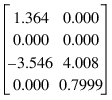
enter the following in the text boxes:
■Row Count - 4
■Column Count - 2
■Values - 1.364, 0.000, 0.000, 0.000, -3.546, 4.008, 0.000, 0.7999
Defining Matrices Using Sparse Format
When you create or modify a matrix using sparse format, you enter only nonzero values.
Learn more about Matrix Format Types.
Note: | You must create additional matrix elements in your Adams View model if multiple matrices are to be read from the same file. |
To create or modify a matrix using sparse format:
1. Click the Elements tab. From the Data Elements container, click the Matrix tool .
. or
(Classic interface) From the Build menu, point to Data Elements, point to Matrix, and then select either New or Modify.
2. If you selected:
■New, the Create Matrix dialog box appears, as shown in Create/Modify Matrix dialog box, and you should continue with Step 3.
■Modify, the Database Navigator appears. Select a data element matrix to modify. The Create/Modify Matrix dialog box appears.
3. In the Matrix Name text box, accept the default name or enter a new name.
4. Select the units that you want assigned for values in your matrix. Select no_units if you do not want units associated with the values. If you set the units for your matrix values, Adams View automatically performs any necessary unit conversions if you ever change your modeling units.
5. Select Sparse Matrix to enter the row position, column position, and value for only nonzero values.
6. Enter the following:
■Row Index - Enter the row numbers, separated by commas, in your matrix containing nonzero values. Enter the row number each time there is a value in the row.
■Column Index - Enter the column numbers, separated by commas, containing nonzero values. Enter the column number each time there is a value in the column.
■Values - Enter the nonzero values in your matrix starting with the first column. Separate each value with a comma.
7. Select OK.
Defining Matrices Using Result Set Components
You can only use a Result set component as matrix values using full format and entering all the values stored in the result set component.
Learn more about Matrix Format Types.
Note: | You must create additional matrix elements in your Adams View model if multiple matrices are to be read from the same file. |
To create or modify a matrix using sparse format:
1. Click the Elements tab. From the Data Elements container, click the Matrix tool .
. or
(Classic interface) From the Build menu, point to Data Elements, point to Matrix, and then select either New or Modify.
2. If you selected:
■New, the Create Matrix dialog box appears, as shown in Create/Modify Matrix dialog box, and you should continue with Step 3.
■Modify, the Database Navigator appears. Select a data element matrix to modify. The Create/Modify Matrix dialog box appears.
3. In the Matrix Name text box, accept the default name or enter a new name.
4. Select the units that you want assigned for values in your matrix. Select no_units if you do not want units associated with the values. If you set the units for your matrix values, Adams View automatically performs any necessary unit conversions if you ever change your modeling units.
5. Select either of the following:
■To specify that matrix values are arranged in order by columns, select Enter Input Ordered by Columns.
■To specify that matrix values are arranged in order by rows, select Enter Input Ordered by Rows.
7. In the Result Set Component Names text box, enter the name or names of the components.
8. Select OK.
Defining Matrices Using Data Files
When creating or modifying a data element matrix, you can define any size matrix using an external data file. You can also specify in the data file whether you are entering the matrix values in full or sparse format.
Learn more about:
Note: | You must create additional matrix elements in your Adams View model if multiple matrices are to be read from the same file |
To create or modify a matrix using full format:
1. Click the Elements tab. From the Data Elements container, click the Matrix tool .
. or
(Classic interface) From the Build menu, point to Data Elements, point to Matrix, and then select either New or Modify.
2. If you selected:
■New, the Create Matrix dialog box appears, as shown in Create/Modify Matrix dialog box, and you should continue with Step 3.
■Modify, the Database Navigator appears. Select a data element matrix to modify. The Create/Modify Matrix dialog box appears.
3. In the Matrix Name text box, accept the default name or enter a new name.
4. Select the units that you want assigned for values in your matrix. Select no_units if you do not want units associated with the values. If you set the units for your matrix values, Adams View automatically performs any necessary unit conversions if you ever change your modeling units.
5. Select From a File.
6. Enter the name of the file containing the matrix values and the name of the matrix in the file. The name of the matrix is necessary even if the file contains only one matrix. You will need to create additional matrices to read other matrices from the same file.
7. Select OK.