Temporary Settings Files
Ribbon menu → Design Exploration tab → Temporary Settings container → Temporary Settings Files 
The Temporary Settings File dialog is required to export/write and read/apply temporary settings files.
For the option: | Do the following: |
|---|---|
Model | Select a model in the current Adams View session from option menu. |
Object Properties - Tab for specifying model object properties. It has data table with two columns. | |
Object Property | This column contains objectName.PropertyName. Add properties here via right-click - Browse or via the Import button which imports a set of properties from an existing temporary settings file. |
Value | In this column specify the corresponding object property values. |
Solver Settings - Tab for specifying Adams Solver settings. It has data table with two columns. | |
Solver Setting | This column contains setting.property. Add properties here via right-click - Browse or via the Import button which imports a set of properties from an existing temporary settings file. |
Values | In this column specify the corresponding solver setting values. |
Insert | Inserts a row above the selected row |
Remove | Removes the selected rows |
File | |
Import | Launches a file browser (by default starting in the current working directory) from which users can select a temporary settings file (.tsf); once selected, both the data tables will be emptied and the contents of the file will populate the two tables. Prior to this action, if either of the tables is not empty then a warning will be issued. |
Export | Launches a file browser (by default starting in the current working directory) that is filtering for *.tsf files from which users can specify a file name (or choose to overwrite an existing .tsf file) to which the contents of the two data tables are written. |
Update Nominal Model | Applies the values in the dialog box to the model in the session overwriting the values in the Adams View Database. Typically this option is used after simulations have already been run using various temporary settings files, file’s values are favored and it’s desired to update the model with that file’s values. |
"Browse" option on right-mouse click within cells
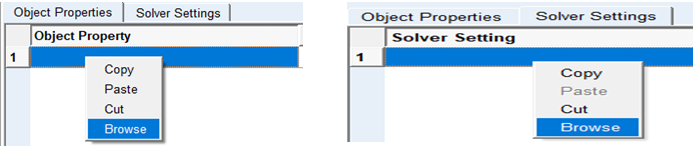
On clicking "Browse" it will open a Property Browser:
Property Browser
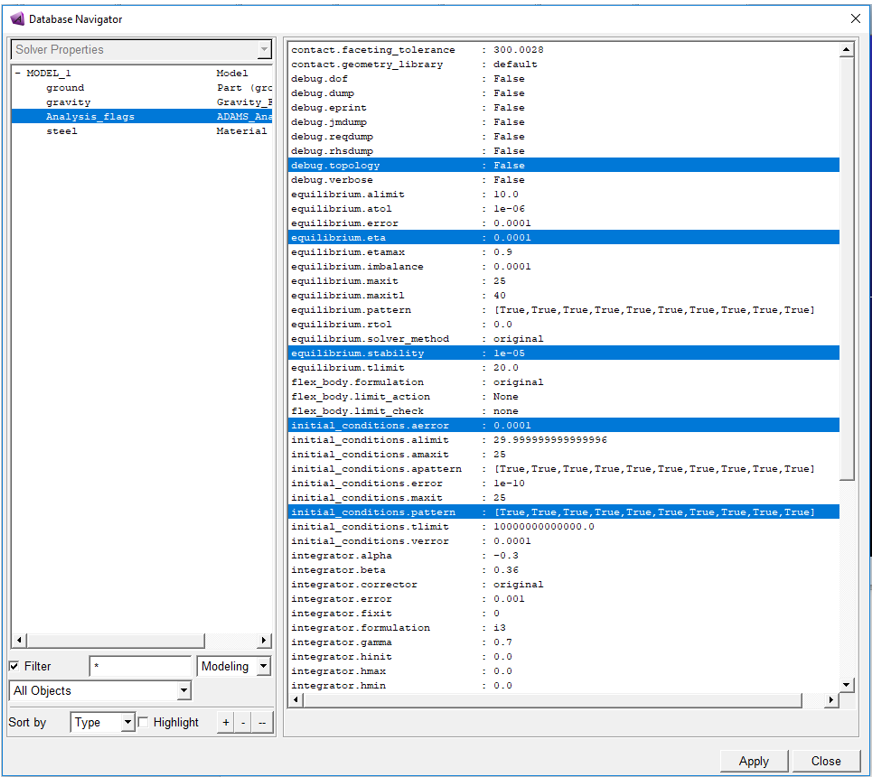
The property browser is for you to browse for objects belonging to the model specified in the Temporary Settings File dialog box, and to select (one or more at a time) from a list of that object's properties as well as solver properties.
1. Solver Settings Property Browser
2. Object Property Browser
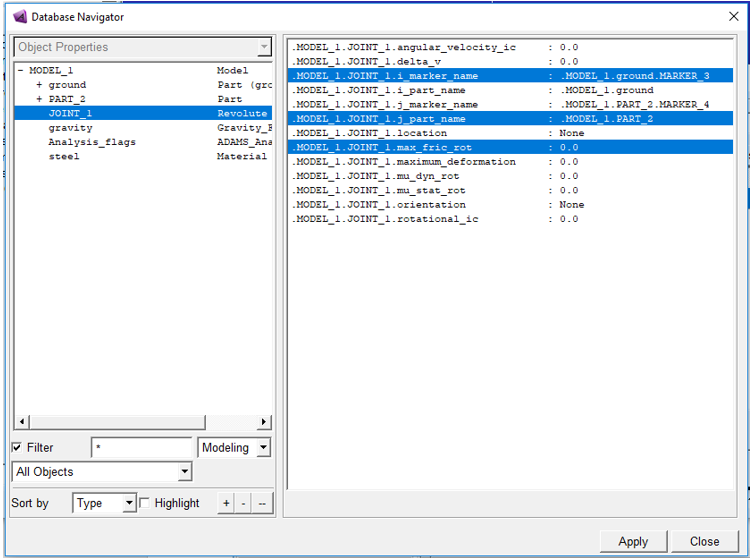
Notes: | ■When you browse the Database Navigator object, the Property Browser contains some properties that are read-only properties which cannot be modified using TSF dialog box. ■The Temporary Settings file only supports those properties which are supported by the Adams Python interface. So, this property browser will show only those properties. ■Some Adams Solver settings are not supported by the temporary settings functionality. They mostly deal with things related to output formatting and display during simulation. All settings in the following categories or sub-categories in the Solver Settings dialog are unsupported by temporary settings: ■Display ■Output ■Files ■Database Storage ■Results (.res) Options ■Results (.res) Contents ■Output (.out) Content ■Message (.msg) Content ■Durability Files ■Debugging (also the "Debug" option under Optimization) ■Advanced |