Force Modify Element Like Field
Right-click field element → Modify
Modifies a field element to define a linear or nonlinear force.
For the option: | Do the following: |
|---|---|
Tips on Entering Object Names in Text Boxes. | |
Field Name | Enter the name of the field element to modify. |
New Field Name | Enter a new name for the field element, if desired. |
Adams Id | Assign a unique ID number to the field element. See Adams Solver ID. |
Comments | Enter any comments about the field element that might help you manage and identify it. See Comments. |
I marker Name/ J marker Name | Specify the two markers between which the force and torque are to be exerted. Adams View applies the component translational and rotational forces for a field to the I marker and imposes reaction forces on the J marker. |
Translation at Preload/ Rotation at Preload | Enter the preload translational and rotational force for the field element. ■Translation at Preload to define three reference lengths. This is the nominal (x0, y0, z0) position of the I marker with respect to the J marker, resolved in the J marker coordinate system. ■Rotation at Preload to define the reference rotational displacement of the axes of the I marker with respect to the J marker, resolved in the J marker axes (a0, b0, and c0) (specified in radians). If the reference force is zero, then the preload is the same as the free length. Entering preload values is optional and defaults to a six zero entry. |
Define Using Standard Values/Define Using Subroutine | Select one of the following: ■Define Using Standard Values and enter values for the text boxes that appear in the dialog box as explained in the next rows of this table. ■Define Using Subroutine and enter parameters to be passed to the user-written subroutine FIESUB to define a nonlinear field. Enter up to 30 values (r1[,...,r30]) that Adams View is to pass to FIESUB. For more on the FIESUB subroutine and nonlinear fields, see the Adams Solver online help. |
If you selected Define Using Standard Values, the following options appear: | |
Force Preload/Torque Preload | Define three preload force components and three preload torque components transferred by the field element when the I and J markers are separated/misaligned by the values specified in the Translation at Preload and Rotation at Preload text boxes.The terms are the force components along the x-, y-, and z-axis of the J marker and the torque components about the x, y-, and z-axis of the J marker, respectively. Entering values for Force Preload and Torque Preload is optional and defaults to six zero entries. |
Stiffness Matrix | Define a six-by-six matrix of stiffness coefficients. The following matrix shows the values to input. 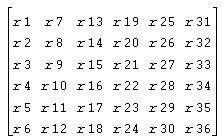 Enter the elements by columns from top to bottom, then from left to right. Learn about units. Note: A finite element analysis program can give you the values for the stiffness matrix. |
Matrix of Damping Terms/Damping Ratio | Enter either a matrix of damping terms or a damping ratio if you want to include damping coefficients in the calculation of the field forces as explained below. The damping matrix defaults to a matrix with thirty-six zero entries. ■To define a six-by-six matrix of viscous damping coefficients, select Matrix of Damping Terms and enter the elements. The following matrix shows the values to input. Enter the elements by columns from top to bottom, then from left to right. ■To enter a damping ratio that defines the ratio of the damping matrix to the stiffness matrix, select Damping Ratio and enter the value. If you enter a damping ratio, Adams Solver multiplies the stiffness matrix by the ratio to obtain the damping matrix. Do not enter a ratio without also entering a stiffness matrix. Note: A finite element analysis program can give you the values for the damping matrix. |
If you selected Define Using Subroutine, the following options appear: | |
User Function | Enter up to 30 values (r1[,...,r30]) that Adams Solver is to pass to Learn about units. For more on FIESUB and nonlinear fields, see the Adams Solver online help. |
Routine | Specify an alternative library and name for the user subroutine. Learn about specifying your own routine with ROUTINE Argument. |
FORMULATION | By default, the LINEAR option is used. The LINEAR option matches the behavior of previous releases. The NONLINEAR option forces Adams Solver to add a geometric stiffness term; this option is useful if the FIELD is being used to model beams. Default: LINEAR |
LENGTH_TOL | When using FORMULATION=NONLINEAR, the geometric stiffness uses the larger of the current length and length tolerance. Default: 1.e-05 |