Single-Component Force tool
Ribbon menu → Forces tab → Applied Forces container→ Single-Component Tool 
or
(Classic) Build → Forces → Single-Component Tool
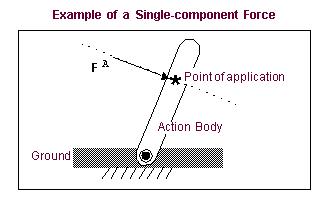
Applies a translational force in one of two ways:
■To one movable part - You select the part, the location of the point of application, and the direction. Adams View automatically applies the force to ground.
■To two parts - You select the parts and the locations of the point of application on each part. Adams View automatically defines the direction based on the line of sight between the two locations. The direction is continuously updated during Simulation.
You cannot use the line-of-sight method if the two points that define the force will become coincident during a simulation because the force direction becomes undefined. When running a simulation, Adams Solver warns you when the points become nearly coincident. The following shows an example of a warning:
Caution: | The direction cosines for SFORCE model_1.FORCE_1 are invalid. This is usually caused by a (nearly) zero length SFORCE or SPRINGDAMPER. |
Notes: | Unit-bearing expressions get resolved down to a real and AView does not adjust them to match the units assumption within ASolver functions. |
You can ignore the warning only if the computed force is zero when the points are coincident (for example, when you are using a BISTOP function that is inactive when its markers are coincident). Otherwise, having coincident points is a modeling error with unpredictable results.
Learn more about:
For the option: | Do the following: |
|---|---|
Run-Time Direction | Specify the number of parts and the nature of the force direction. You can select the following: ■Space Fixed ■Body Moving ■Two Bodies |
Construction | Set how you want the force oriented. You can select: ■Normal to Grid - Lets you orient the force normal to the current working grid, if it is displayed, or normal to the screen. ■Pick Feature - Lets you orient the force along a direction vector on a feature in your model, such as along an edge or normal to the face of a part. |
Characteristic | Specify the characteristics of the force: ■Constant torque - Lets you enter a constant torque value or let Adams View use a default value. ■Spring-Damper - Lets you enter stiffness and damping coefficients and lets Adams View create a function expression for damping and stiffness based on the coefficient values. (Not available when you are using the Main toolbox to access the force tool.) ■Custom - Adams View does not set any values for you, which, in effect, creates a force with zero magnitude. After you create the force, you modify it by entering a function expressions or parameters to a User-written subroutine that is linked to Adams View. You can also specify an alternative library and name for the user subroutine. Learn about specifying routines with ROUTINE Argument. |
If you selected Constant Torque, the following option appears: | |
Force Value | Enter a constant torque value. |
If you selected Spring-Damper, the following two options appear: | |
Translational K | Enter the stiffness coefficients. |
Translational C | Enter the damping coefficients. |