Geometry Modify Curve Arc
Right-click an arc → Modify
Allows you to control the size and location of an arc. You can modify a circle by following the same steps. Learn about the Arc Tool.
For the option: | Do the following: |
|---|---|
Arc Name | Enter the name of the arc you want to modify. |
New Arc Name | If you want, enter a new name for the arc. |
Adams Id | Assign a unique ID number to the array. See Adams Solver ID. |
Comments | Enter any comments about the geometry to help you manage and identify it. See Comments. |
Center Marker | Enter values for the marker at the center of the arc or circle. The plane of the arc is normal to the z-axis of the center marker. |
Angle Extent (arcs only) | Enter values for the extended angle measured positive (according to the right-hand rule) about the z-axis of the center marker of an arc. The angle starts at the positive x-axis of the center marker and extends the arc. 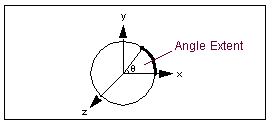 |
Radius/Ref Radius By Marker | Choose either Radius or Ref Radius By Marker. Enter either the radius of the arc or circle or enter a radius marker. If you specify a radius marker, Adams View calculates the radius of the arc or circle as the distance from the center marker origin to the radius marker origin. Adams View stores the radius value, not the marker name. If you later move the marker, the radius does not change. |
Segment Count | Displays the number of straight line segments Adams View uses to draw the circle or arc. |
Close | For an arc, select one of the following: ■Chord or Yes - Closes the arc from the starting point to the ending point. ■Sector - Closes the arc so that it creates a pie-shaped arc. ■No - Creates an open arc. 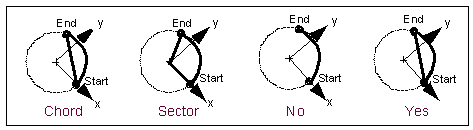 |