Polyline Tool
Ribbon menu → Bodies tab → Construction container → Polyline Tool 
or
(Classic) Build → Bodies/Geometry → Polyline Tool
Creates single- and multi-line segments (polylines) and create open or closed polylines (polygons)
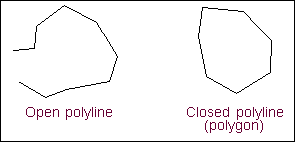
Before drawing lines or polylines, you can specify the length of the line or lines to be created so you can quickly create perfectly sized lines and polylines.
When creating a single line, you can also specify the angle of the line. The angle you specify is relative to the x-axis of the global coordinate system or the working grid, if it is turned on. When you create line geometry, you can select to create a new part consisting of the line geometry or add the line geometry to an existing part. If you create a new part, it has no mass since it is composed of only wire geometry. You can extrude the lines into solid geometry that has mass. For more information, see Extruding Construction Geometry Along a Path.
Learn about Creating Lines and Polylines.
For the option: | Do the following: |
|---|---|
New Part/Add to Part/On Ground | Select either: ■New Part - Creates a new part. ■Add to Part - Adds the polyline to another part in your model. ■On Ground - Adds the polyline to ground. Tip: Add geometry to ground if the geometry does not move or influence the simulation of your model. For example, if you are simulating a car driving around a race track, the geometry that defines the race track can be added to ground. |
Polyline/One Line | Select either: ■Polyline - Creates a line made up of multiple lines. ■One Line - Creates a single line. |
Length | Set the length of the single line or the individual lines making up the polyline. This should give you greater control. |
Angle | Set the angle of the line. If you set the angle for a polyline, Adams View creates all the lines making up the polyline at the same angle. |
Closed | Set to create a closed polygon. |
Note: | Adams View places hotpoints at the endpoint of each line segment after you draw the objects. The hotpoints let you reshape the lines. If you create a closed polyline, Adams View maintains it as a closed polyline regardless of how you move the hotpoints. For more information on modifying geometry using hotpoints, see Using Hotpoints to Graphically Modify Geometry. You can also use the line or polyline modify dialog box to more accurately place the points that make up the line or polyline. You can also read in location points from a file. For more information, see Using Dialog Boxes to Precisely Modify Geometry and Using the Location Table. |