Modifying Rigid Body Geometry
You can modify the geometry of a rigid body using:
■Hotpoints that appear on the geometry when you select it.
■A dialog box to enter information about the geometry, such as the location of anchor points, its width, or its depth. In addition, some dialog boxes let you easily edit profile point locations through a Location Table.
Using Hotpoints to Graphically Modify Geometry
You can use hotpoints to resize and reshape the geometry of a rigid body. The hotpoints appear at various locations on the geometry depending on the type of geometry.
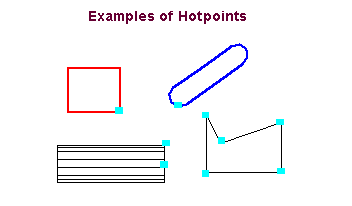
Refer to the help on creating a geometry to see where Adams View places hotpoints on the different types of geometry.
To display hotpoints on geometry:
■Click the geometry using the left mouse button.
To use the hotpoints to resize and reshape geometry:
■Drag the hotpoint to the desired location and release the mouse button. See a Picture of dragging hotpoints.
Using Dialog Boxes to Precisely Modify Geometry
You can precisely control the size, location, and shape of rigid body geometry using modify dialog boxes. In addition, you can change the name of the geometry as you modify it.
Note: | To modify a point, you use the Table Editor because a point only consists of a location. In addition, for lines, polylines, extrusions, and revolutions, you can use the Location Table that lets you edit the locations of profile points. For more information, see Editing Locations Using the Location Table. |
To see all the different types of geometry that make up a part:
■Place the cursor on a part and hold down the right mouse button.
Adams View displays the names of the geometry near the cursor location. If it is a very complex part, you may need to move the cursor to different locations on the part to see all the different types of geometry.
Note: | You can also use the Info command to view the geometry that belongs to a part. Learn about Viewing Model Topology Map Through Information Window. |
To display a modify dialog box for geometry and modify geometry:
1. Place the cursor over the part containing the geometry and hold down the right mouse button.
2. Point to the name of the geometry that you want to modify and then select Modify.
The modify dialog box for the geometry appears.
3. Change the name of the geometry, if desired, and assign a unique ID number to the geometry, if appropriate.
4. Add any comments about the geometry that you want to enter to help you manage and identify the geometry.
To enter comments for extrusions, revolutions, lines, and polylines, select the Comments tool  at the bottom of the dialog box.
at the bottom of the dialog box. 5. Enter the values for the geometry, and then select OK. To get help with entering the values, press F1 when the cursor is in the dialog box.
Editing Locations Using the Location Table
To specify the location of points in lines, polylines, splines, Extrusions, and revolutions, you can use the Location table. The Location Table lets you view the points in lines, polylines, splines, extrusions, and revolutions and edit them. You can also save the location information to a file or read in location information from a file.
Learn more:
For general information on using tables in Adams View, see Using Tables to Enter Values.
Displaying the Location Table
To display the Location table:
 .
. Working in the Location Table
To enter values in a cell of the Location table:
1. Click the cell.
The text cursor appears in the cell.
2. Type the values in the selected cell.
To insert text into multiple cells:
1. In the Set Selected text box, enter the text that you want to insert.
2. Select the cells in which you want to insert the text.
3. Select Set Selected.
To resize a column:
1. Point to the right border of the column heading that you want to resize. The cursor changes to a double-sided arrow.
2. Drag the cursor until the column is the desired size.
3. Release the mouse button.
To resize all columns equally in the Location table:
■Select either the Widen or Narrow tool.
To insert a row before a row:
1. Select the row above which you want to insert a new row.
2. Select Insert.
To insert a row after a row:
1. Select the row below which you want to insert a new row.
2. Select Append.
To delete a row:
1. Select the row or rows you want to delete.
2. Select Delete.
To reset the Location Table:
■Select Reset.
Reading and Writing Location Information
You can save the current location information in the Location table in ASCII format. Adams View places spaces between each cell.
You can also read in location information from an ASCII file to be used as the location of points in the associated geometry. The information must be in the same format as numeric data that you input into Adams View using the Import command. For more information, see File Import dialog box help.
Note: | Adams View reads the location information starting at the first line that has numerical information. If there are headers in the file, Adams View reads the header information when you first read in the file and changes the headers in the Location table accordingly. It resets the headers to the default headers (X, Y, and Z), however, the next time you open the Location table. |
To read or write in location information:
1. Select Write or Read from the Location table.
The File Selection dialog box appears.
2. Double-click the directory that contains the file.
3. In the File Name text box, type the file name you want to open, or highlight the file in the list.
4. Select OK.