Sphere Tool
Ribbon menu → Bodies tab → Solids container → Sphere Tool 
or
(Classic) Build → Bodies/Geometry → Sphere Tool
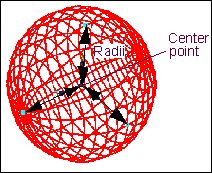
Creates a solid ellipsoid whose three radii are of equal length. You draw the sphere by indicating its center point and the radius for the three radii.
Before you draw the sphere, you can also specify the radius value for the three radii
For the option: | Do the following: |
|---|---|
New Part/Add to Part/On Ground | Select either: ■New Part - Creates a new part. ■Add to Part - Adds the sphere to another part in your model. ■On Ground - Adds the sphere to ground. Note: Add geometry to ground if the geometry does not move or influence the simulation of your model. For example, if you are simulating a car driving around a race track, the geometry that defines the race track can be added to ground. |
Radius | Select, and then enter the desired radius. |
Note: | After you draw the sphere, three hotpoints appear on it that let you reshape the radii of the sphere. For example, you can elongate the sphere into an ellipsoidal shape. For more information on modifying geometry using hotpoints, see Using Hotpoints to Graphically Modify Geometry. |