Torus Tool
Ribbon menu → Bodies tab → Solids container → Torus Tool 
or
(Classic) Build → Bodies/Geometry → Torus Tool
Creates a solid circular ring. You draw the ring from the center outward. By default, the Torus tool makes the radius of outer ring (minor radius) 25% of the inner ring (major radius).
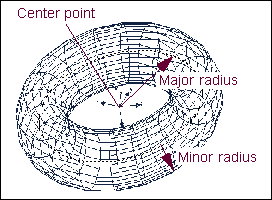
You can also specify the minor and major radii before you draw.
For the option: | Do the following: |
|---|---|
New Part/Add to Part/On Ground | Select either: ■New Part - Creates a new part. ■Add to Part - Adds the torus to another part in your model. ■On Ground - Adds the torus to ground. Tip: Add geometry to ground if the geometry does not move or influence the simulation of your model. For example, if you are simulating a car driving around a race track, the geometry that defines the race track can be added to ground. |
Minor Radius | If desired, select and enter the inner radius for the torus. |
Major Radius | If desired, select and enter the outer radius for the torus. |
Note: | Two hotpoints appear on a torus after you draw it. One controls the centerline of the torus’ circular shape and the other controls the radius of the circular cross-section. For more information on modifying geometry using hotpoints, see Using Hotpoints to Graphically Modify Geometry. |