Plots Transfer Function
Ribbon menu → Elements tab → System Elements container → Transfer Function  → Check Format and Display Plot
→ Check Format and Display Plotor
(Classic) Build → System Elements → Transfer Function → New or Modify → Check Format and Display Plot
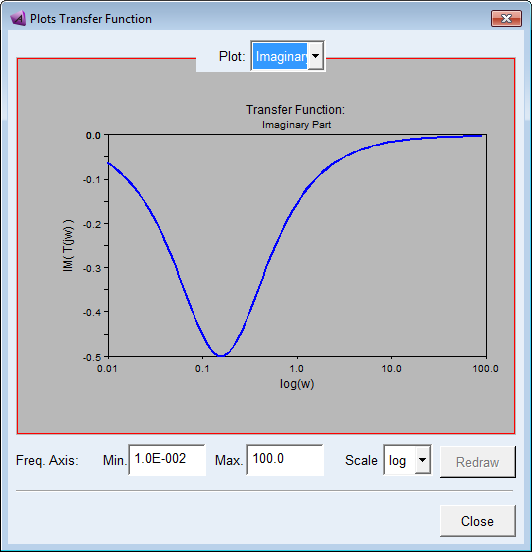
Displays a plot of the transfer function you created using the Create/Modify Transfer Function dialog box. Learn more about Creating and Modifying Transfer Functions.
For the option: | Do the following: |
|---|---|
Plot | Select the type of plot to display: ■Magnitude - The magnitude of the transfer function element's frequency response. ■Phase Angle - Phase of the transfer function element's frequency response. ■Real Part - Real part of the frequency response of the transfer function element. ■Imaginary Part - Imaginary part of the frequency response of the transfer function element. |
Plot Display | Display a plot of the transfer function. Right-click to perform operations on the plot, such as clear the plot. Right-click on each element in the plot to delete that element. Note: There are several operations displayed in the shortcut menu when you right-click but many are not supported in the plot display. |
Min | Set the minimum value for the frequency axis (horizontal). Press Enter to enable the Redraw button. |
Max | Set the maximum value for the frequency axis (horizontal). Press Enter to enable the Redraw button. |
Scale | Select either: ■log - Scales the axis values so that each power of 10 is separated by the same distance. For example, the values 1, 10, 100, 1000, and 10,000 are equally spaced. ■lin - Displays the axis values linearly, starting at 0. |
Redraw | Redraws the plot after you change the scale of the plot. |