Calculating Aggregate Mass of Parts
You can have Adams View calculate the total mass and inertia of a part or parts in your model. Adams View returns the information in the Information window or in a specified file. It ignores the ground part or any part that has no mass.
By default, Adams View calculates all location coordinates and orientation angles in the current global coordinate system. You can select a different coordinate system or reference frame relative to which you would like the coordinates and angles returned. When calculating the aggregate mass, Adams View essentially places a temporary marker at the center of mass location of the selected parts and then calculates the inertia properties in principal moments (without off-diagonal terms). The calculated inertia tensor is then transformed to the given reference frame (or to global coordinates, if no reference frame is selected). Note that the reported inertia tensor is not relative to the total CM location/orientation, it is relative to the selected reference frame.
The orientation shown is the orientation of the principal moments of inertia.
If no reference frame is selected, then the calculated inertia tensor is additionally reported relative to the total CM location and orientation, and thirdly relative to the total CM location but global orientation.
There are two ways to calculate aggregate mass:
Method 1: From the Tools menu
1. From the Tools menu, select Aggregate Mass.
The Aggregate Mass dialog box appears.
2. Set Bodies to one of the following:
■Selected to calculate the mass of only certain parts.
■All to calculate the aggregate mass of all the bodies in your model.
3. If you selected to calculate the aggregate mass of only a selected set of parts, select Select. A list of parts in your model appears. Select the desired parts. Tips To select objects:.
4. In the Relative to text box, if desired, enter another coordinate system, with respect to which you'd like calculations to be relative. By default the calculations are relative to the global coordinate system.
5. Set Info Window to one of the following:
■Replace to replace existing information.
■Append to append existing information.
■None
6. Select how you want the output displayed. You can display it in the information window and to a file.
7. If you want to save the results to a file, in the File Name text box, enter the name of the file in which you want to save the information. If you want the information written to a directory other than the one from which you are running Adams View, enter the path.
8. Select OK.
Method 2: From the Model Browser
1. Select multiple objects from Model Browser
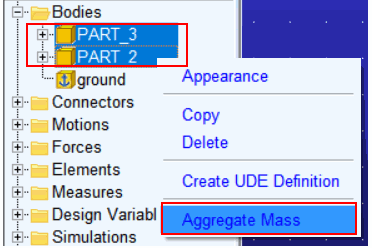
2. Right click and select Aggregate Mass.
Aggregate Mass information will be displayed in the Information Window.