About Adams View Menus and Dialog Boxes
Many of the windows, menus, and dialog boxes you see in Adams View are interface objects in the Adams View Modeling database. Using Adams View commands, the Menu Builder, and the Dialog-Box Builder, you can modify, delete, or add to the standard windows, menus, and dialog boxes. You can make changes such as:
■Remove menu entries that you seldom use.
■Add a new shortcut menu to display a standard dialog box that you often use.
■Add a set of menus and dialog boxes to execute your own macros or command files. (For more on macros, see Automating Your Work Using Macros.)
■Create a custom interface for your particular Adams application, perhaps simplifying virtual prototyping for novice users.
Note: | You cannot customize all Adams View dialog boxes and tools. For example, you cannot customize the Plugin Manager or the Information window. The Dialog-Box Builder's Dialog Box -> Open menu provides access to those dialog boxes, containers, and toolbars that you can customize. |
Adams View Interface Objects
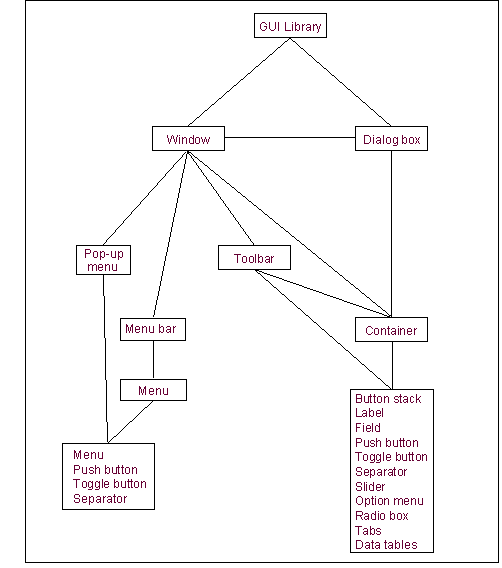
Most of the Adams View interface is stored in the Modeling database in a hierarchy similar to that of modeling objects. All standard, customizable interface objects are stored under a library named GUI. The library is a convenient place to collect all the standard interface objects.
The two top-level interface objects are windows and dialog boxes. The main modeling window, for example, is named main. Its full database name is .gui.main.
Windows and dialog boxes look similar, although they are quite different. Windows usually stay on the screen for some time as you work in them, while dialog boxes come and go as you need to enter data or access controls. Windows can contain toolbars and menu bars. Both windows and dialog boxes contain other interface objects such as buttons, labels, and so on.
Most customizing involves creating new dialog boxes or modifying standard dialog boxes. Unless you are creating an entirely custom interface, you will not need to modify the standard windows themselves. You may want to modify the menu bars, menus, and toolbars.
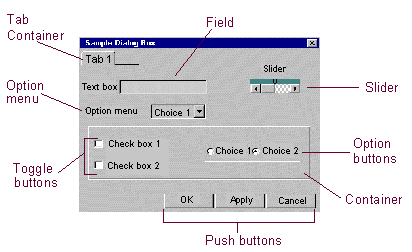
Dialog boxes and toolbars can contain interface objects such as labels, fields, buttons, toggle buttons, radio boxes, option menus, and sliders. In addition, containers and button-stack objects allow you to group other objects.
Most of the modeling menus and dialog boxes ar e available in the database, and you can customize these. Some dialog boxes are controlled entirely from within Adams View. These do not appear in the database, and you cannot customize them. They include:
■Database Navigator
■Dialog-Box Builder
■Command Navigator
■Data Browser in the plotting window
■File Selection dialog box
■Coordinate window
■Plugin Manager
List of Interface Objects
Below is a list of objects you can add to dialog boxes and their intended uses.
Object: | Does the following: |
|---|---|
Label | Displays text or an image in a dialog box. |
Field | Provides space where you can enter text or numbers. |
Button | Activates an operation; has a picture (icon), label, or text on it, indicating what the operation is. |
Toggle Button | Indicates an active status. |
Separator | Draws a horizontal line. Does not allow application interaction. |
Slider | Sets the numerical value of an object without having to type in data. |
Option Menu | Allows one of many selections; with a push graphic to allow the entire list to appear. |
Radio Box | Sets states or modes. |
Button Stack | Allows multiple buttons to come up so you can select one by clicking and dragging the right mouse button. |
Container | Allows overlaid information. |
Tab Container | Similar to a container but can be added to a dialog box or another container. When you add a tab container, a tab appears in the parent container. |
Data Table | Displays numbers and allows you to add columns or rows. |
Hierarchy of Interface Objects
Examples of Interface Objects
How the Interface Works
As you use the Adams View interface to make changes to your model, the interface executes Adams View commands. For example, if you use a dialog box to change a spring's stiffness, when you select OK, the interface issues the commands to modify the spring object, including the spring stiffness you specified in the dialog box. You can see these commands in the Command Window or in the Adams View Log file.
You control the behavior of your custom interface by programming commands for it to issue. For example, you specify the commands a button executes when the user selects it. Fields, option menus, radio boxes, toggle buttons, and sliders can also execute commands.
There are no restrictions on the commands that the interface can execute. A button can change your model, display a dialog box, or change another setting or object in the dialog box. It can also execute a macro you wrote. Adams View macros allow you to create your own commands that automate complex or repetitive procedures. For more information on macros, see Automating Your Work Using Macros.
Changing the Interface
The Menu Builder and Dialog-Box Builder are interactive tools that you can use to customize the interface. They allow you to quickly access and change most Interface objects and capabilities. Using these, you can do a great deal of customization without going into the details of the interface commands and how they are stored.
The command interface in the Command Navigator contains full creation, deletion, and modification commands for all the interface objects. These commands give you access to all capabilities, some of which are not available from the builders. You will find these commands useful within the interface itself to display objects, change settings, or change appearances depending on a user's input.
Saving Interface Changes
There are several ways to save your interface changes. One option is to save the objects in the standard Modeling database, aview.bin, or in any modeling database you create. Whether you save your changes in the standard modeling database or your own depends on the extent to which you want the menu changes available in future work:
■Storing the changes in the standard modeling database aview.bin makes the changes available whenever a user starts Adams View.
■Storing the changes in a particular modeling database makes the menus available only when a user opens that database.
Another option is to save the new or modified objects in a command or menu text file that you can reload as needed. The Dialog-Box Builder’s Export command writes a dialog box to an Adams View command file. To reload this file, use the Import command or the file command read command to read the command file. This is the most reliable way of making your GUI customization upwardly compatible in future versions of Adams View.
The Menu Builder Export Text menu writes the text outline for the menu to a text file. To reload the menu, use the Menu Builder Import Text menu or the interface menubar read command to read the text file into a menubar.
For a comparison of modeling databases and command files, see Comparison of Adams File Formats. For information on using aview.cmd to execute commands automatically when you start Adams View, see Running and Configuring Adams.
Note: | Customizations made directly in Adams libraries (for example, gui, amachinery, acar) and saved as a modelling database file (.bin) will not be retained if opening that .bin file in a future version of Adams. To save such customizations in a modelling database file (.bin), they should be made in user defined plugins/libraries. Such .bin files from a previous version will open properly with the customizations in future versions of Adams. To learn more about plugins see Authoring Plugins. |