Example of Using Contact Forces
Overview
The following example demonstrates how to create a contact between a cam and follower on a cam valve. In the example, you import an Adams View command file that builds the valve cam model for you. You then create a curve-to-curve contact force to define how the cam and follower come into contact. Finally, you run a simulation of the model to see the forces acting between the cam and follower. The model is shown in Figure 2.
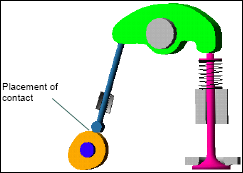
Figure 2 Valve Cam Example
The command file that you’ll use is in the directory install_dir/aview/examples/user_guide, where install_dir is the directory in which Adams software is installed.
The example is divided into the following sections:
Importing the Command File
To import the command file to create the valve cam:
1. Copy the command file valve.cmd to your local directory. It is located in the install_dir/aview/examples/user_guide directory, where install_dir is the directory in which the Adams software is installed.
Note: | By default on Windows, files in the installation directory are read-only. During installation, your system adminstration can choose to change the permissions so you can write to the installation directory. If this has not been done, you will need to change the permissions of the above file when you copy them to your working directory. |
2. Start Adams View and import valve.cmd.
3. Zoom in on the location where the cam and follower meet so that your window looks similar to the one shown in Figure 2.
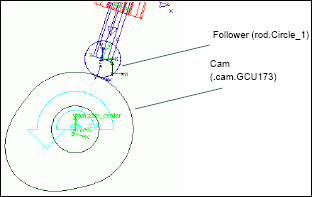
Figure 3 Zoomed Valve Cam Example
Creating the Contact Force
Now you’ll create a contact force between the cam and follower. When modeling contacts, you will typically have several options for how you define the contact. In this example, you could define the contact between three-dimensional solid objects (for example, the cylinder on the follower and the extrusion representing the cam). You will, however, use two-dimensional elements to reduce the time it takes to solve the simulation.
To create the contact:
1. From the Force tool stack, select the Contact Force tool  .
.
. The Create Contact dialog box appears.
2. Set Type to Curve to Curve.
3. Right-click the I Curve text box, point to Contact_Curve, and then select Pick.
4. Select the follower geometry on the part Rod (Circle_1). For the location of Circle_1, see Figure 3.
The I Direction pull-down menu fills with the selected geometry.
5. Right-click the J Curve text box, point to Contact_Curve, and then select Pick.
6. Select the cam geometry. It is a BSPLINE with the name .valve.cam.GCU173. For the location of .valve.cam.GCU173, see Figure 3.
The J Direction pull-down menu fills with the selected geometry.
7. Select OK.
Adams View creates a contact force between the cam and follower. Notice that it places a white arrow on each curve to show the direction of the force. Figure 4 shows the arrows. For this example, you don’t need to change direction. If you did need to change it, you’d select the geometry in a Direction pull-down menu, and then select the Change Direction tool  .
.
. 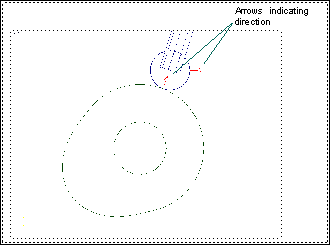
Figure 4 Arrow Indicating Contact-Force Direction
Simulating the Contact Force
Now you’ll simulate the model to see how the cam and follower come into contact now that you’ve added a contact force.
To run a simulation:
1. From the Main toolbox, select the Simulation tool .
.
. 2. Set the simulation to have an end time of 1.0 second and 100 output steps.
3. Select the Simulation Start tool  .
.
. Notice how the follower lifts off the cam during the simulation.
Viewing the Results of the Simulation
Now you’ll review the results of the simulation.
To view results of the simulation:
1. From the Review menu, select PostProcessing.
2. Load the animation of the simulation.
3. To divide the window into two viewports, right-click the Page Layout tool stack  , and select the 2 Views - side by side tool.
, and select the 2 Views - side by side tool. 4. Plot the results of the contact force in the right view.
5. Animate and observe the animation as the cam goes through three cycles. Notice the increased force as the lifter begins movement and the spline when it loads.